
Video Source Editing Canvas
This document provides a detailed introduction to Video Source Editing Canvas (StreamMixer). You can refer to the sample code in this document to integrate our pre-developed components into your existing project, or customize the style and layout according to your needs by following the component customization section in the document.
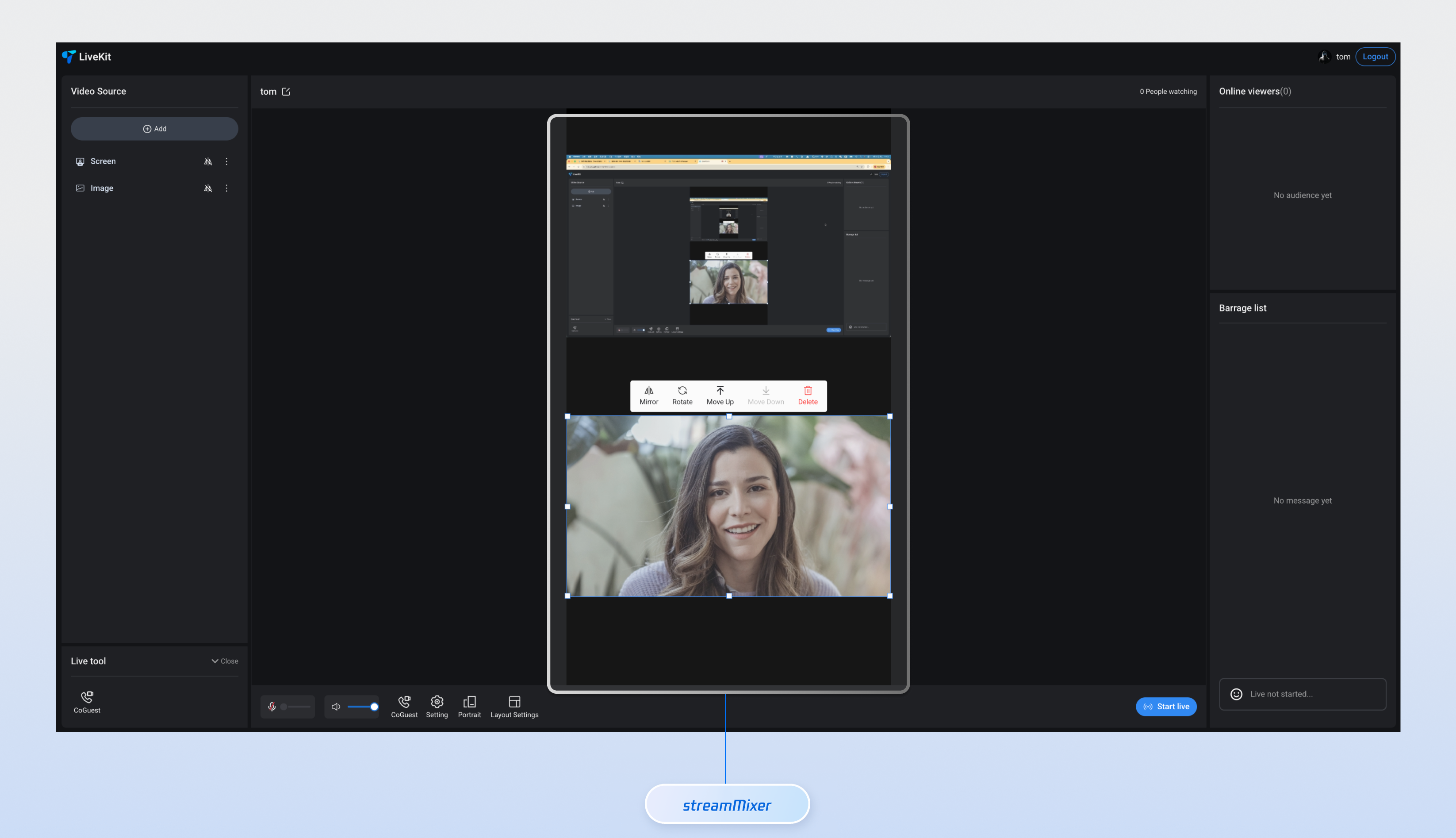
Core Features
Feature Category | Specific Capabilities |
Real-time preview | Provide a WYSIWYG editing experience where hosts can intuitively see the mixed stream effect, supporting operations like rotation, move, scale, mirror, and hierarchy adjustment. |
Template layout | Built-in multiple live streaming room layout templates support automatic adaptation to different microphone-connected scenarios, including nine-grid, 1v6, floating window, helping you quickly switch between different live stream styles. |
User status management | Intelligent detection of co-broadcasting users joining and exiting, automatic layout adjustment with no manual intervention required, ensuring smooth live streaming and providing seamless experience for hosts. |
Customizable UI | To meet diverse business scenarios, the video source editing canvas provides component UI customization slots, enabling full control over co-broadcasting users' video stream areas. Rewrite their UI display, flexibly define avatars, nicknames, status, and other information, and easily create a unique visual experience that matches your UI style. |
Component Integration
Step 1: Configuring the Environment and Activating the Service
Before quick integration, you need to refer to Preparations, meet related environment configuration and activate corresponding service.
Step 2: Installing Dependencies
npm install tuikit-atomicx-vue3 @tencentcloud/uikit-base-component-vue3 --save
pnpm add tuikit-atomicx-vue3 @tencentcloud/uikit-base-component-vue3
yarn add tuikit-atomicx-vue3 @tencentcloud/uikit-base-component-vue3
Step 3: Joining Live Room
Introduce and use the Video Source Editing Canvas in your project. You can copy the following example code directly to your project and add the corresponding live streaming room.
<template><UIKitProvider theme="dark"><div class="app"><LiveScenePanel class="live-scene-panel" /><StreamMixer class="live-stream-mixer" /></div></UIKitProvider></template><script setup lang="ts">import { onMounted } from 'vue';import { UIKitProvider } from '@tencentcloud/uikit-base-component-vue3';import { LiveScenePanel, StreamMixer, useLoginState, useLiveListState, useCoGuestState } from 'tuikit-atomicx-vue3';const { login, loginUserInfo } = useLoginState();const { createLive } = useLiveListState();const { applyForSeat } = useCoGuestState();async function initLogin() {try {await login({sdkAppId: 0, // SDKAppID, see Step 1 to getuserId: '', // UserID, see Step 1 to getuserSig: '', // userSig, see Step 1 to get});} catch (error) {console.error('login error:', error);}}onMounted(async () => {await initLogin();// After the anchor creates a live streaming room// StreamMixer automatically pushes the local composite video stream to the roomawait createLive({liveId: `live_${loginUserInfo.value?.userId}`,liveName: `${loginUserInfo.value?.userName}'s live stream room`,});// The client can join the live room by calling the method and switch on/off mic as needed.// After the audience succeeds in going on mic, StreamMixer starts TRTC streaming automaticallyawait applyForSeat({ seatIndex: 1, timeout: 60 });});</script><style>.app {width: 100vw; height: 100vh; display: flex; justify-content: center; align-items: center}</style>
npm run dev

Component Customization
Video Source Editing Canvas provides a flexible component customization slot that supports you in adjusting the style and layout of elements such as avatar, nickname, and status based on your own needs. It also supports customizing the video stream area for co-streaming UI. Below are slot usage examples.
Component Slot
Name | Parameter | Description |
seatViewUI | seatInfo: SeatInfo | Display UI for custom seat |
// Example of using the seatViewUI slot<StreamMixer><CustomSeatViewUI #seatViewUI></CustomSeatViewUI></StreamMixer>
1.
SeatInfo defines the basic info and status of each seat in a live streaming room:Parameter | Type | Required | Description |
index | number | Required | The seat index number starts incrementing from 0, used to identify the seat position in the room. |
isLocked | boolean | Required | The seat lock status, true means the seat is locked and other users are unable to enter; false means the seat is open. |
userInfo | SeatUserInfo | optional | The user information of the current occupant in this seat. If the seat is empty, it is undefined. |
region | RegionInfo | optional | The display region information of the seat in the video canvas, for multiple streams video layout. |
interface SeatInfo {index: number; // Seat indexisLocked: boolean; // Whether the seat is lockeduserInfo?: SeatUserInfo; // User information on the seat (optional)region?: RegionInfo; // Region information of the seat in the canvas (optional)}
2.
SeatUserInfo defines the user details of each seat in a live streaming room:Parameter | Type | Required | Description |
roomId | string | Required | The current unique identifier of the live streaming room, used to distinguish different live streaming rooms |
userId | string | Required | User's Unique Identifier, must be unique in the entire system |
userName | string | Required | The name displayed for users in live streams supports Chinese, English, and other characters. |
avatarUrl | string | Required | The complete URL of the user profile photo supports HTTPS protocol. |
microphoneStatus | DeviceStatus | Required | Microphone status |
microphoneStatusReason | DeviceStatusReason | Required | Reasons for microphone status changes, to distinguish between user proactive operation and administrator operation |
cameraStatus | DeviceStatus | Required | Camera status |
cameraStatusReason | DeviceStatusReason | Required | Reasons for camera status changes, to distinguish between user proactive operation and administrator operation |
interface SeatUserInfo {roomId: string; // Live streaming room IDuserId: string; // User IDuserName: string; // User Display NameavatarUrl: string; // User Avatar URLmicrophoneStatus: DeviceStatus; // mic statusallowOpenMicrophone: boolean; // whether to allow turning on microphonecameraStatus: DeviceStatus; // camera statusallowOpenCamera: boolean; // whether to allow turning on camera}export type SeatUserInfo = {liveId: string; // Live streaming room IDuserId: string; // User IDuserName: string; // User Display NameavatarUrl: string; // User Avatar URLmicrophoneStatus: DeviceStatus; // mic statusmicrophoneStatusReason: DeviceStatusReason; // reason for changecameraStatus: DeviceStatus; // camera statuscameraStatusReason: DeviceStatusReason; // reason for change}
3.
RegionInfo defines the display area and hierarchical information of the seat in the video canvas:Parameter | Type | Required | Description |
x | number | Required | X-coordinate of the region's top-left corner relative to the canvas (pixel value) |
y | number | Required | Y-coordinate of the region's top-left corner relative to the canvas (pixel value) |
w | number | Required | Width of the region (pixel value), must be greater than 0 |
h | number | Required | Height of the region (pixel value), must be greater than 0 |
zOrder | number | Required | Z-order, the larger the value, the more positioned towards the front for processing overlap display priority |
interface RegionInfo {x: number; // Top-left X-axis coordinate of the regiony: number; // Top-left Y-axis coordinate of the regionw: number; // Region widthh: number; // Region heightzOrder: number; // Z-order}
Custom Slot Example
To help you better experience and understand the customized capability of the seatViewUI slot in the video source editing Canvas component, we provide a live streaming and mic connection scenario example for your reference. You can refer to the above step 3 to incrementally copy the following code into your project to achieve a similar effect.
<template><StreamMixer><template #seatViewUI="{ userInfo }"><divclass="live-stream-view":class="{ 'is-anchor': isAnchor(userInfo), 'is-guest': !isAnchor(userInfo) }">User information overlay<div class="user-overlay"><div class="user-badge" :class="{ 'anchor-badge': isAnchor(userInfo) }">{{ isAnchor(userInfo) ? 'Anchor' : 'Audience' }}</div><div class="user-name">{{ userInfo.userName }}</div><div class="device-status"><span :class="['mic', userInfo.microphoneStatus]"></span><span :class="['camera', userInfo.cameraStatus]"></span></div></div></div></template></StreamMixer></template><script setup lang="ts">import { StreamMixer } from 'tuikit-atomicx-vue3';import type { SeatUserInfo } from 'tuikit-atomicx-vue3';// Determine whether it is an anchor (based on business logic)const isAnchor = (userInfo: SeatUserInfo) => {// Here access can be judged based on uid and rolereturn userInfo.userId.includes('anchor') || userInfo.userName.includes('Anchor');};</script><style scoped>.live-stream-view{position:relative;width:100%;height:100%;border-radius:8px;overflow:hidden}.live-stream-view.is-anchor{border:3px solid #ff6b35;box-shadow:0 0 20px rgba(255,107,53,.3)}.live-stream-view.is-guest{border:1px solid #ddd}.video-area{width:100%;height:100%;background:#000}.user-overlay{position:absolute;bottom:0;left:0;right:0;background:linear-gradient(transparent,rgba(0,0,0,.8));padding:10px;color:#fff}.user-badge{display:inline-block;padding:2px 8px;border-radius:10px;font-size:12px;margin-bottom:5px;background:#666}.anchor-badge{background:#ff6b35;color:#fff}.user-name{font-weight:700;margin-bottom:5px}.device-status span{margin-right:5px;opacity:.8}.device-status .camera.Off,.device-status .mic.Off{opacity:.3}</style>

