Tencent Real-Time Communication (Tencent RTC) supports both Prepaid and Pay-as-you-go billing options. For comprehensive billing details, refer to the Billing Overview. You can also use the Pricing Calculator to estimate your expected usage and associated costs.
This guide outlines how to purchase a Prepaid package.
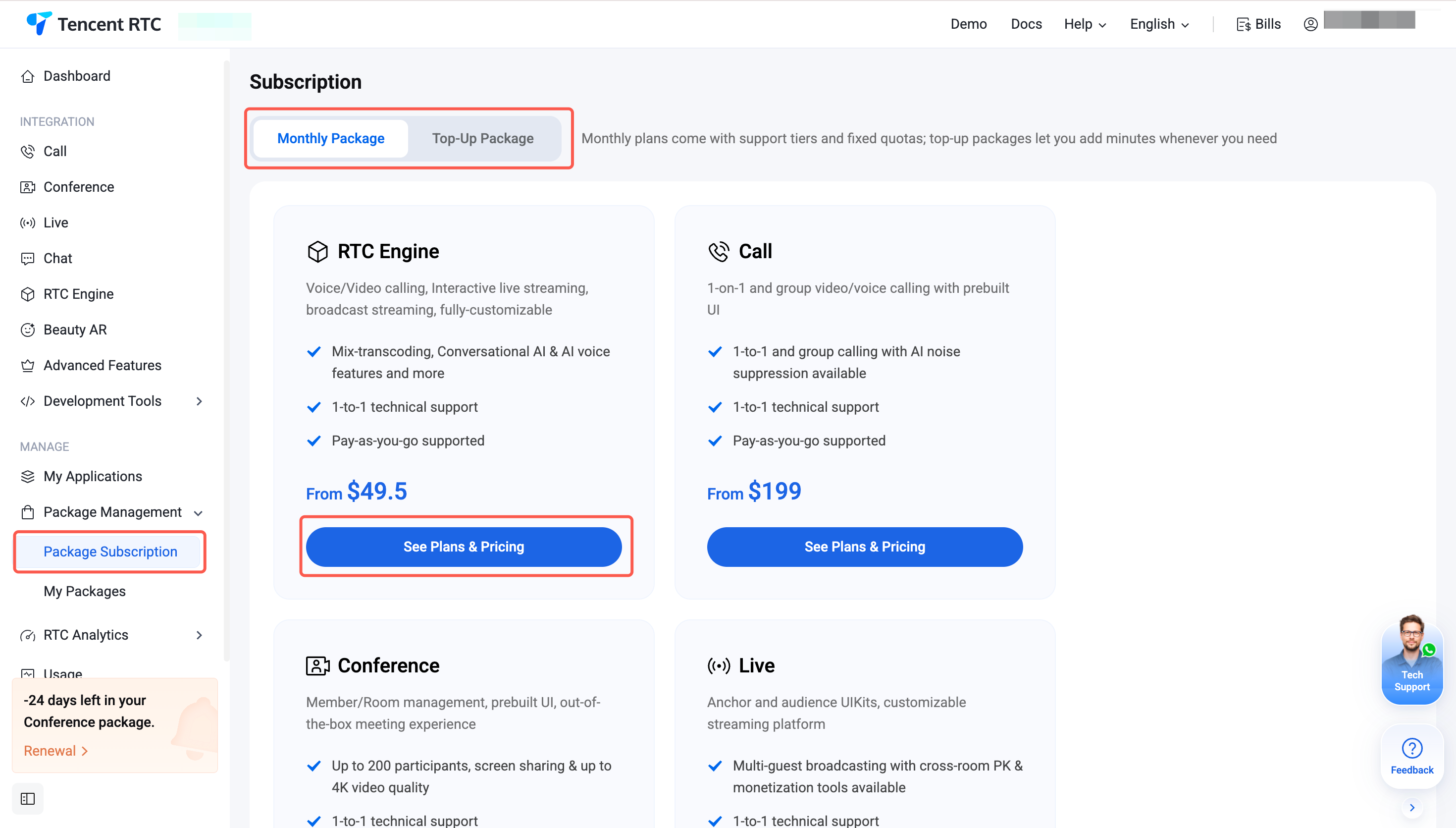
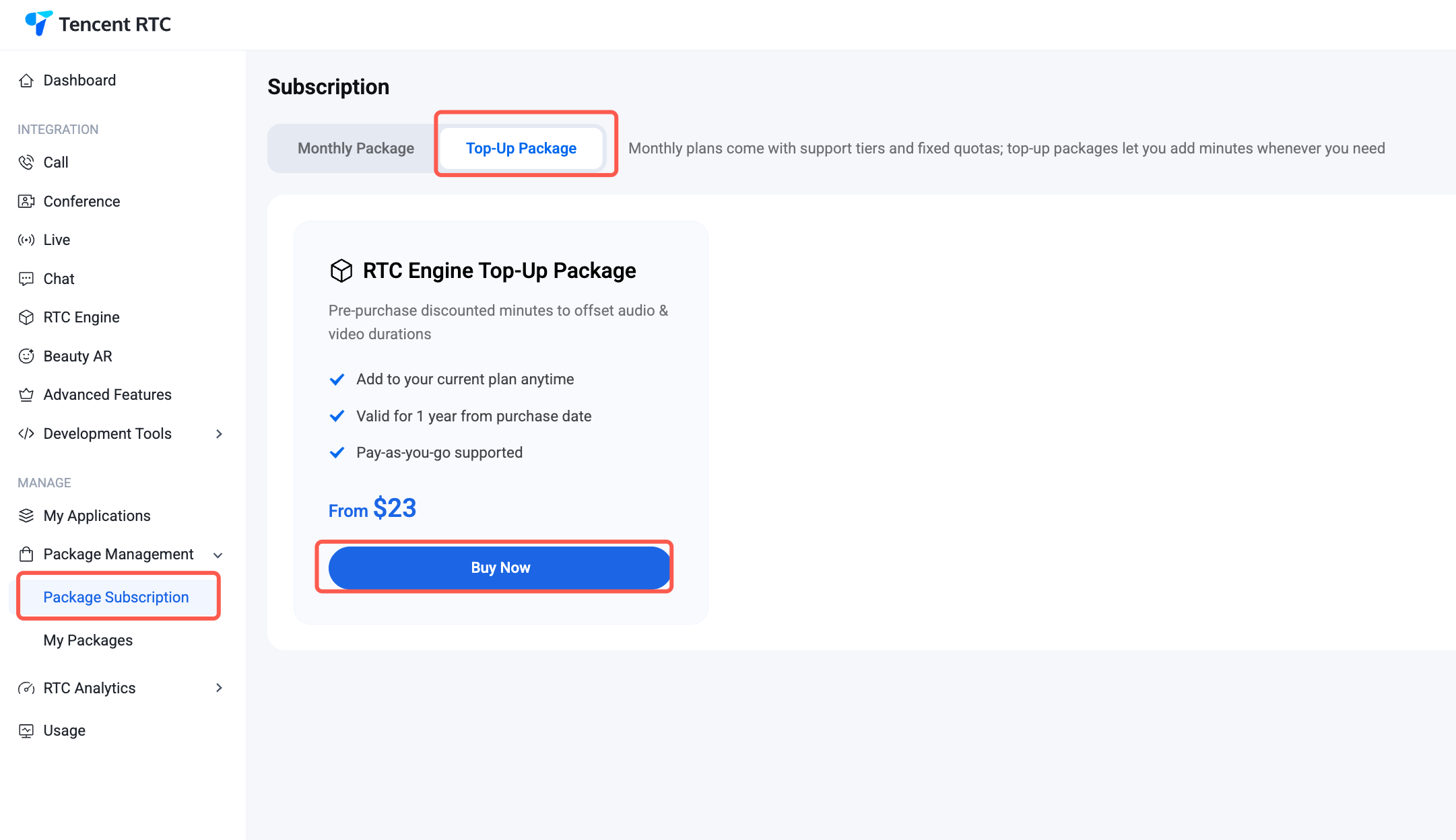
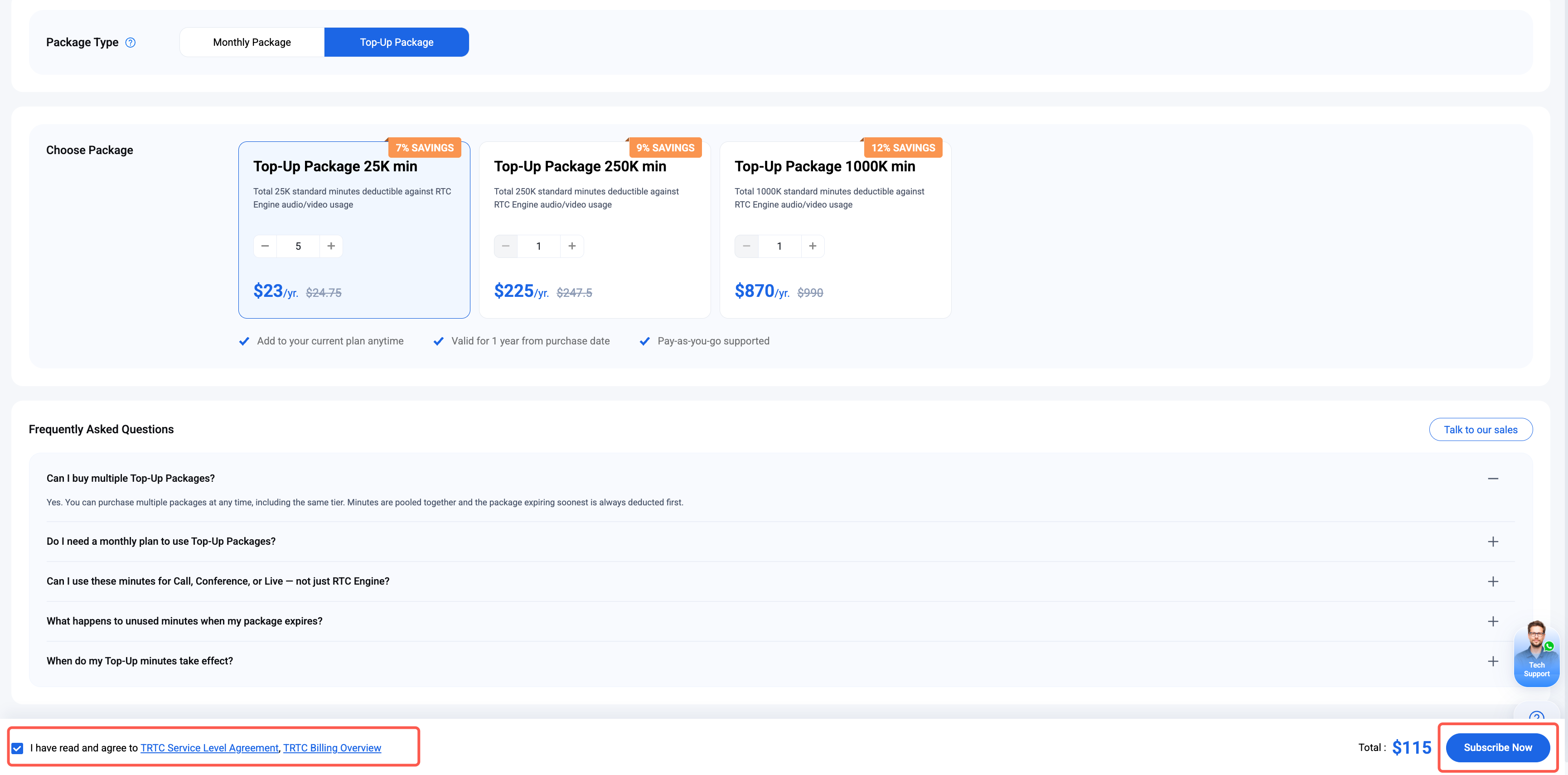
1. Access the Package Subscription Page:Log in to the Tencent RTC Console > Package Management > Package Subscription. Select your desired product, click "View Packages and Pricing" under the appropriate version, and proceed to the order page. You can choose to purchase a monthly package or an RTC Engine Top-Up Package.
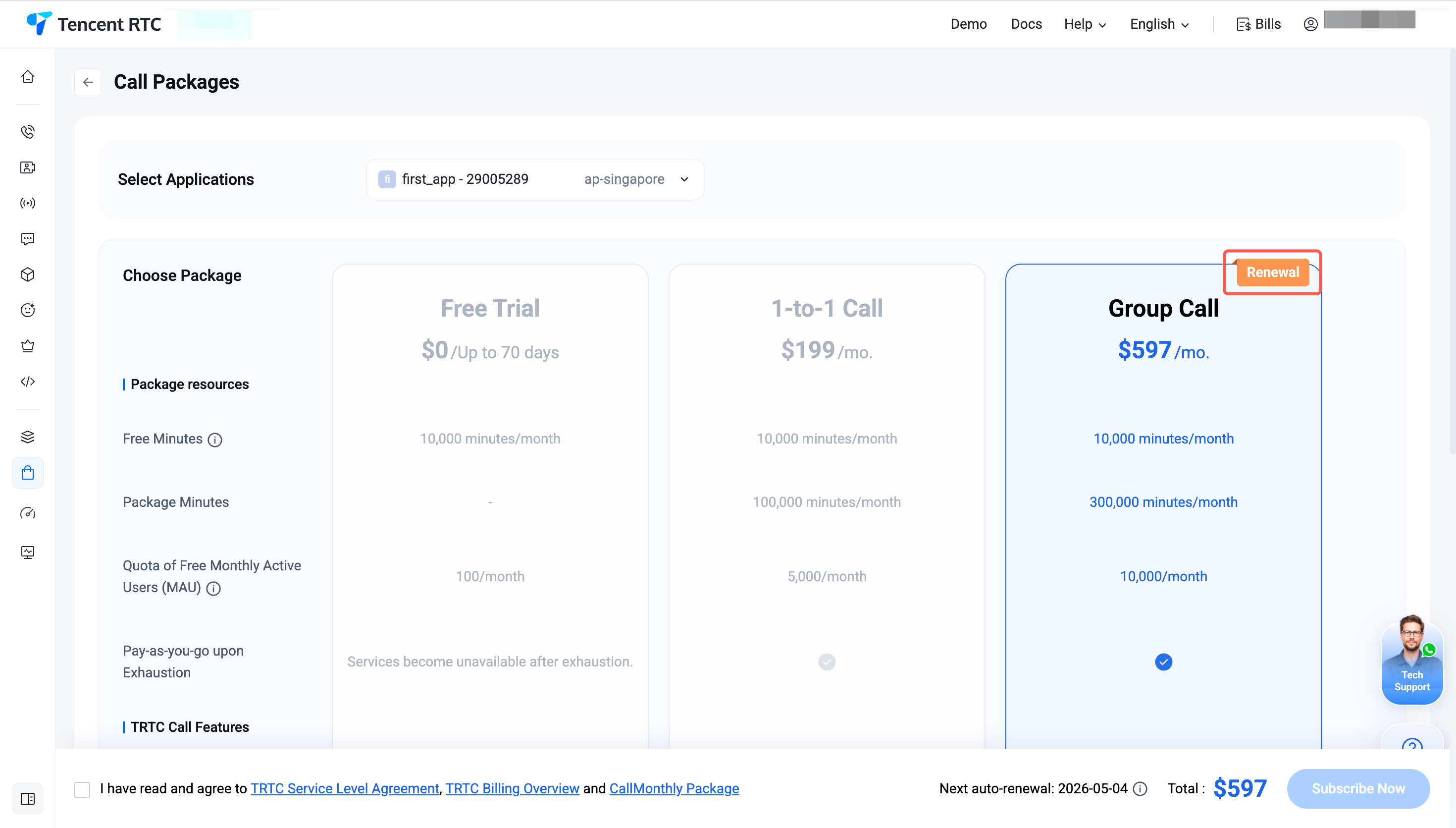
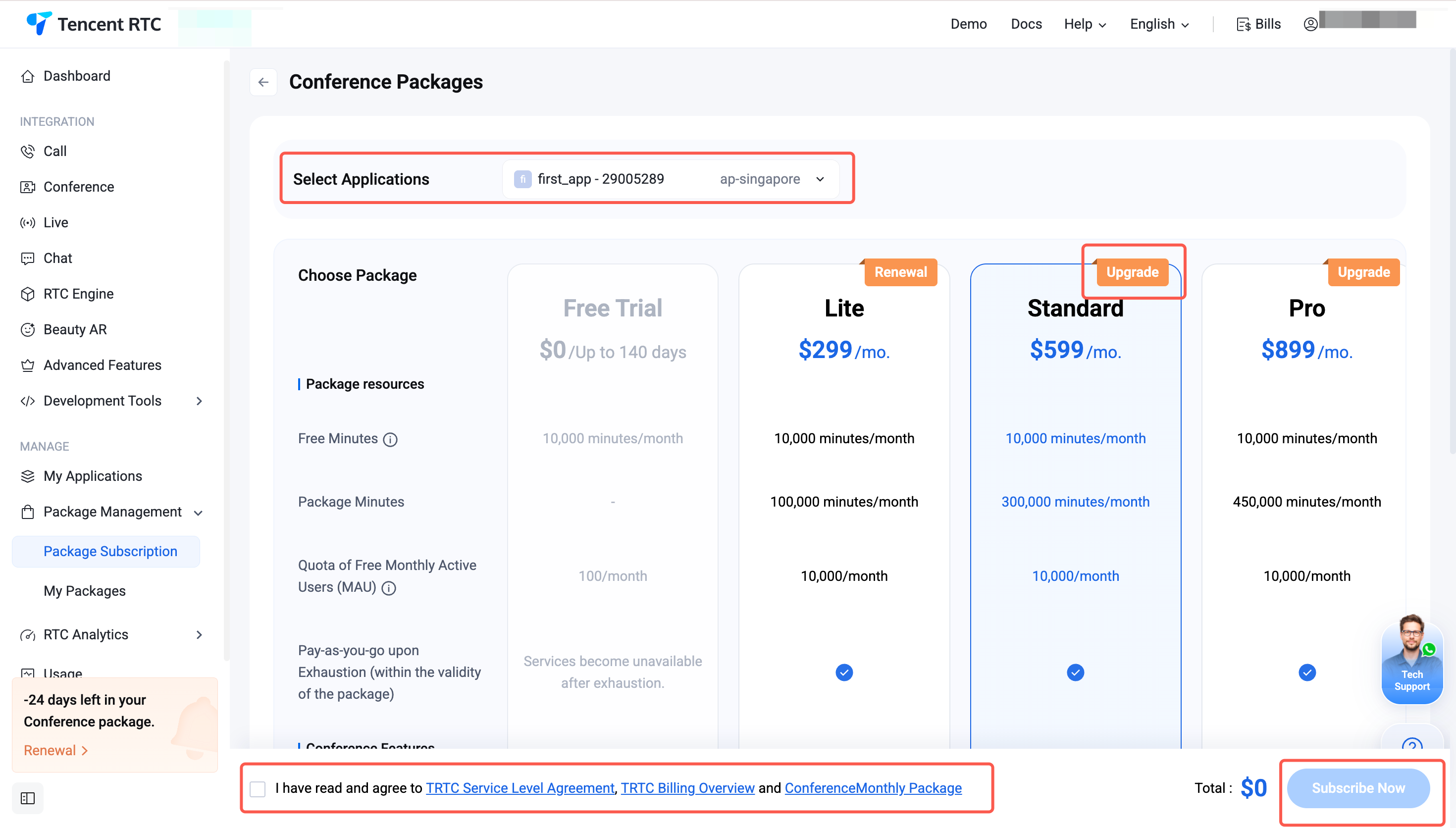
2. Submit Subscription and Complete Payment: On the subscription page, follow these steps to finalize your purchase and verify your selections.
Step 1: Bind Application. Select an existing application to associate with the package, or create a new application.
Step 2: Select Package Version. Choose the package version you wish to purchase.
Step 3: Agree to Terms. Read and accept the Service Level Agreement (SLA) and Billing Terms.
Step 4: Complete Payment. After confirming your selections, click "Subscribe Now" to proceed to the payment page and finish the transaction.
Note:
If you have not yet bound your payment information, please follow the console prompts to complete the payment binding first.
Package Renewal
Manual Renewal
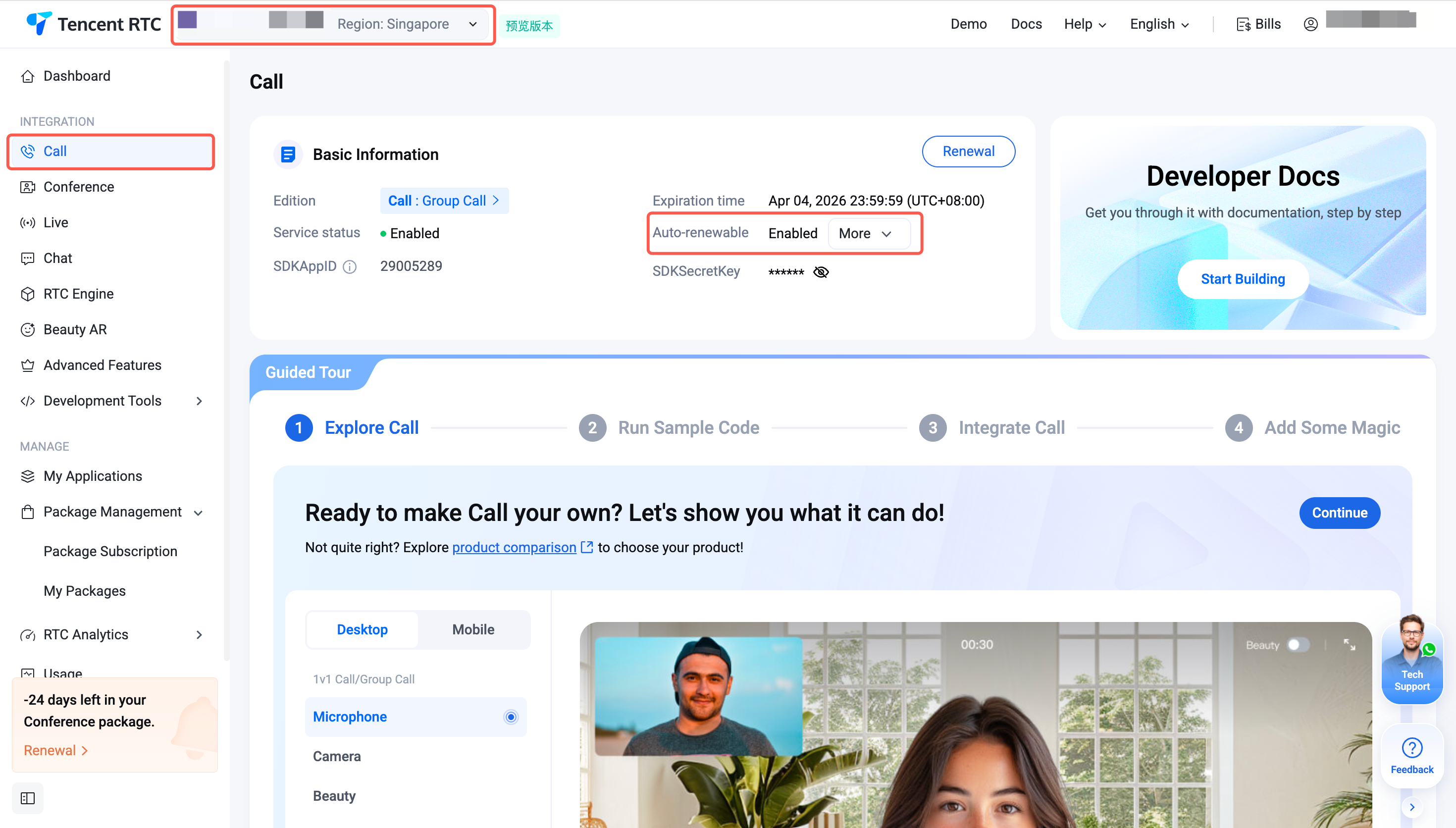
Log in to the Tencent RTC Console, and use the left navigation panel to access the product page for renewal. In the application information card, click Renew / Upgrade to go to the renewal order page.
Auto-Renewal
Enabling Auto-Renewal
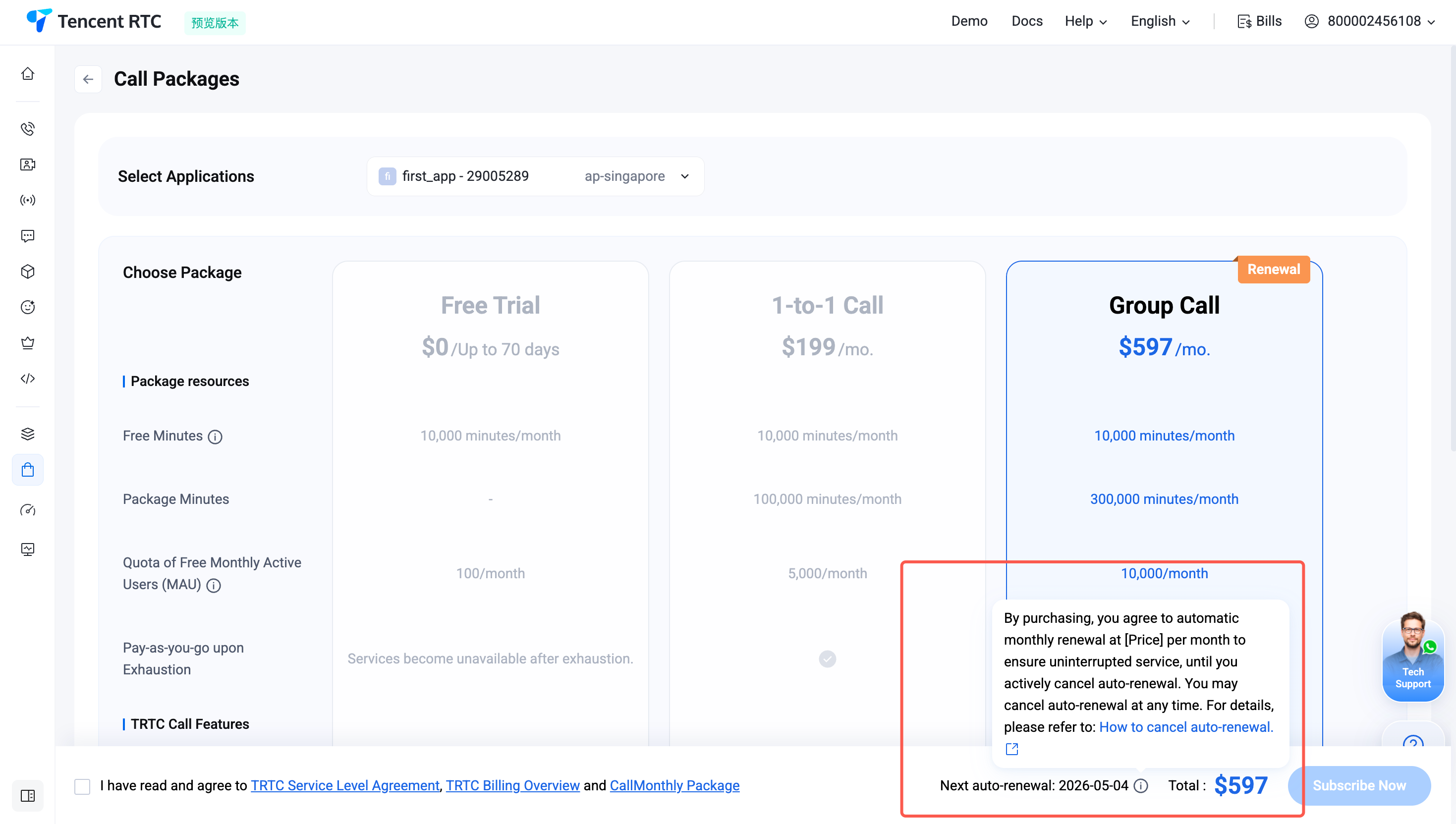
Enable During Purchase: When you place an order on the package purchase page, auto-renewal is enabled by default to ensure uninterrupted service. The package will automatically renew for the next billing cycle before expiration. You can disable auto-renewal at any time.
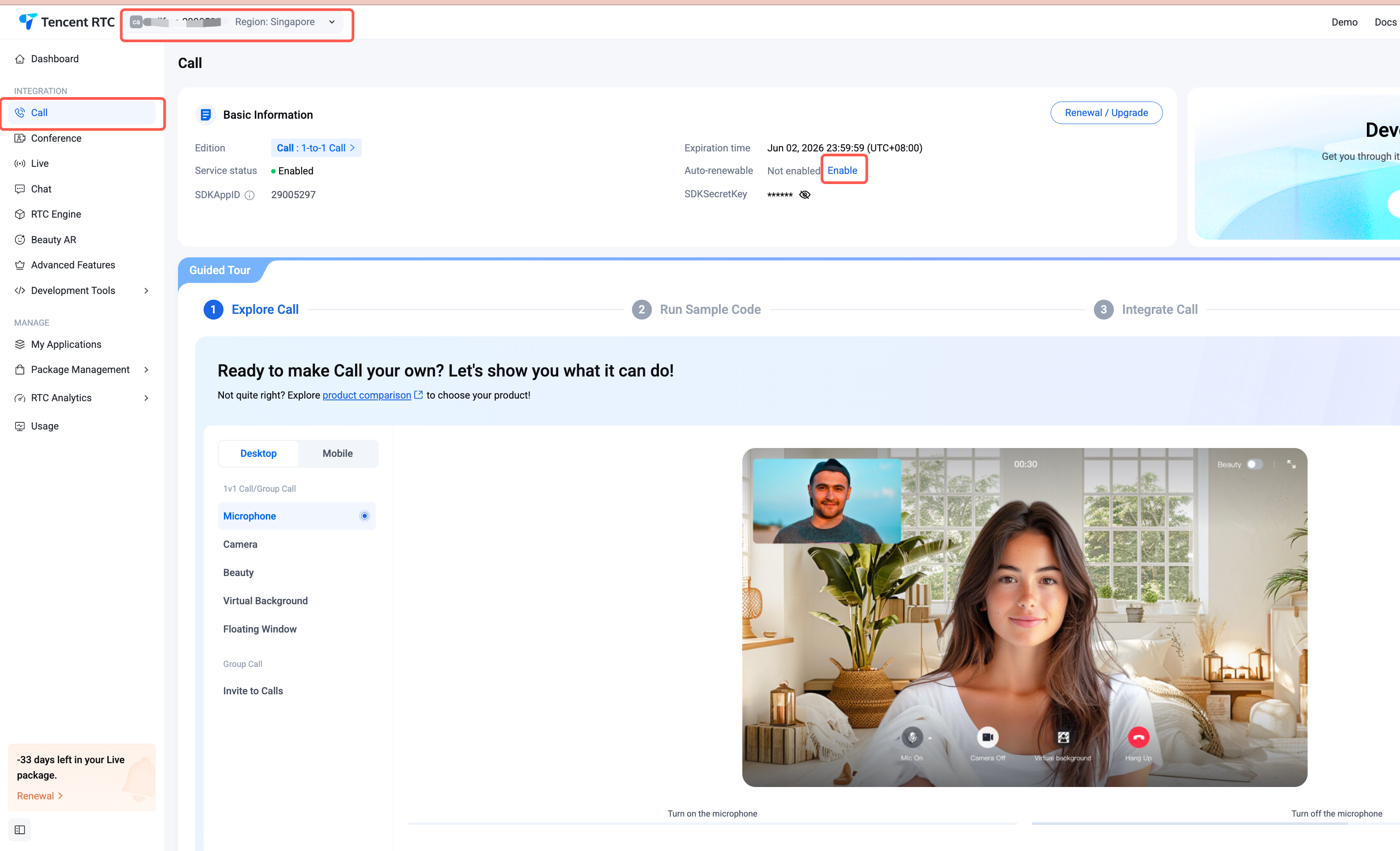
Enable After Purchase: If you previously disabled auto-renewal, you can re-enable it in the console. After logging in, use the left navigation panel to select the product for which you want to enable auto-renewal (if multiple packages exist for the same product, switch applications in the upper left corner). In the application information card, locate Auto-Renewal and click Enable.
Note:
Ensure your account balance is sufficient before enabling auto-renewal. Insufficient funds will cause payment failures, resulting in unsuccessful renewals and service interruption in the next billing cycle.
Disabling Auto-Renewal
Auto-renewal is enabled by default during package purchase for continuous service, but you can manually disable it at any time. Select your application, choose the product you want to upgrade in the left navigation panel, and after entering the product page, manually disable auto-renewal.
Package Upgrade
Overview
If your current monthly package does not meet your requirements and you need access to additional features, you can upgrade the package version. Upgrading an active package unlocks the new version’s features and services immediately—no need to wait for the current package to expire or to purchase additional resources.
Scope: Only packages for TRTC products (Call, Live, Conference, RTC Engine) and Chat are eligible for upgrade. Beauty AR packages cannot be upgraded. For assistance, please contact us.
Upgrade Path: Upgrades can only be performed from a lower version to a higher version. For example, Live Standard can be upgraded to Live Pro, but not to Live Lite.
Upgrade Rules
Packages for Call, Conference, Live, RTC Engine, and Chat can be upgraded to any higher version during their validity period.
Upgrade Price Calculation: The upgrade price is calculated as follows:
Upgrade Price = (List Price of Upgraded Package - List Price of Current Package) × Remaining Valid Days / Total Valid Days
Discounted Purchase Exception: If the current package was purchased at a discounted price, the upgrade price is calculated as:
Upgrade Price = (List Price of Upgraded Package - Discounted Price of Current Package) × Remaining Valid Days / Total Valid Days
Available Minutes After Upgrade (applies to Call, Conference, Live, and RTC Engine packages): The available minutes after upgrading are calculated as:
Available Minutes After Upgrade = (Minutes in Upgraded Package - Minutes in Current Package) × Remaining Valid Days / Total Valid Days
Upgrade Guide
Accessing the Upgrade Page
In the console’s left navigation panel, select the product you want to upgrade. On the product page, locate the application information card for the package, and click Renew/Upgrade.
Upgrade Steps
After accessing the upgrade page, follow these steps to complete the upgrade:
Step 1: Select Application. Choose the application associated with the package you wish to upgrade.
Step 2: Select Target Version. Choose the version you want to upgrade to.
Step 3: Agree to Terms. Read and accept the SLA and Billing Terms.
Step 4: Confirm and Pay. Review the price difference for the upgrade, click "Subscribe Now" to submit the order, and complete payment.
Note:
Once the upgrade is complete, new features and services are available immediately. Confirm in the console’s application details page that your application version matches the upgraded version. If the version information is correct, your upgrade was successful.
RTC Engine Top-Up Package Purchase
The RTC Engine Top-Up Package provides additional usage minutes as a one-time supplement, ideal for scenarios where free minutes are depleted or demand spikes.
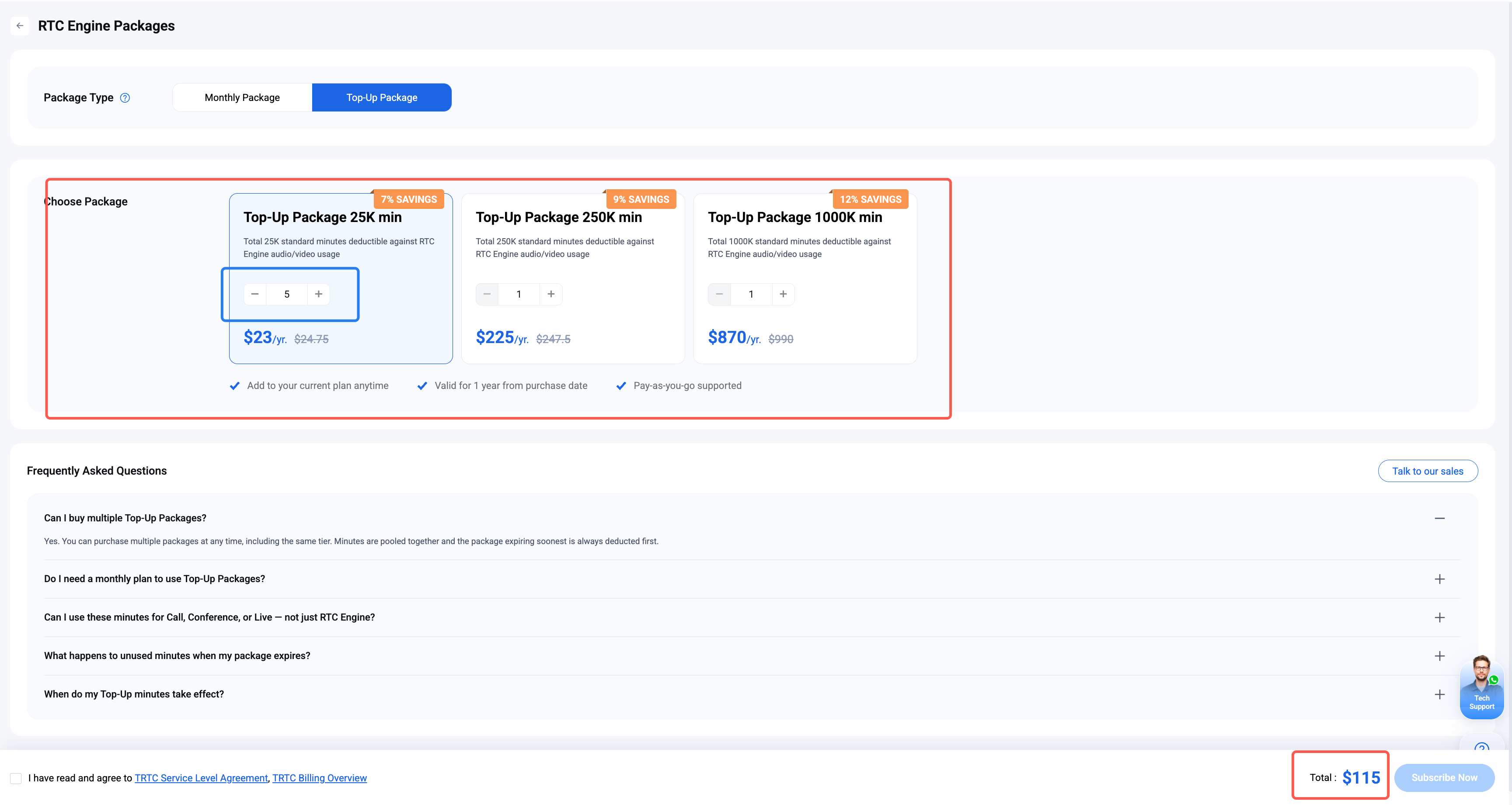
2. Select the required specification (25,000 / 250,000 / 1,000,000 minutes) and the quantity of Top-Up Packages to purchase. You can purchase multiple top-up packages of the same specification in a single order.
3. Agree to the service agreement, click Buy Now, submit the order, and complete payment.