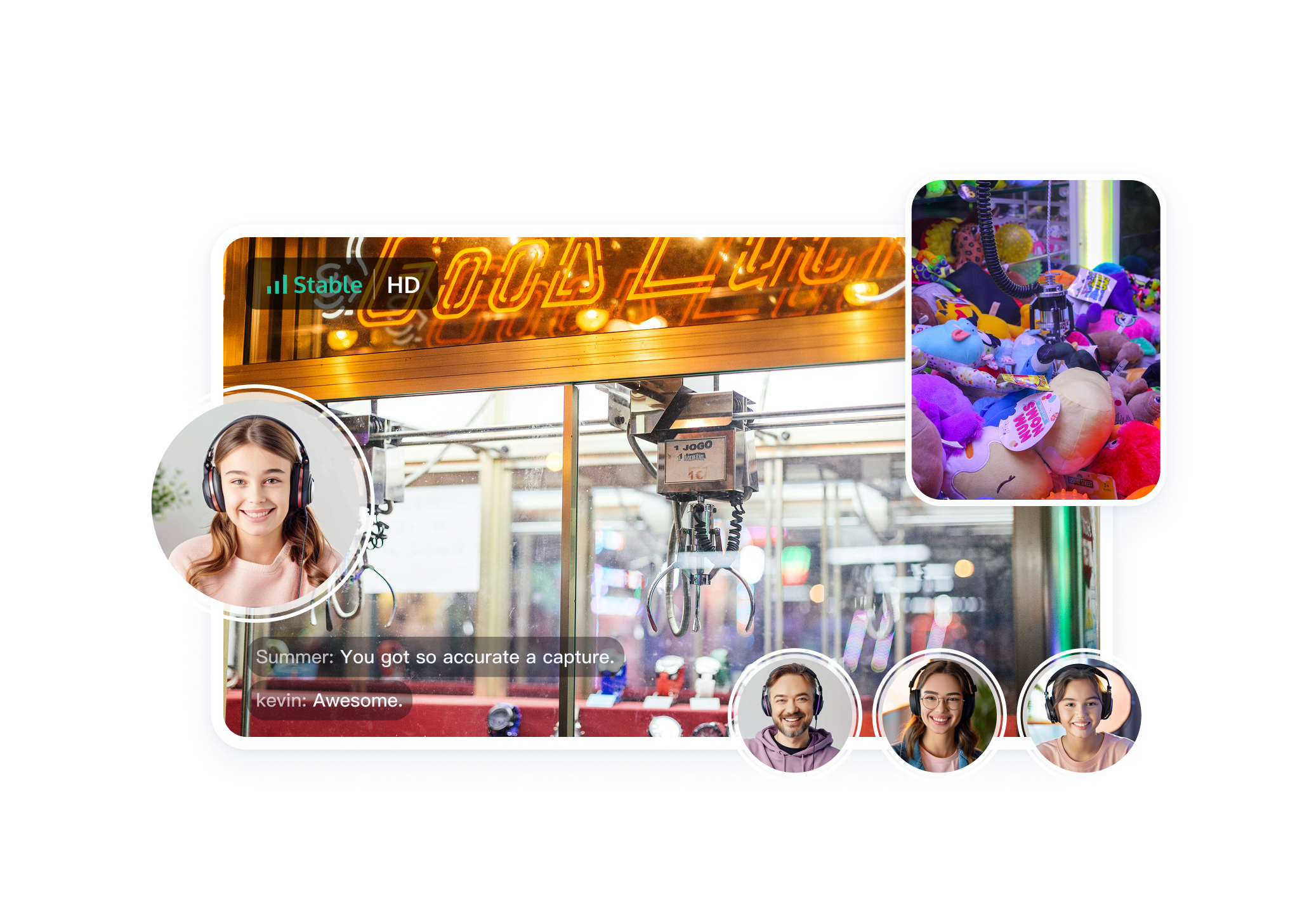
Online claw machines use video streaming and remote control technology to enable users to control physical claw machines in real time from their smartphones, tablets, or computers. The experience rivals in-person gameplay while enabling online audience interaction and engagement.
Key Capabilities with RTC Engine:
RTC Engine provides the following capabilities to power seamless online claw machine experiences:
Ultra-low latency: End-to-end audio and video latency below 300ms
Cross-platform support: Play anytime, anywhere on WeChat Mini Programs, iOS, Android, or Web
Cloud recording: Capture exciting gameplay moments for marketing and expanding application reach
Implementation Overview
A complete online claw machine solution requires multiple functional modules, including Media Service and Signaling Service. The following table outlines key actions and features for each module:
Functional Module
Key Actions and Features
Media service
Publishing and subscribing to audio and video streams
Signaling service
Remote control
Overall Architecture
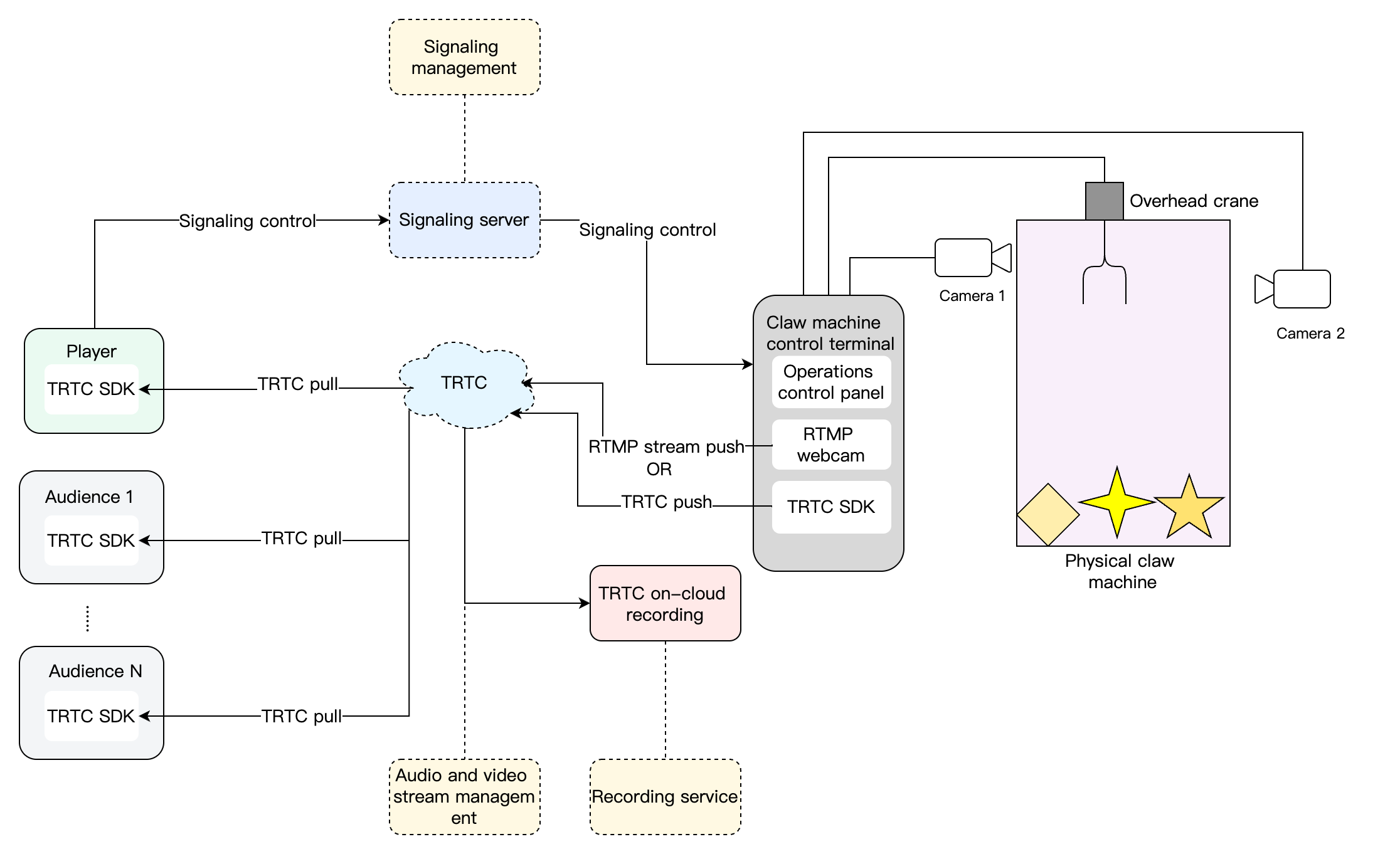
The online claw machine business architecture operates as follows:
Hardware Setup:
Two cameras are installed on the claw machine for video capture and streaming
Player Workflow:
1. Players enter the game interface and join the RTC Engine room linked to the claw machine
2. Players view real-time video streams from the machine's cameras
3. After inserting coins or topping up their account, players control the claw to grab toys
Audience Participation:
Audience members can join the game room to watch players in action
Media Service
Push Audio and Video Streams
RTMP Streaming
Most network cameras and streaming boxes support RTMP streaming. With RTC Engine's RTMP streaming into room feature, you can push video streams directly from these devices to RTC Engine rooms.
To implement RTMP streaming:
1. Use TRTC's RTMP generation rules to generate the corresponding RTMP streaming address.
2. Manually configure the RTMP streaming address on your claw machine's network camera or streaming box.
3. Start the RTMP network camera or streaming box to push the video stream to the RTC Engine room.
Note:
The related fees are as follows:
Feature Unlock:
The RTMP streaming into room feature requires a subscription to RTC-Engine PackagesStandard or Pro Edition.
Alternatively, some hardware vendors partner with TRTC to integrate the RTC Engine SDK directly into network cameras or streaming boxes, enabling them to capture video and push it directly to RTC Engine rooms.
To set this up:
1. Manually configure the SDKAppID, UserId, RoomId, and UserSig on your claw machine's RTC Engine webcam or streaming box.
2. Start the RTC Engine webcam or streaming box to push the video stream to the RTC Engine room.
Pull Audio and Video Streams
Once the claw machine successfully pushes audio and video streams to the RTC Engine room, users—whether players or audience members—can enter the corresponding RTC Engine room to watch the claw machine feed in real time.
Implementation steps:
1. Integrate the RTC Engine SDK into your application.
2. Configure your business server to deliver the necessary SDK parameters—SDKAppID, UserId, RoomId, and UserSig—to your application.
3. Users enter the RTC Engine room corresponding to the claw machine through your application and call the pull-stream API provided by the RTC Engine SDK to receive and watch the real-time audio and video stream.
Signaling Service
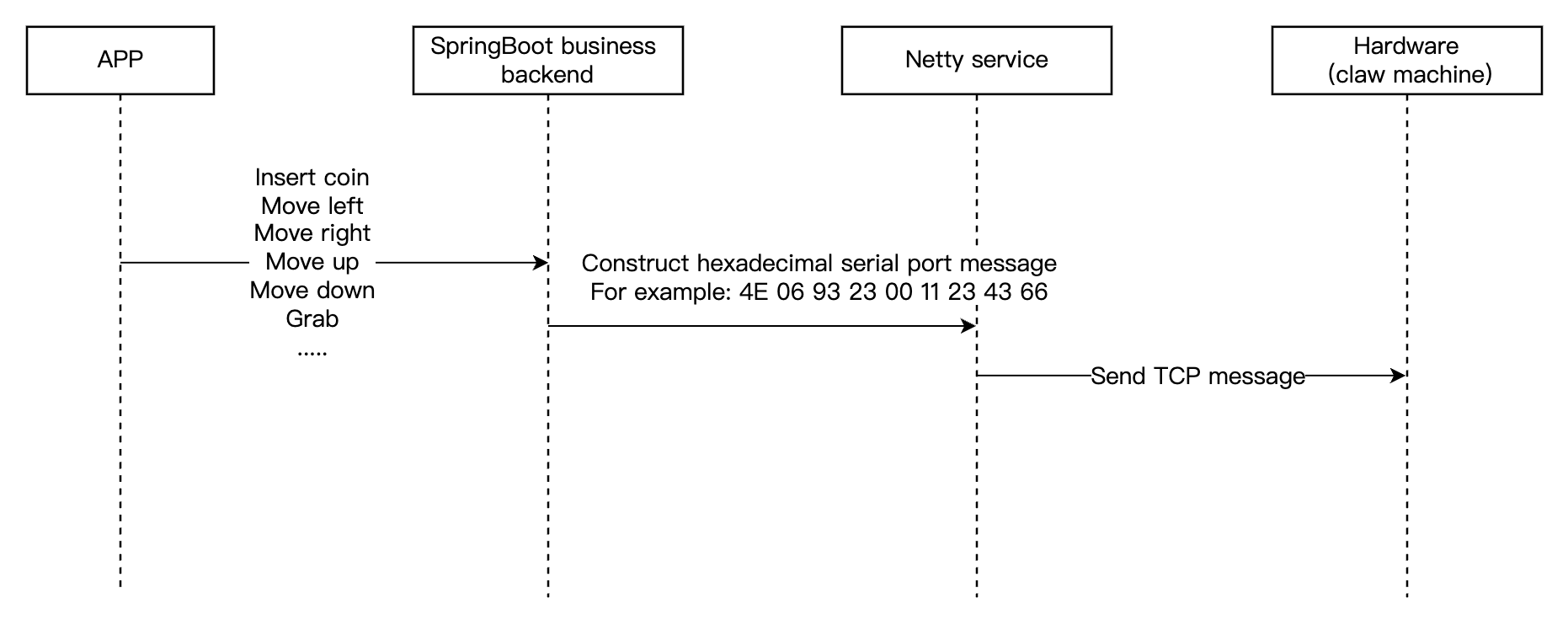
The signaling service synchronizes control signals between the application and the claw machine. Off-the-shelf hardware control modules with various network communication modes are readily available and require only configuration and debugging—no additional development needed.
Communication Flow:
1. The application calls the instruction API on your business backend.
2. Your backend constructs a hexadecimal serial port message and sends it to the hardware network module via the Netty service.
3. The hardware module processes the serial port message and controls the claw machine through its serial port.
Beyond core media and signaling services, the solution offers additional capabilities to enhance user experience.
Recording Service(Extended features)
Replay functionality significantly enhances user engagement. Users can rewatch exciting moments—especially successful grabs—to relive their victories and refine their techniques. RTC Engine's cloud recording makes this easy to implement.
RTC Engine Cloud Recording
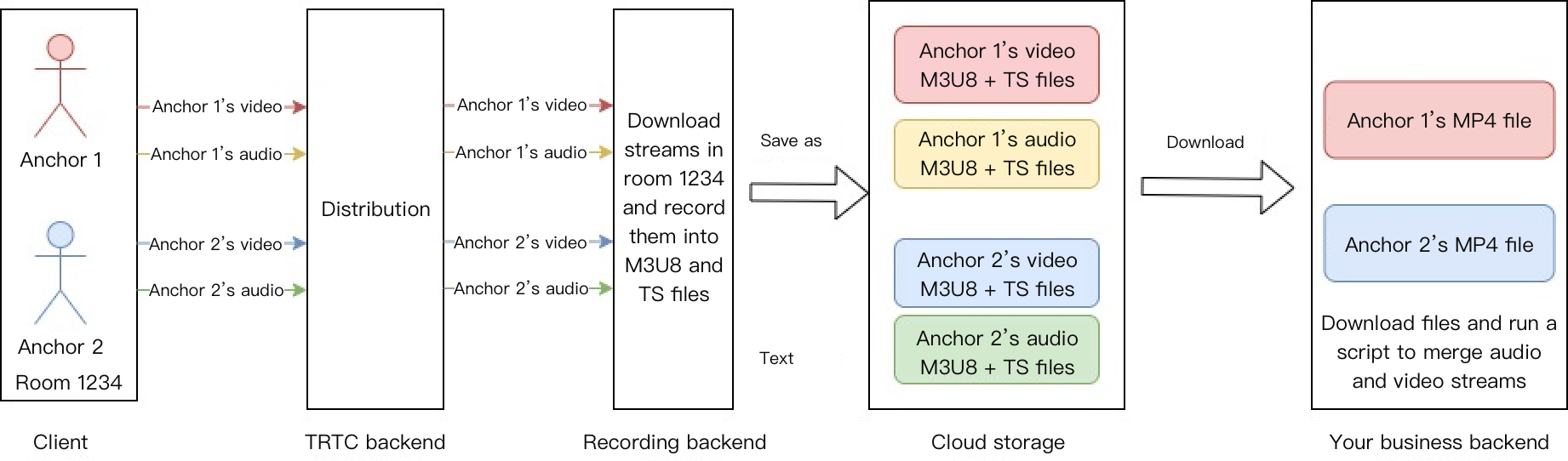
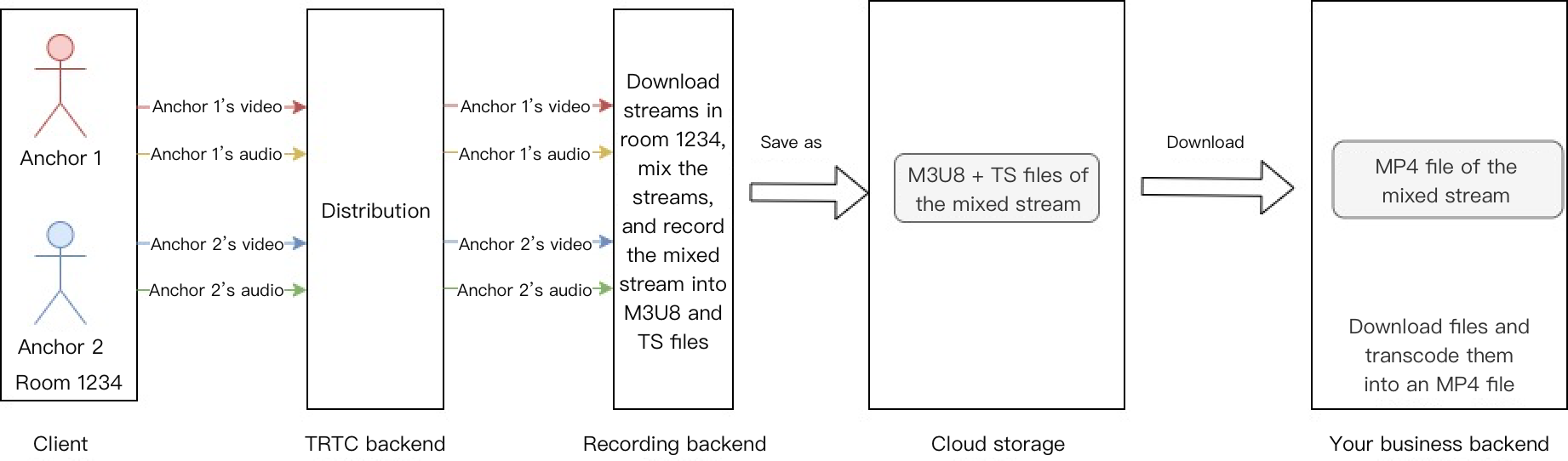
RTC Engine's On-Cloud Recording operates independently from Cloud Streaming Services (CSS), using a dedicated real-time recording backend. This provides a complete, unified recording experience with two recording modes:
Single Stream Recording
Record each user's audio and video stream as separate files:
Mix-Stream Recording
Merge all audio and video streams from the room into a single file:
Key Business Logic
To ensure optimal performance in online claw machine scenarios, several key technical optimizations are essential.
Low Latency Optimization
Online claw machine solutions require extremely low latency because control commands must synchronize with rapid signaling transmission. Standard RTC Engine latency (300-500ms) is insufficient—latency must be reduced to 100-300ms or lower.
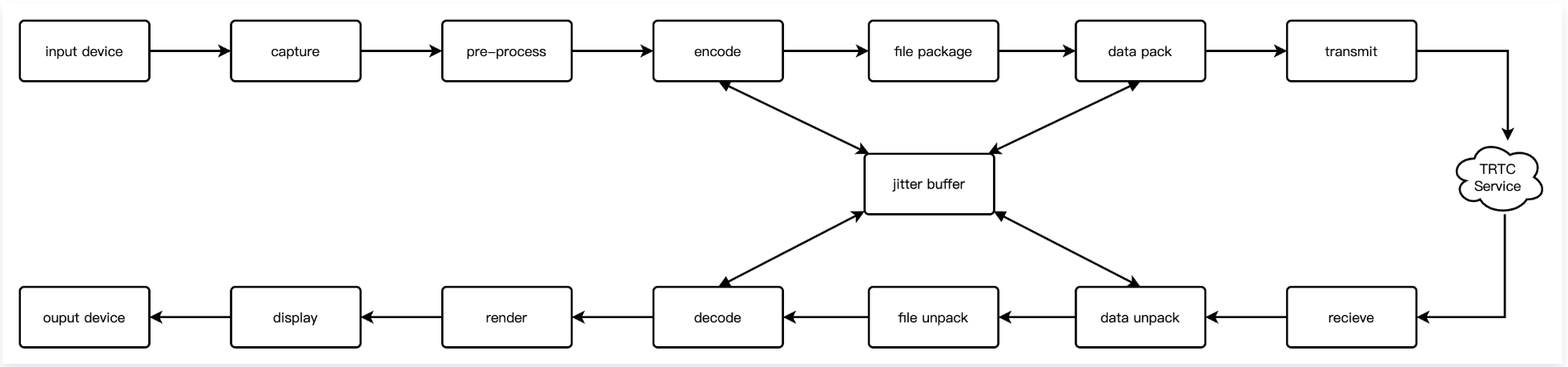
The following optimizations target every point in the transmission link:
Optimization Strategies:
1. Use RTC Engine SDK for capture and streaming
Integrate the RTC Engine SDK directly into network cameras or streaming boxes to stream video to RTC Engine rooms. This bypasses standard RTMP distribution, reducing end-to-end latency from 300-500ms to 100-300ms.
2. Configure low-latency stream playback
Set the buffer size to 80-100ms and enable software decoding:
Android
iOS
Web
JSONObject jsonObject =newJSONObject();
try{
jsonObject.put("api","SetAudioCacheParams");
JSONObject params =newJSONObject();
params.put("min_cache_time",80);// Local minimum audio cache duration
params.put("max_cache_time",100);// Local maximum audio cache duration
The above latency configuration is for testing only. For production deployment, contact us for cloud control configuration.
If latency remains unsatisfactory, contact us for further optimization.
3. Keep firmware up to date
Camera firmware with integrated RTC Engine SDK is continuously optimized for latency reduction. Upgrade to the latest firmware version when experiencing latency issues.
4. Optimize video encoding parameters
# Video encoding settings
encoding format: H264
resolution: 1080P/720P/540P/360P # Set based on clarity
BaseProfile: enable # Disabling B-frames in BaseProfile can further reduce delay
5. Enable cloud control optimization.
Activate the QoS low-latency policy to reduce jitter buffer caching and significantly lower streaming latency. Contact us to enable this feature.
First Frame Time Optimization
In online claw machine and coin pusher scenarios, first frame loading speed directly impacts user experience. First frame time is the total duration from when a user clicks to enter a room until the first visual is rendered.
Common Bottlenecks:
Business API response delays (authentication, room information retrieval)
Resource contention between component loading and stream playback
Use instrumentation to identify and resolve bottlenecks at each stage, as illustrated below.
Optimization Strategies:
1. API preloading: Request authentication and room information asynchronously to reduce critical path dependencies.
2. Prioritize RTC streaming: Complete RTC Engine room entry and stream playback before loading other services.
3. Dynamic downgrade: Disable optional features (such as gift animations) under weak network conditions.
Android Camera Video Quality Optimization
Some cameras require Android system motherboards to implement streaming (RTMP+RTC) without native RTC Engine SDK integration. The following techniques optimize video quality on legacy devices by leveraging hardware encoding capabilities:
1. Custom video capture: Directly call system APIs to capture camera feed, enabling flexible parameter adjustment and easier debugging.
For complete custom video pre-processing code, see Demo.
2. Video hardware encoding: Use the experimental API callExperimentalAPI and set both width and height to multiples of 16 to adapt to Android device hardware encoding parameters. The following are two reference video parameter groups:
High resolution encoding parameters: 768x1024 20fps 1500kbps.
Medium resolution encoding parameters: 480x640 20fps 900kbps.
3. Speech audio capture: Due to low latency requirements, audio functionality is necessary. However, Android devices may have insufficient audio performance. If using default audio quality, performance may not meet requirements. Call the startLocalAudio API and set the TRTC_AUDIO_QUALITY_SPEECH parameter.
Provides low-latency, high-quality real-time audio and video interaction solutions, serving as the foundational infrastructure for audio/video call scenarios.
Offers integrated high-quality media services for audio-video content, including production and upload, storage, transcoding, media processing, media AI, accelerated distribution and playback, and copyright protection.