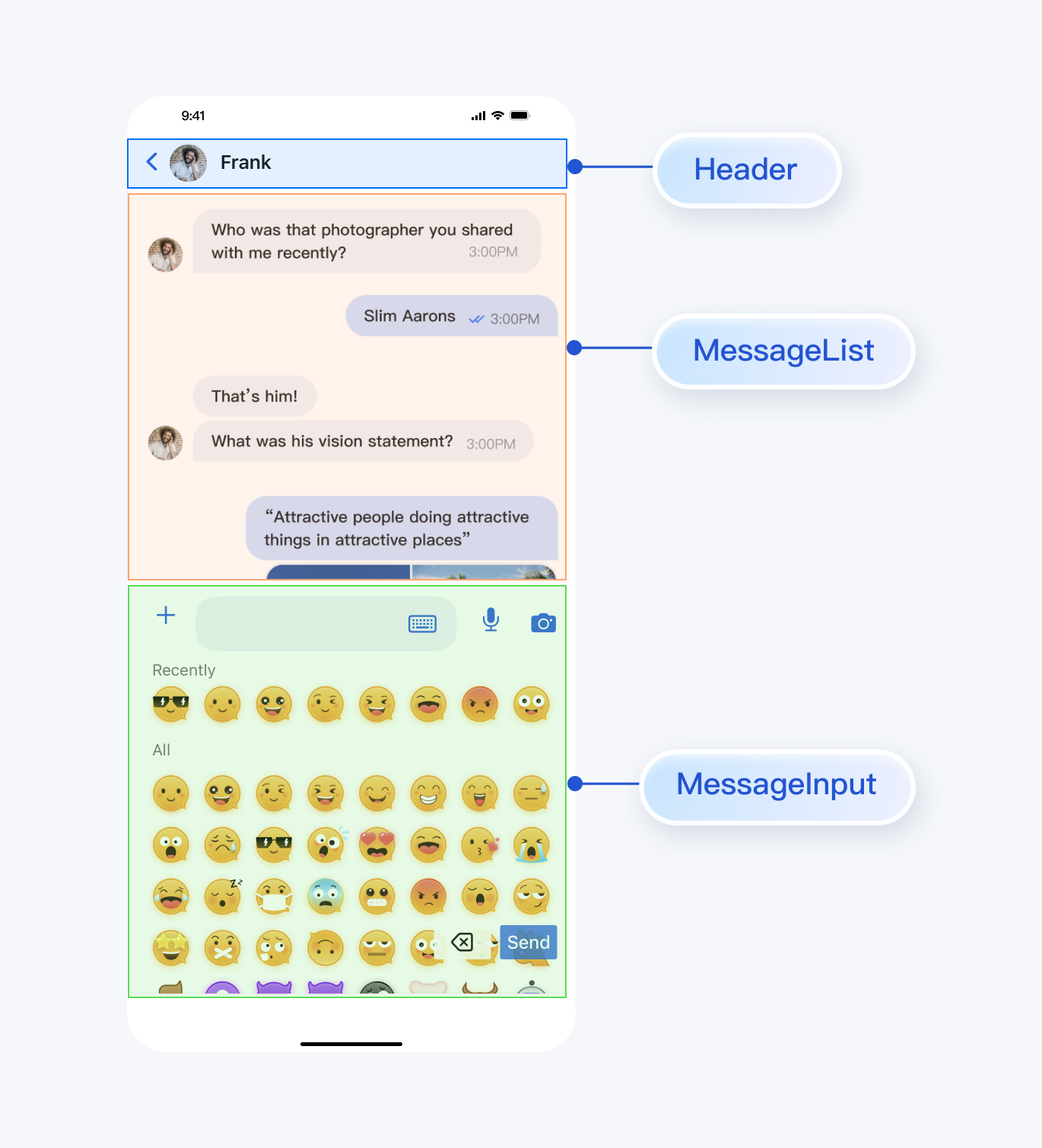
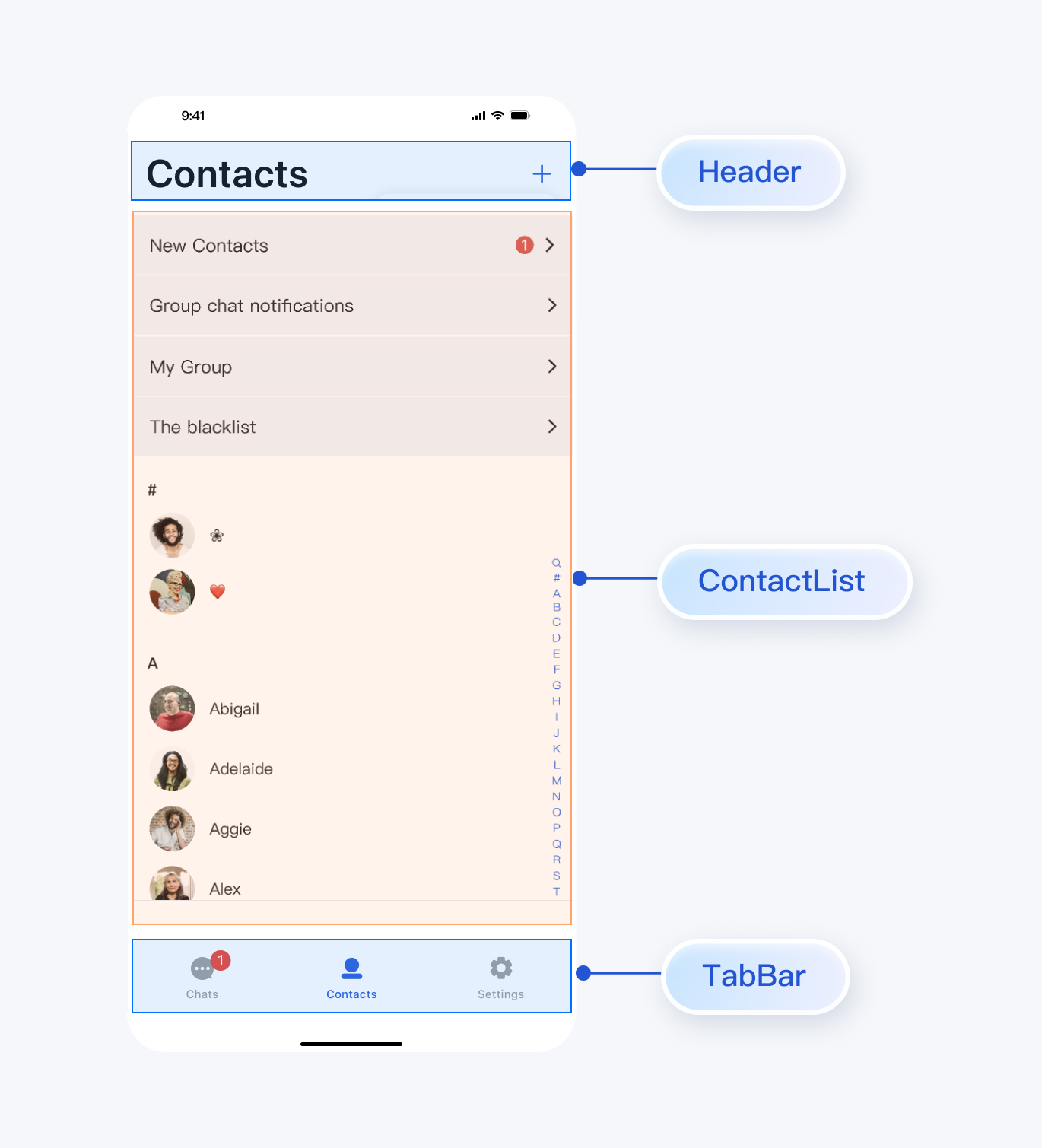
TUIKit SwiftUI is a SwiftUI UI component library built on the Chat SDK, offering a complete solution for instant messaging features such as chat, conversation lists, and contact management. This guide explains how to manually integrate the components and implement core functionalities.
Key Concepts
TUIKit SwiftUI provides a comprehensive set of instant messaging UI components, built on top of the AtomicXCore data layer, and can be used to construct various functional pages.
Page Layer: Fully functional pages built using TUIKit SwiftUI components, including ChatPage, ContactsPage, and ConversationsPage. You can use these pages directly in your app.
TUIKit SwiftUI (UI Component Layer): SwiftUI UI components based on AtomicXCore, which can be embedded into your existing app pages.
AtomicXCore (Data Layer): Handles data management and business logic, including various Stores and Managers.
Prerequisites
Xcode 12.0 or later.
iOS 14.0 or later.
Swift 5 or later.
A valid Tencent Cloud account and Chat application. See Enable the Service to obtain the following information from the console:
SDKAppID: The unique identifier for your Chat application, available in the console.
SecretKey: The application's SecretKey.
Note:
This project currently only supports manual integration. Integration via package managers such as CocoaPods or SPM is not supported.
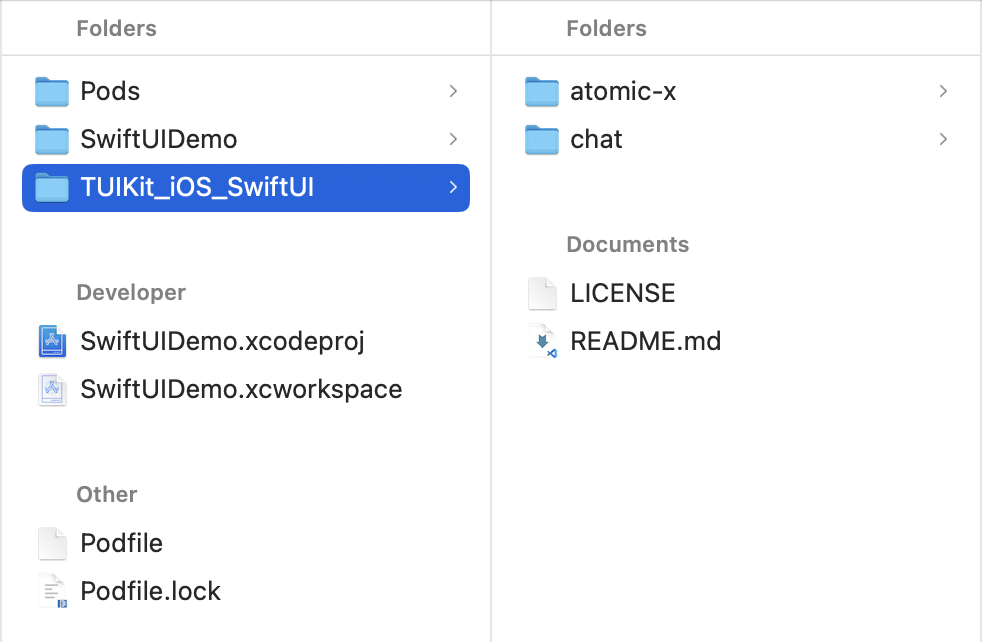
1. Copy the entire component directory into your Xcode project as shown below. SwiftUIDemo is the sample project, and TUIKit_iOS_SwiftUI is the component source code you downloaded from GitHub:
2. Update the local path for each component in your Podfile. The path should point to the location of the TUIKit_iOS_SwiftUI folder relative to your project's Podfile. Common scenarios include:
If the TUIKit_iOS_SwiftUI folder is in the parent directory of your Podfile: pod 'AtomicX/Chat', :path => '../TUIKit_iOS_SwiftUI/atomic-x/AtomicX.podspec'
If the TUIKit_iOS_SwiftUI folder is in the current directory of your Podfile: pod 'AtomicX/Chat', :path => './TUIKit_iOS_SwiftUI/atomic-x/AtomicX.podspec'
If the TUIKit_iOS_SwiftUI folder is in a subdirectory of your Podfile: pod 'AtomicX/Chat', :path => '/TUIKit_iOS_SwiftUI/atomic-x/AtomicX.podspec'
For example, if your Podfile and TUIKit_iOS_SwiftUI are in the same directory, add the following to your Podfile:
platform :ios, '14.0'
target 'Demo' do
use_frameworks! :linkage => :static
pod 'AtomicX/Chat',:path => './TUIKit_iOS_SwiftUI/atomic-x/AtomicX.podspec'
pod 'ChatUIKit',:path => './TUIKit_iOS_SwiftUI/chat/uikit/ChatUIKit.podspec'
3. After updating your Podfile, run the following command to install the local TUIKit SwiftUI components:
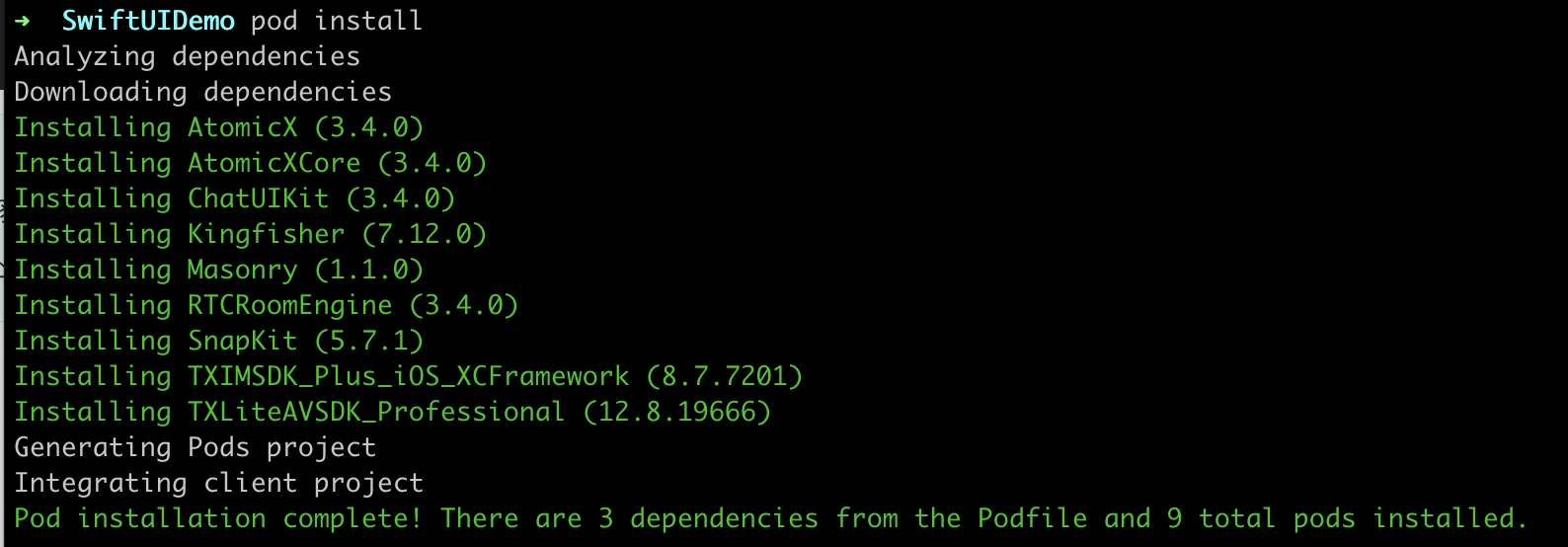
pod install
The pod install command will automatically install all required dependencies:
Notice:
For local integration, to upgrade, download the latest component code from GitHub and overwrite your local TUIKit SwiftUI directory.
If you have made private modifications that conflict with the remote repository, you will need to manually merge and resolve those conflicts.
Project Configuration
1. Configure Build Settings
In your project's Build Settings, set the following:
Swift Language Version: Swift 5.
iOS Deployment Target: 14.0 or later.
2. Configure Info.plist
Add the required permissions to your Info.plist:
<key>NSCameraUsageDescription</key>
<string>The app needs access to the camera to take photos and videos</string>
<key>NSMicrophoneUsageDescription</key>
<string>The app needs access to the microphone to record audio</string>
<key>NSPhotoLibraryUsageDescription</key>
<string>The app needs access to the photo library to select images and videos</string>
Implementation
Step 1: Configure User Authentication
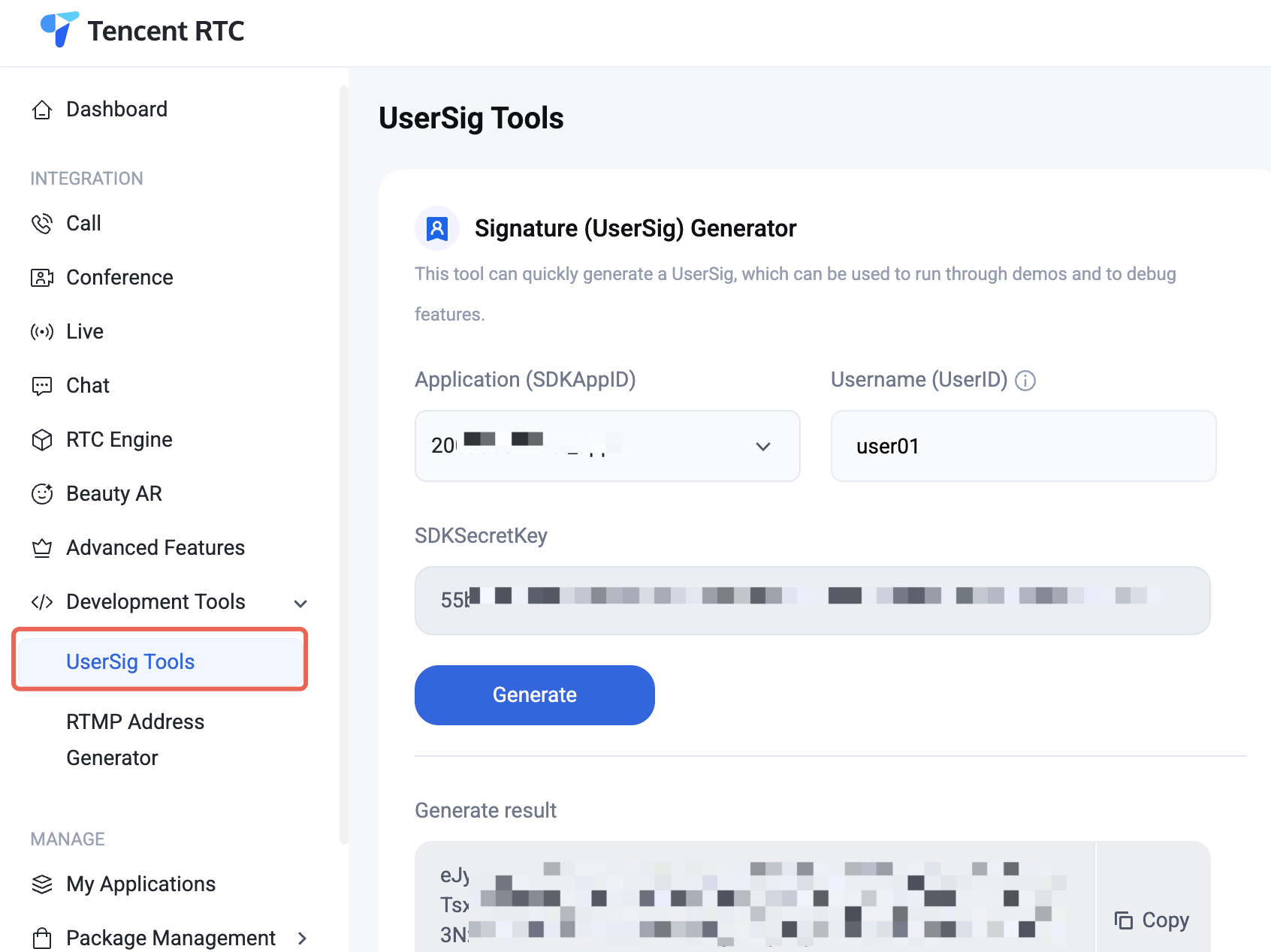
In the Tencent RTC Console, obtain the UserSig for your UserID. UserSig is required for authentication during login.
Step 2: User Login
You must complete authentication before using any component features. Call the login API and pass the SDKAppID and UserSig you obtained above to authenticate:
importAtomicXCore
// User login
LoginStore.shared.login(sdkAppID: sdkAppID, userID: userID, userSig: userSig, completion:{[weakself] result in
guardletself=selfelse{return}
switch result {
case.success:
// Login successful, you can navigate to the chat or conversation page
case.failure(let error):
// Login failed, you can show an error dialog
}
})
Warning:
In a production environment, generate UserSig on your server. When UserSig is needed, your app should request a dynamic UserSig from your business server for authentication. See Server-side UserSig Generation.
Step 3: Build the Conversation List Interface
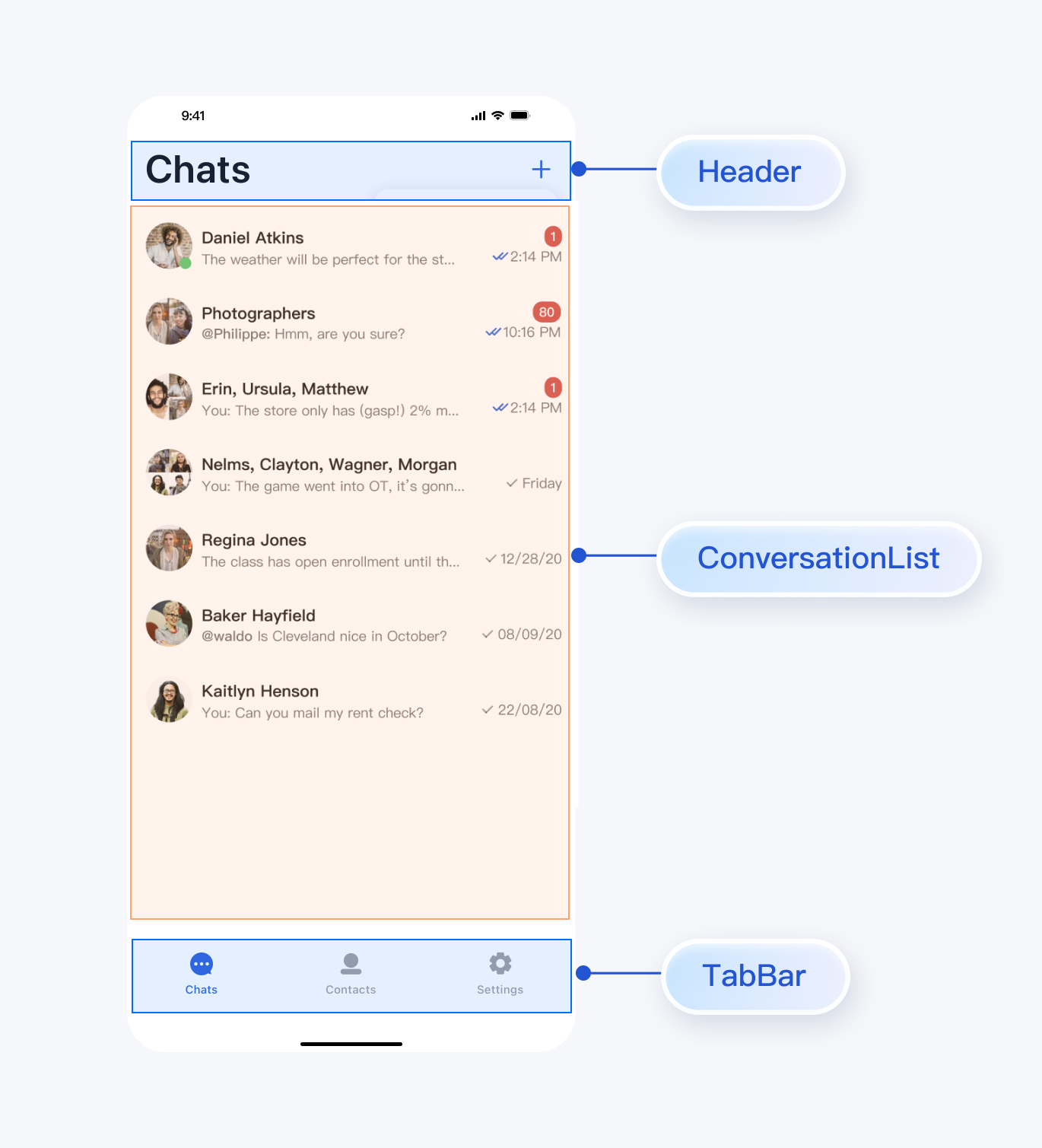
Use the ConversationList component in TUIKit SwiftUI to create a conversation list page. ConversationList includes the following features:
Displays the user's conversation list, including C2C Chat and Group Chat.
Supports operations on individual conversations: pin, delete, clear conversation messages, and more.
You can embed ConversationList directly into your app pages or build a standalone conversation list page. Example UI after assembly:
To wrap ConversationList as a conversation list page, refer to the implementation in chat/uikit/ConversationsPage.swift. The ConversationsPage does the following:
1. Adds a headerView above ConversationList.
2. Implements the conversation list cell tap event.
3. Supports creating conversations and groups:
3.1 Tapping the "+" button in the top right allows you to create a new conversation or group.
3.2 Select a friend from the contact list to start a C2C Chat.
3.3 Select multiple friends to create a Group Chat.
ConversationsPage, ChatPage, and ContactsPage expose several user interaction events. You can customize these events to implement navigation between pages:
Page
Webhook
Recommended Navigation Logic
ConversationsPage
onConversationClick: ((NavigationInfo) -> Void)?
Triggered when a conversation is tapped in the conversation list; recommended to navigate to the chat page (ChatPage).
ContactPage
onContactClick: ((AZOrderedListItem) -> Void)?
Triggered when a contact cell is tapped; recommended to navigate to the contact detail page (C2CChatSetting).
onGroupClick: ((AZOrderedListItem) -> Void)?
Triggered when a group cell is tapped; recommended to navigate to the group chat page (ChatPage).
ChatPage
onBack: (() -> Void)?
Triggered when the back button is tapped; recommended to return to the previous page.
onUserAvatarClick: ((String) -> Void)?
Triggered when a user avatar is tapped in a message; recommended to navigate to the user info page (C2CChatSetting).
onNavigationAvatarClick: (() -> Void)?
Triggered when the avatar in the navigation bar is tapped; recommended to navigate to the user info page (C2CChatSetting) or group info page (GroupChatSetting).
chat/demo/ChatDemo/Pages/HomePage.swift acts as the glue layer for these pages, implementing the callback events for each page.
// Navigate when a conversation list cell is tapped
Refer to the callback descriptions and sample code above to implement navigation and interaction logic between pages.
FAQs
Login failed with signature error, what should I do?
Check that your SDKAppID and userSig are correct and that the userSig has not expired. Refer to the Configure User Authentication section above to regenerate the userSig if needed.
Contact Us
If you have any questions or suggestions during integration or usage, feel free to Contact Us to submit feedback.