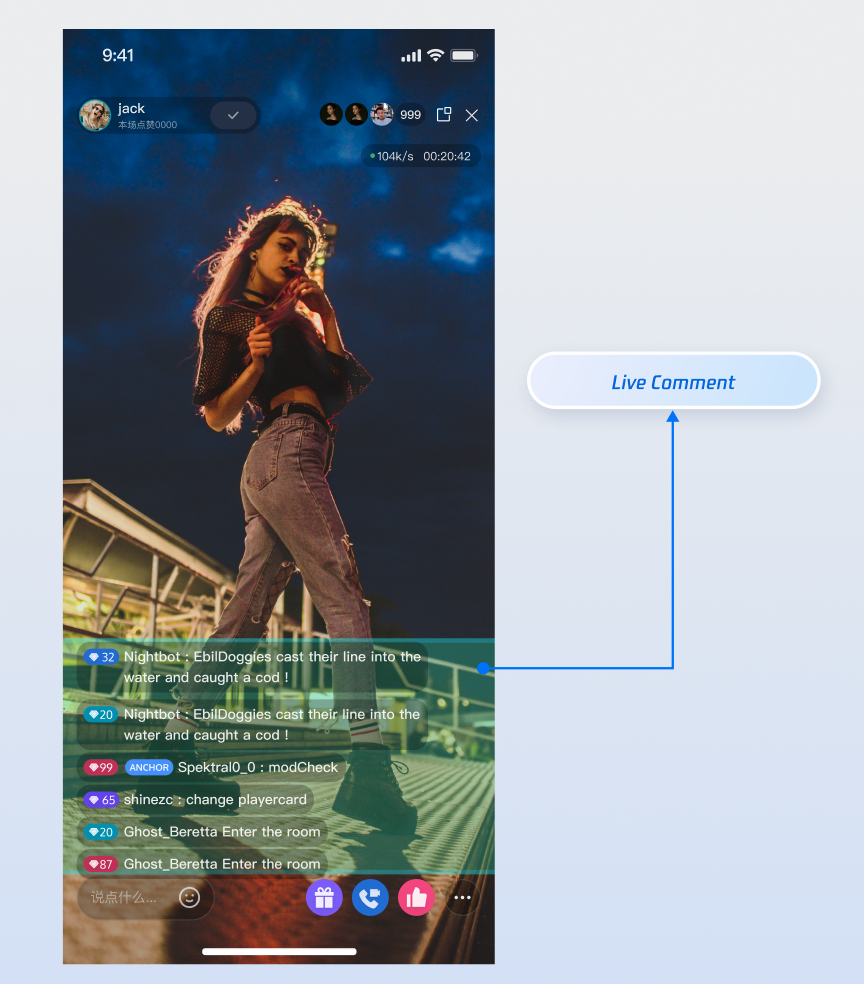
This document guides React Native developers through integrating a robust, high-performance live comments system into your live streaming application using the BarrageState module from the AtomicXCore framework.
Core Features
BarrageState delivers a complete solution for live comments in your live streaming app, including:
Receiving and displaying live comment messages during the stream.
Sending text live comments for real-time audience interaction.
Sending custom live comments to support advanced scenarios such as gifts, likes, and gamified events.
Inserting system prompts into the local message list (for example, "Welcome XX to the live room").
Implementation Steps
Step 1: Integrate the Components
Live streaming: Refer to Quick Access for seamless integration with AtomicXCore and service access.
Voice chat room: Refer to Quick Access for integration with AtomicXCore and access completed.
Step 2: Initialize and Subscribe to Live Comments
Create a BarrageState instance tied to the current live room's liveID. Subscribe to messageList to receive the latest complete list of live comment messages.
console.log('Failed to send live comment', error);
},
});
};
API Parameters
Parameter
Type
Description
liveID
string
The liveID of the current live room.
text
string
The text content to send.
onSuccess
Function
Callback for successful send.
onError
Function
Callback for failed send.
Step 4: Send Custom Live Comments
Send messages with custom business logic—such as gifts, likes, or interactive commands. Your business logic layer is responsible for parsing these messages.
// 3. Call the core API to send the custom message
sendCustomMessage({
liveID: liveID,// Current live room's liveID
businessID,
data:JSON.stringify(giftData),
onSuccess:()=>{
console.log('Gift message sent successfully');
},
onError:(error)=>{
console.log('Failed to send gift message', error);
},
});
};
API Parameters
Parameter
Type
Description
liveID
string
The liveID of the current live room.
businessID
string
Unique business identifier (e.g., "live_gift") for distinguishing custom messages.
data
string
Business data, typically as a JSON string.
onSuccess
Function
Callback for successful send.
onError
Function
Callback for failed send.
Step 5: Insert Local Tip Messages
Add messages to the local message list that are visible only to the current client—not sent to other users in the live room. Use this for system welcomes, warnings, or operation prompts.
console.log('Failed to insert local message', error);
},
});
};
API Parameters
Parameter
Type
Description
liveID
string
The liveID of the current voice chat room.
message
object
The message object to insert locally. The SDK appends this object to messageList.
onSuccess
Function
Callback for successful local message addition.
onError
Function
Callback for failed local message addition.
Step 6: Manage User Messaging (Mute & Unmute)
As a host or administrator, you can control users' messaging permissions to maintain a healthy community in the live room.
Mute/Unmute Individual Users
Use the disableSendMessage interface in LiveAudienceState to mute or unmute a specific user. This state persists—even if the user rejoins the live room, the mute remains in effect.
liveID required; other fields specify live status updates.
modifyFlagList
LiveInfoModifyFlag[]
List of live info flags to update.
onSuccess
Function
Callback for successful live info update.
onError
Function
Callback for failed live info update.
Advanced Features: Optimize Performance Under High Concurrency
After integrating live comments with BarrageState, use the following strategies to ensure smooth and stable performance—even during high-traffic live streaming events. This section provides actionable solutions and sample code for key scenarios.
Scenario 1: Managing "Live Comment Storms" in Popular Rooms
Scenario
Large audiences generate dozens of live comments per second during peak events.
Challenge
The SDK returns the full live comment list at high frequency. Updating the UI for every change can overload the main thread, causing lag.
Solution: Batch Updates and Debouncing
Skip updates that arrive too quickly. Set a time threshold (e.g., 300 ms) and only refresh the UI if enough time has passed since the last update. This improves performance and smoothness.
// Intermediate updates within 300ms are skipped; timer flushes with latest data
},[messageList]);
// Clear timer on component unmount
useEffect(()=>{
return()=>{
if(throttleTimerRef.current){
clearTimeout(throttleTimerRef.current);
}
};
},[]);
// Use displayMessageList to update UI, e.g.:
// <FlatList data={displayMessageList} ... />
Scenario 2: Sustaining Memory Stability During Extended Live Streams
Scenario
Your application must support continuous live streams lasting several hours (e.g., gaming or slow-paced streams) without crashing.
Challenge
The SDK's messageList grows indefinitely over time. Even with UI throttling, holding a large array increases memory usage and can eventually cause crashes.
Solution: Fixed-Size Circular Buffer
Limit your own data source to a maximum number of messages. Regardless of the SDK's full list, only keep the most recent messages for display.
Code Example
After receiving the full list, retain only the latest 500 messages (or another defined limit).
For detailed descriptions of all public interfaces, properties, and methods for BarrageState and related classes, refer to the official API documentation for the AtomicXCore framework.
FAQs
How to implement advanced styles such as "colored live comments" or "gift live comments" in addition to plain text?
You can use custom messages sent via sendCustomMessage. BarrageState does not restrict your business logic or creativity.
Implementation Steps
1. Define the data structure: Collaborate with client and server teams to establish the JSON structure for custom messages. For example, a colored live comment might look like:
{"type":"colored_text","text":"This is a colored live comment!","color":"#FF5733"}
2. Sender: Convert this JSON structure to a string and send it via the data parameter of sendCustomMessage. Set businessID to a unique identifier for your business, such as barrage_style_v1.
3. Receiver: When receiving a live comment, check for messageType'CUSTOM' and matching businessID. Parse the data string (typically JSON), and render your UI based on the parsed information (e.g., color, text).
Why is my sent message via sendTextMessage not appearing in the message list?
Check the following:
1. onSuccess and onError callbacks: Confirm whether sendTextMessage succeeded or failed. If it failed, the error message will clarify the reason (e.g., "You have been muted," "Network error").
2. Subscription timing: Make sure you subscribe to barrageState after joining the live room with the appropriate liveID. Subscribing before joining may cause you to miss messages.
3. liveID consistency: Confirm that the liveID used for creating BarrageState, joining the live room, and sending messages is exactly the same—including case sensitivity.
4. Network connectivity: Ensure the device is connected to the network. Message sending requires network access.
How can new audience members see historical live comments sent before they joined?
AtomicXCore supports retrieving historical live comment messages, but you need to enable this in the server console. Once configured, the SDK handles everything automatically—no extra client code is required.
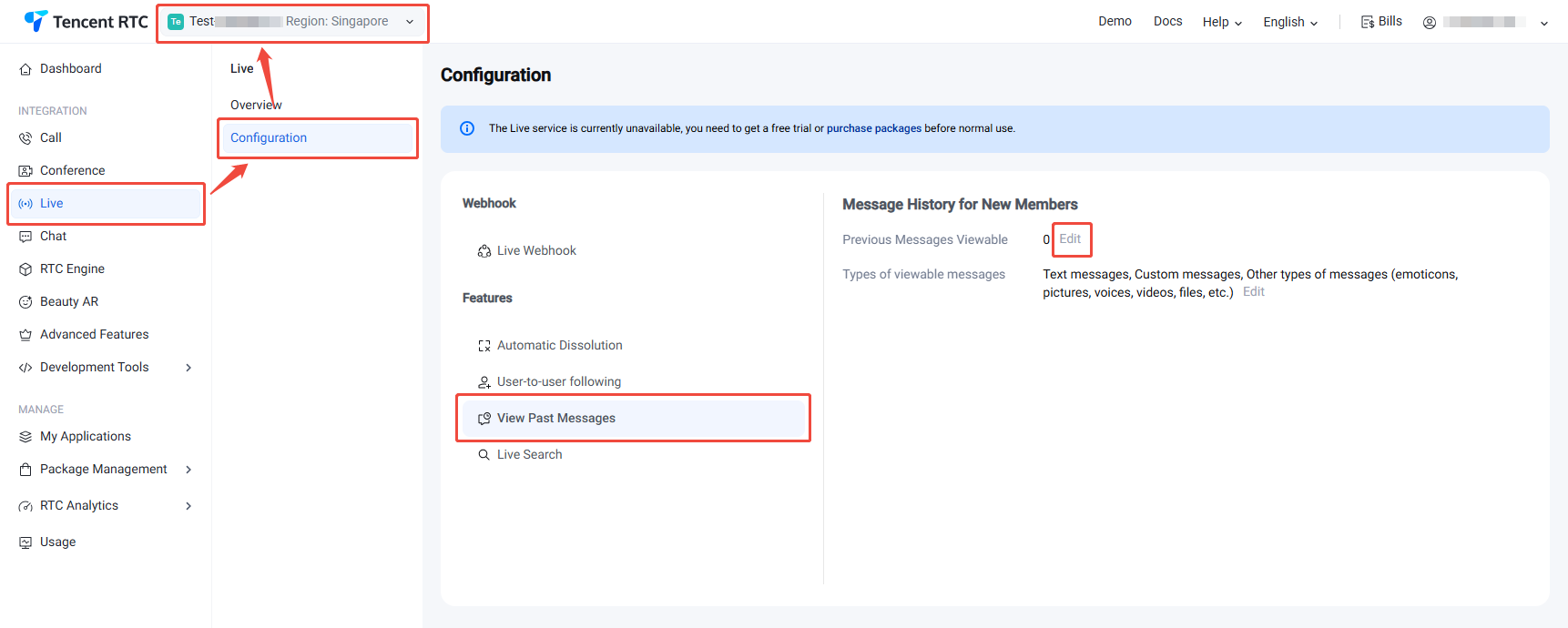
2. On the Live Configuration page, select View Past Messages, and set Previous Messages Viewable to specify the number of messages (up to a maximum of 50) that new viewers can see.
Step 2: Automatic Retrieval on the Client Side
After completing the above configuration, no changes are needed in your client code.
When a new user joins the live room, AtomicXCore automatically retrieves the configured number of historical chat messages in the background. These messages are delivered to the UI layer through the BarrageState subscription channel, just like real-time messages. Your application will receive and display these historical chat messages in the same way as live messages.