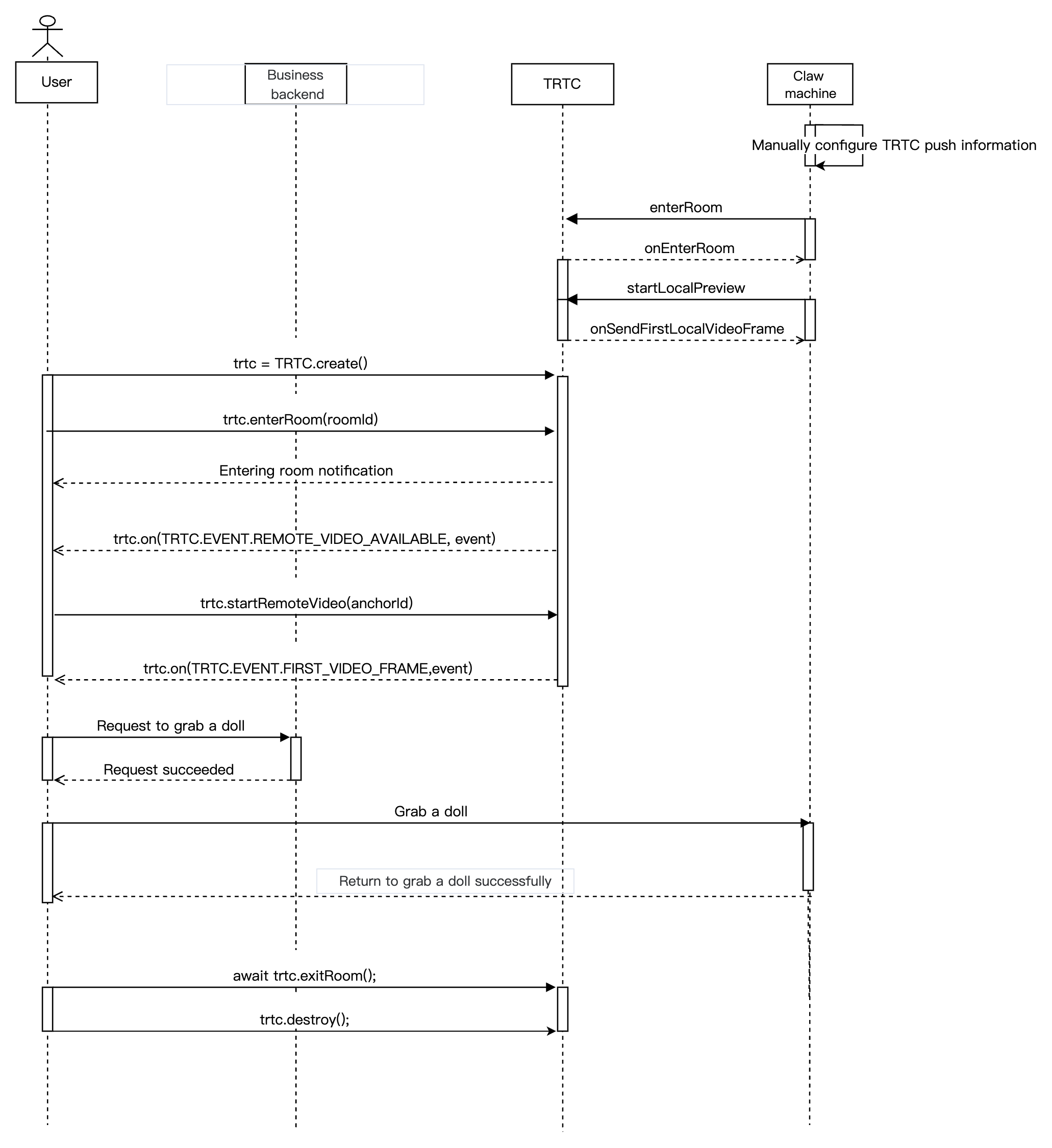
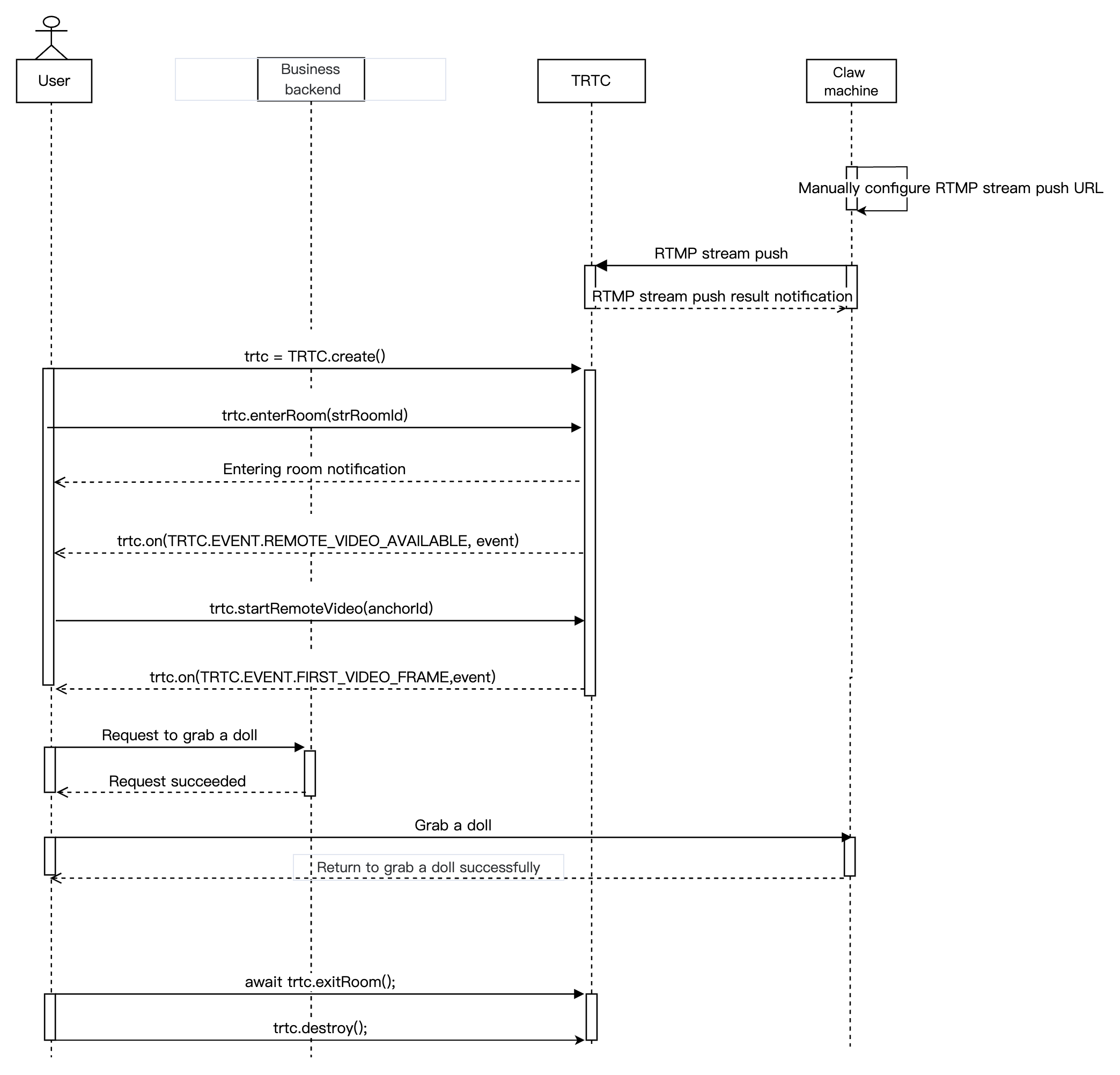
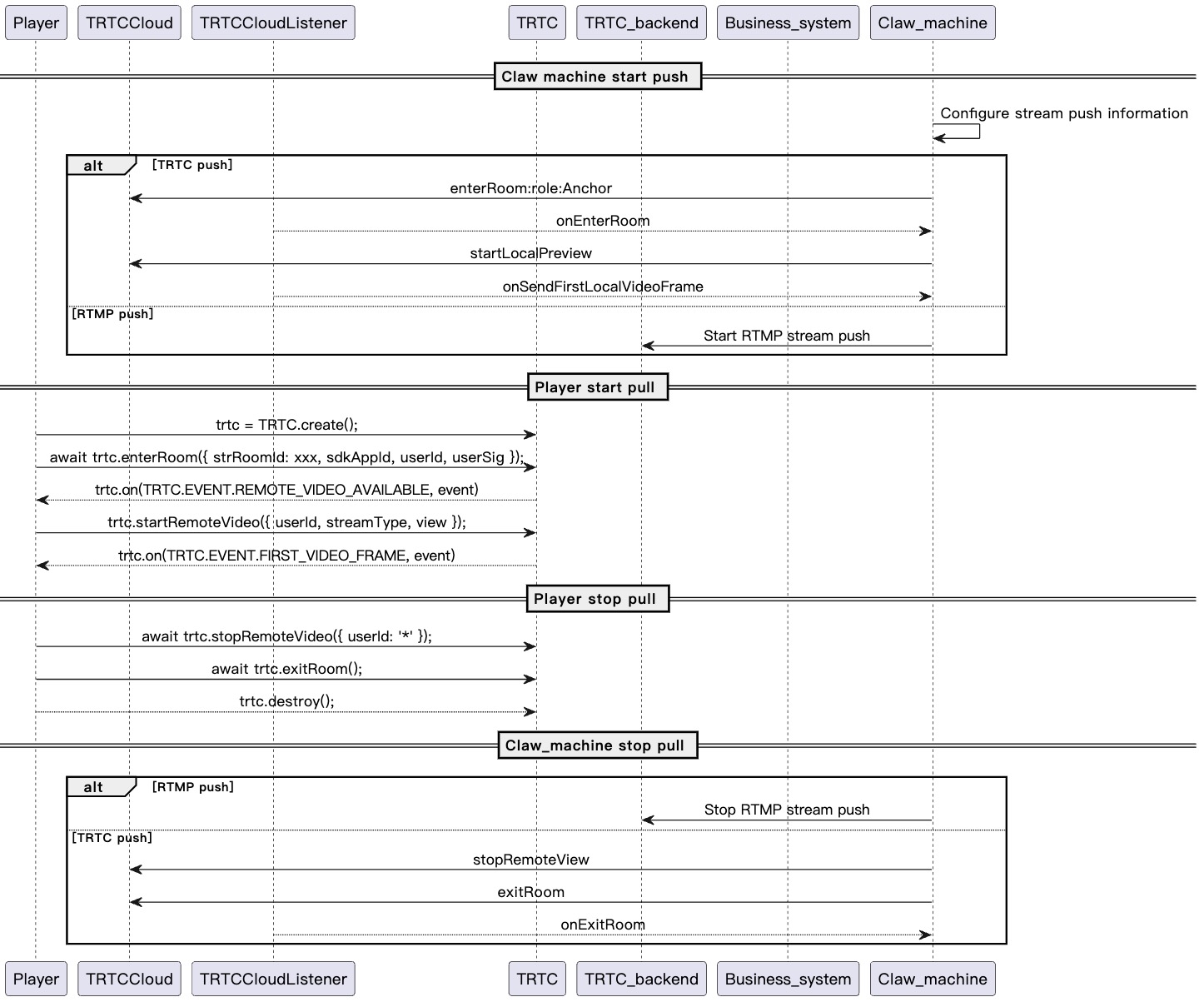
This section summarizes some common business processes in online claw machines to help you better understand the implementation of the entire scenario.
Online Claw Machine TRTC Streaming
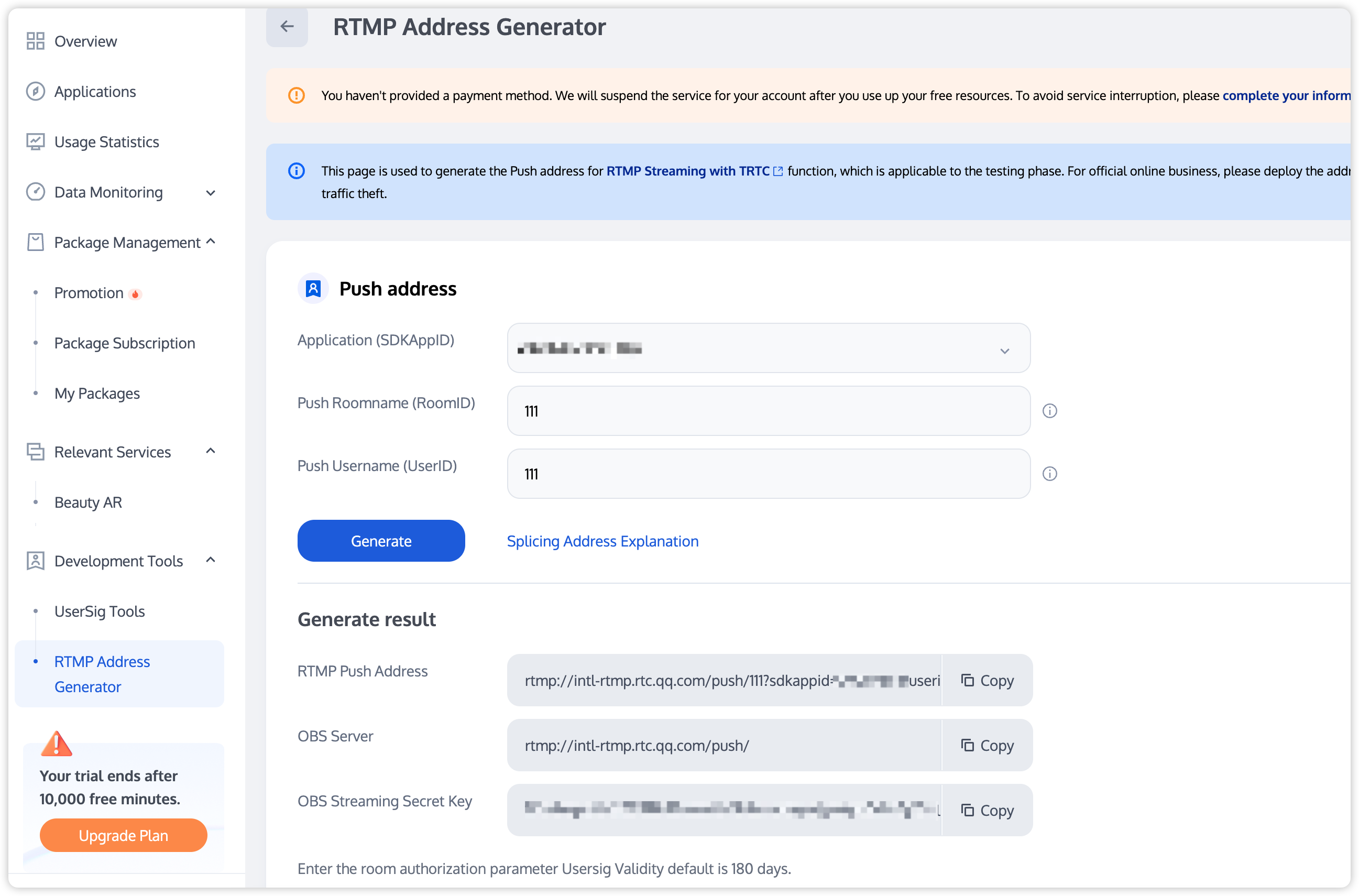
Online Claw Machine RTMP Streaming
The diagram below illustrates the sequence of RTC Engine streaming for an online claw machine, including processes such as RTC Engine streaming from a network camera and user-side stream pulling.
The diagram below illustrates the sequence of RTMP streaming for an online claw machine, including processes such as RTMP streaming from a network camera and user streaming pull.
Integration Preparation
Step 1: Activate the Service
The online claw machine scenario typically relies on the paid PaaS service of RTC Engine for implementation. RTC Engine provides real-time audio and video interaction capabilities. You can choose to activate the service based on your specific business requirements.
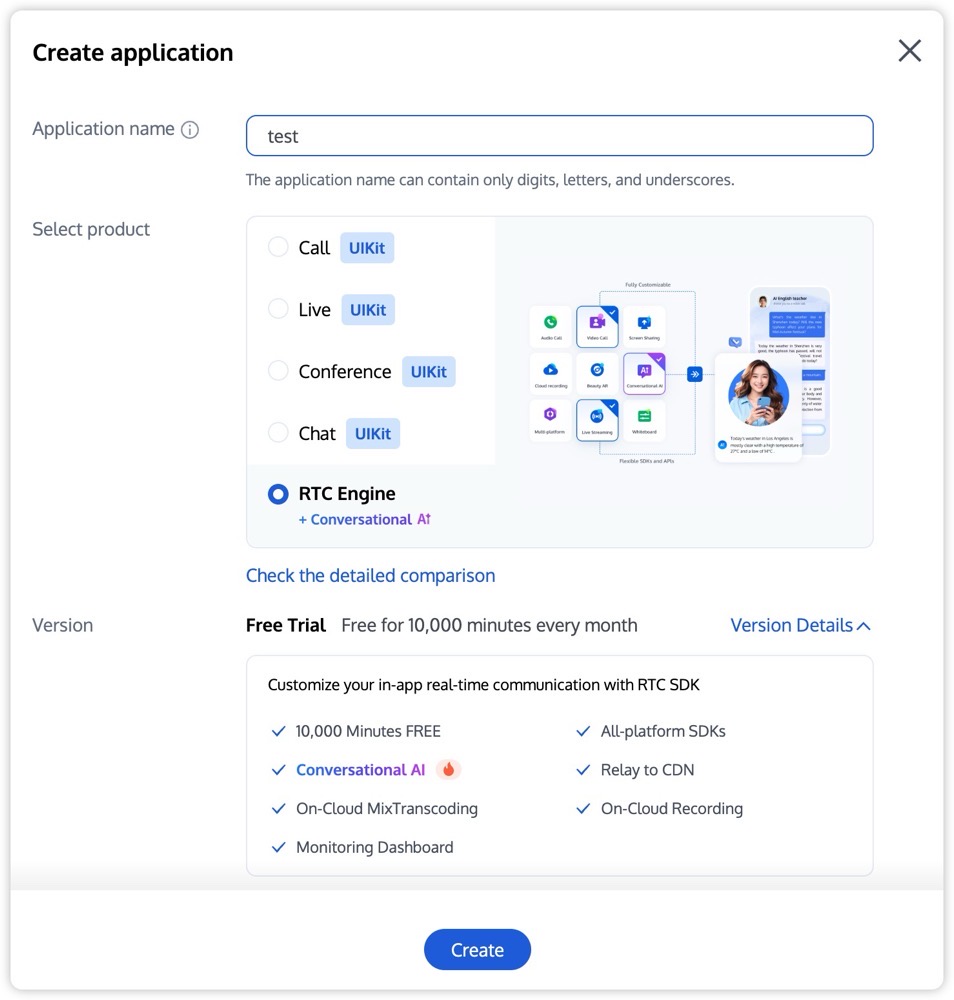
1. Log in to the RTC Engine console, then click Create application on the Applications page. You can choose to upgrade the RTC Engine application edition as needed. For example, upgrading to the Pro Edition unlocks more value-added feature services.
Note:
It is recommended to create two separate applications for the test environment and the production environment, respectively. The first activation of RTC Engine includes a free 10,000-minute trial package.
The RTC Engine monthly packages (Free Trial, Lite, Standard, and Pro packages) offer different value-added feature services. For details, see RTC Engine Monthly Packages.
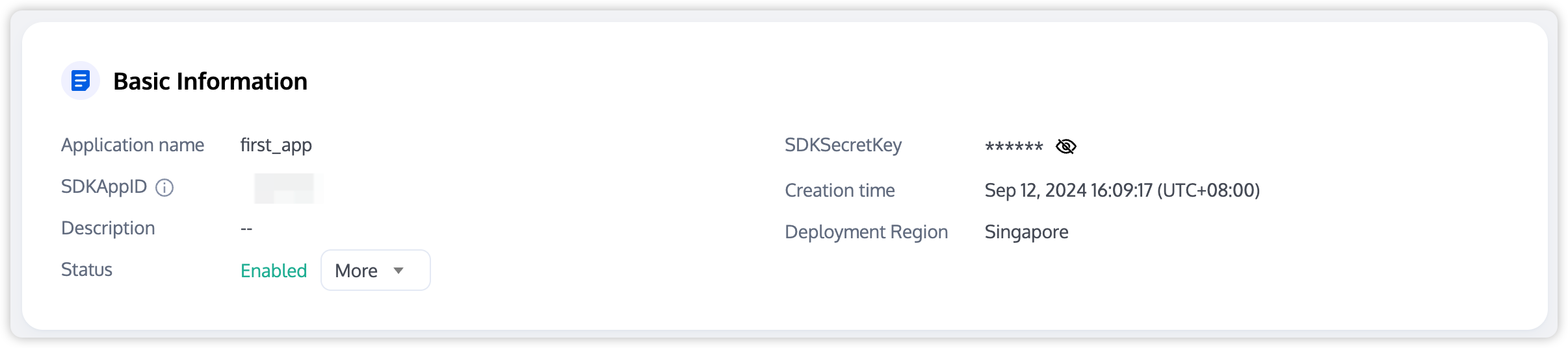
2. After creating the application, you can view its basic information in Application Management > Application Overview. Keep your SDKAppID and SDKSecretKey secure for future use, and take precautions to prevent key leakage that may result in unauthorized traffic usage.
The trtc.js needs to be downloaded to your local project for integration. For the corresponding SDK, see download link and demo address.
Step 3: Perform Authentication and Authorization
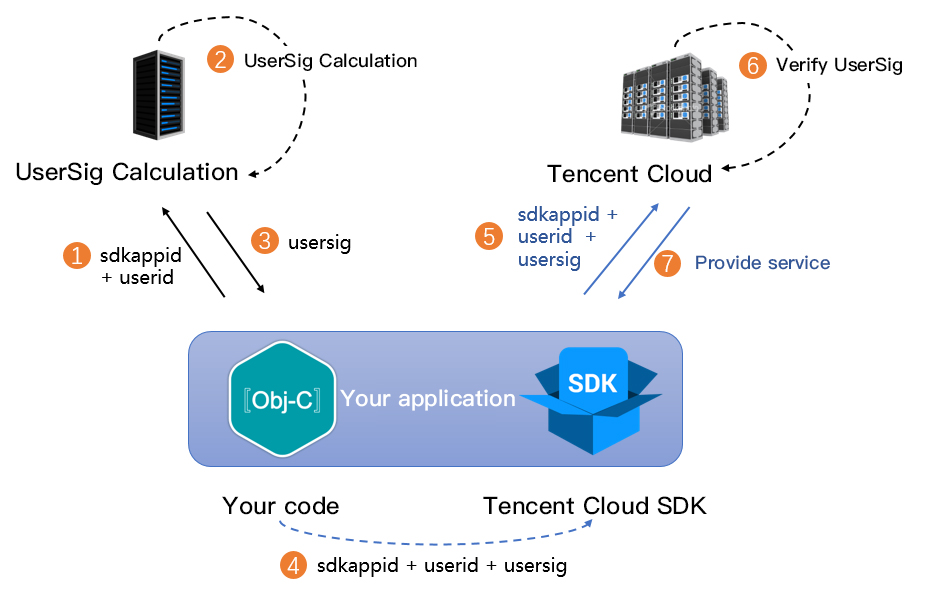
UserSig is a security protection signature designed by TRTC to prevent malicious attackers from misappropriating your cloud service usage rights. RTC Engine validates this authentication credential when entering a room.
Debugging phase: You can generate the UserSig using either the Client Sample Code or the Console Access. This method is intended solely for debugging and testing purposes.
Production stage: It is recommended to use the server-side computation scheme for UserSig with a higher security level to prevent client-side reverse engineering and key leakage.
Implementation process:
1. Before calling the initialization API of the SDK, have your app request UserSig from your server first.
2. Your server generates the UserSig based on the SDKAppID and UserID.
3. The server returns the generated UserSig to your app.
4. Your app sends the obtained UserSig to the SDK through a specific API.
5. The SDK submits the SDKAppID + UserID + UserSig to the cloud server for verification.
6. The cloud platform verifies the validity of the UserSig.
7. After the verification is passed, the RTC Engine SDK will be provided with real-time audio and video services.
Note:
The method of generating UserSig locally during the debugging and testing stage is not recommended for the production environment because it may be easily decompiled and reversed, causing key leakage.
We provide the source code for server-side UserSig calculation in multiple languages (Java/Go/PHP/Node.js/Python/C#/C++). For details, see UserSig Calculation Source Code.
Step 4: SDK Initialization and Event Listening
Create an RTC Engine SDK instance and set an event listener.
const trtc =TRTC.create();
trtc.on('error',err=>{
console.error(err);
});
Note:
It is recommended to listen to SDK event notifications. Perform log printing and handling for some common errors. For details, see Error Code Table.
2. Configure the SdkAppid, UserId, UserSig, RoomId, and other information on the RTC Engine network camera or streaming box to start streaming.
Note:
RTC Engine room IDs are divided into numeric type roomId and string type strRoomId. The rooms of these two types are not interconnected. It is recommended to unify the room ID type.
RTC Engine user roles are divided into anchors and audiences. Only hosts have streaming permissions. The user role should be specified upon room entry. If the user role is not specified, the default role is anchor.
In the online claw machine scenario, it is recommended to use the rtc mode for entering a room, as this ensures lower latency.
// event.userId: User ID. If it is an empty string, it indicates a local video.
})
Step 3: Exit Room
1. User exits the room.
await trtc.exitRoom();
// After a successful room exit, if the RTC engine instance is no longer needed, you can call the trtc.destroy method to terminate the instance and promptly release related resources.
// Once terminated, the RTC engine instance can no longer be used, and a new instance needs to be created.
trtc.destroy();
2. Dissolve room.
Server-side Dissolve Room.
RTC Engine provides the server-side API DismissRoom for dissolving rooms with numeric types and the API DismissRoomByStrRoomId for dissolving rooms with string types. You can use these server-side APIs to remove all users from the room and dissolve the room.
Client-side Dissolve Room.
The client does not provide an API for directly dissolving a room. Each client should call exitRoom to exit the room. Once all anchors and audiences have exited the room, the room will be automatically dissolved according to the RTC Engine room lifecycle rules. For details, see RTC Engine Exit the Room.
Exception Handling
Autoplay Policy Restriction
In the scenario of web-based stream pulling, to enhance the experience of users entering the room, autoplay is set by default upon entering the room. However, in Android and iOS WebViews, the default autoplay policy may be different from that in browsers. You can refer to the following documentation to disable the autoplay restriction in your app.