
Set Up Live Streaming with TRTC Live
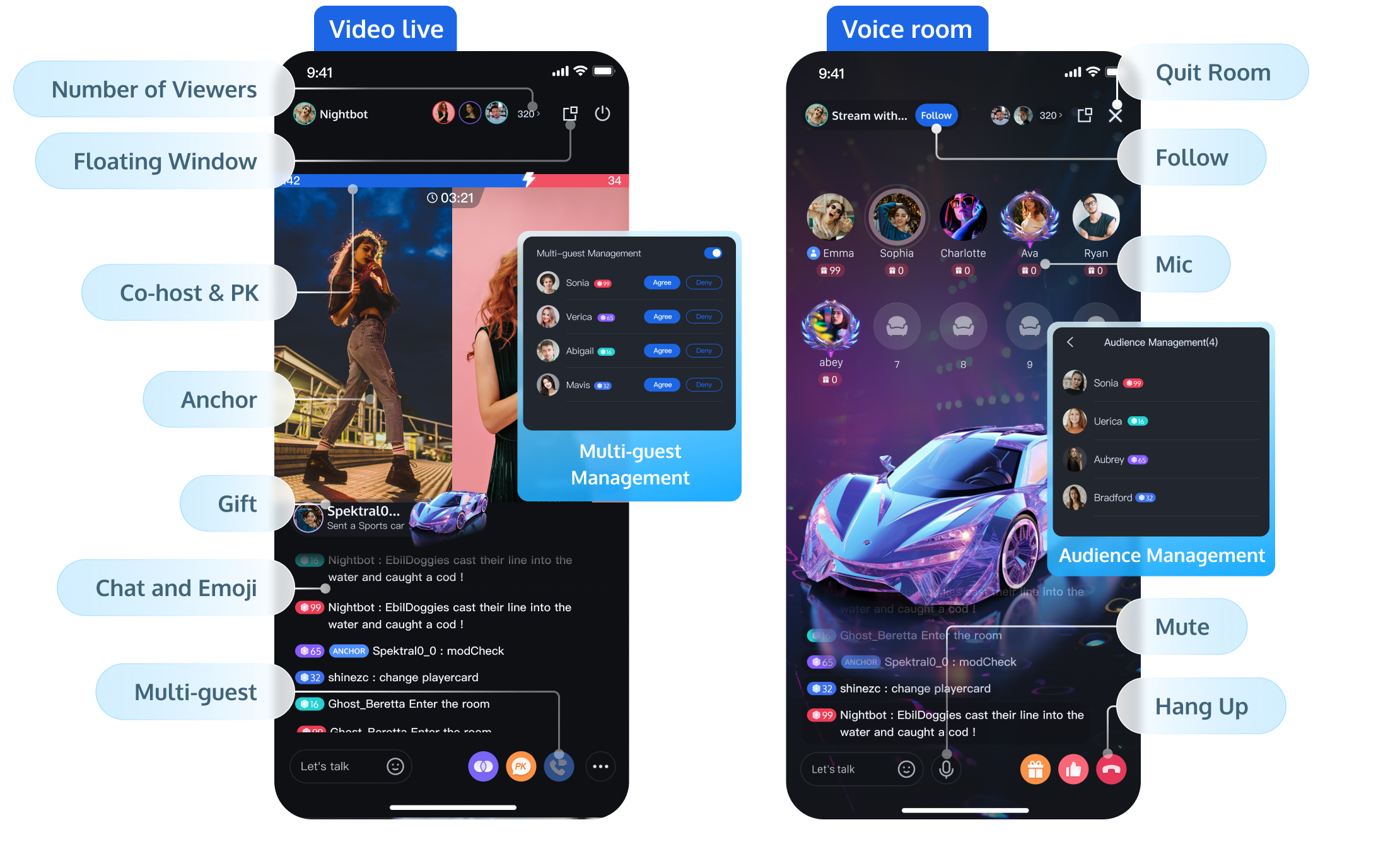
Live is built for interactive live streaming scenarios such as social entertainment, shopping, and fitness. With the provided integration, you can add interactive co-hosting, gift sending, and room management features to your app in about 30 minutes with as few as three steps, enabling rapid business launch. The basic features are shown as follows:
Choose an Integration Option
Choose an option based on how much you want to customize:
Integration option | Prebuilt UI | Headless (AtomicXCore-SDK) |
Description | Prebuilt UI and logic for live streaming and voice chat rooms. Pick the components you need and plug them in. | Build your own UI and wire it to the same live streaming and chat room APIs. |
When to use | Your layout is close to our demo; you only need to swap assets, tweak copy, or turn features on/off and add business logic. | You want full control over the UI and will implement the interface yourself. |
Integration Guide | ||
Supported Platforms | Android, iOS, Flutter, Web, Electron | Android, iOS, Flutter, Web, Electron |
Feature guide
Go live and watch — Start streaming and viewing
Interaction — Barrage, gifts, in-room co-streaming (mic), cross-room connection / PK
Member management — User level and identity, mute/ban/kick, audience list, viewer count
Room management — Room list, monitoring, room notice, stream statistics
Applicable Scenarios — E-commerce, barrage lucky draw, red envelope flash sale
Going Live and Watching
Platforms | Prebuit UI | Headless (AtomicXCore-SDK) |
App-Side | ||
Web application | After completing the integration of the Host Live Broadcasting feature on Web, you can start or watch a live stream. | After completing AtomicXCore-SDK integration on Web, you can use the corresponding live streaming and viewing features directly. |
PC live streaming | Not supported. |
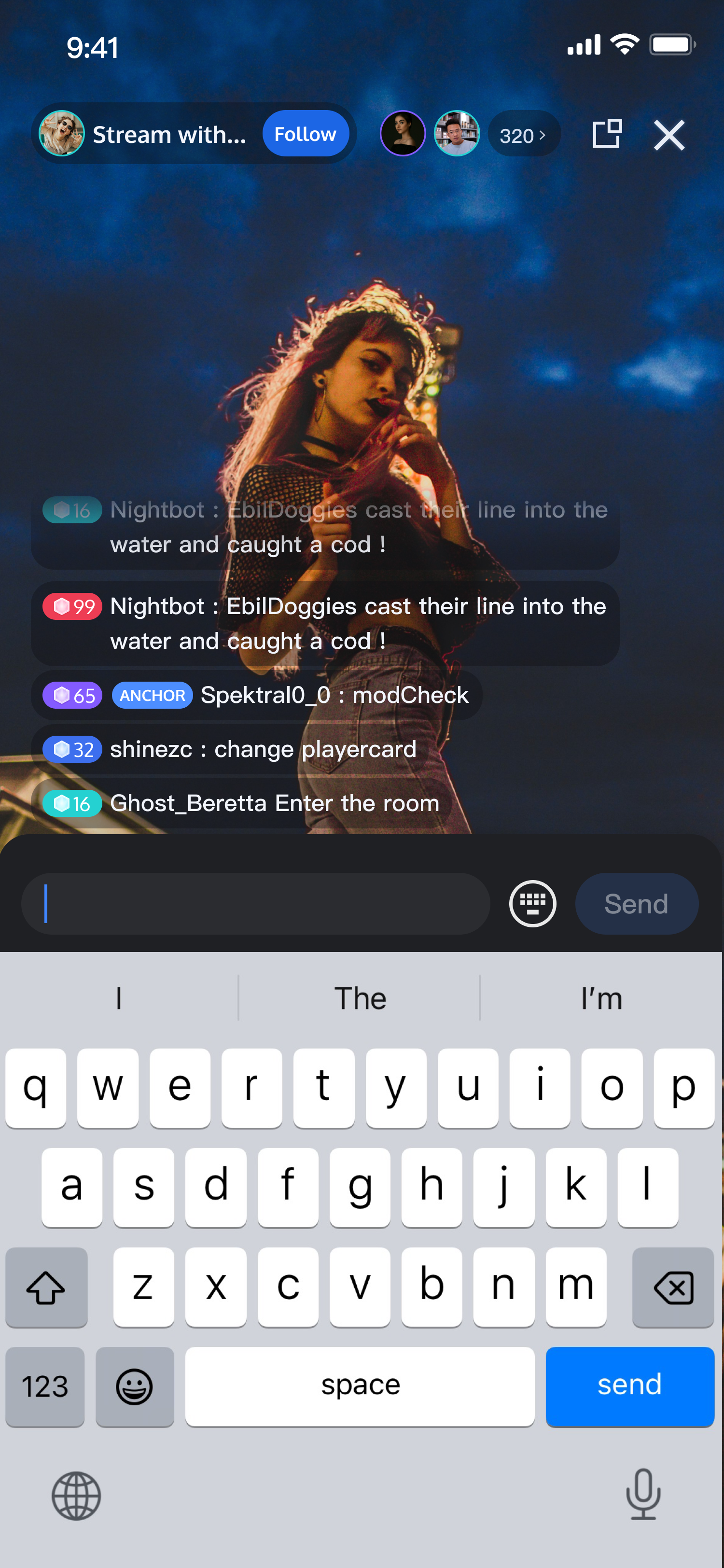
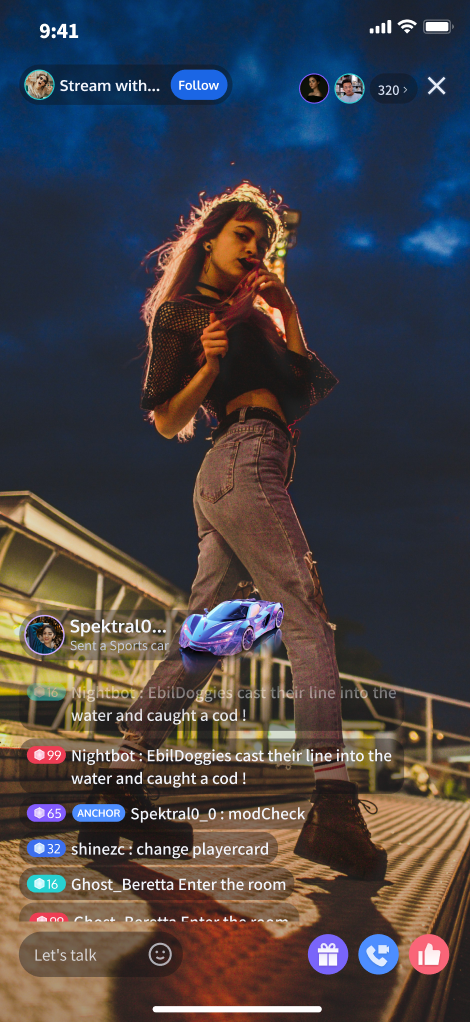
Barrage messages
Live supports barrage message sending and show by default. For development guides on different access methods, see:
Integration options | Implementation |
Prebuit UI | Works out of the box. To integrate only the barrage component or customize the UI, see chat barrage component. |
Headless (AtomicXCore-SDK) | For user joining or exit messages: listen to onAudienceJoined and onAudienceLeft and use Insert Local Tip Messages to notify user entry and exit. |
Preset barrage UI:
Barrage Message Sending Component | Barrage Message Displaying Component |
 |  |
Giving Gifts and Liking
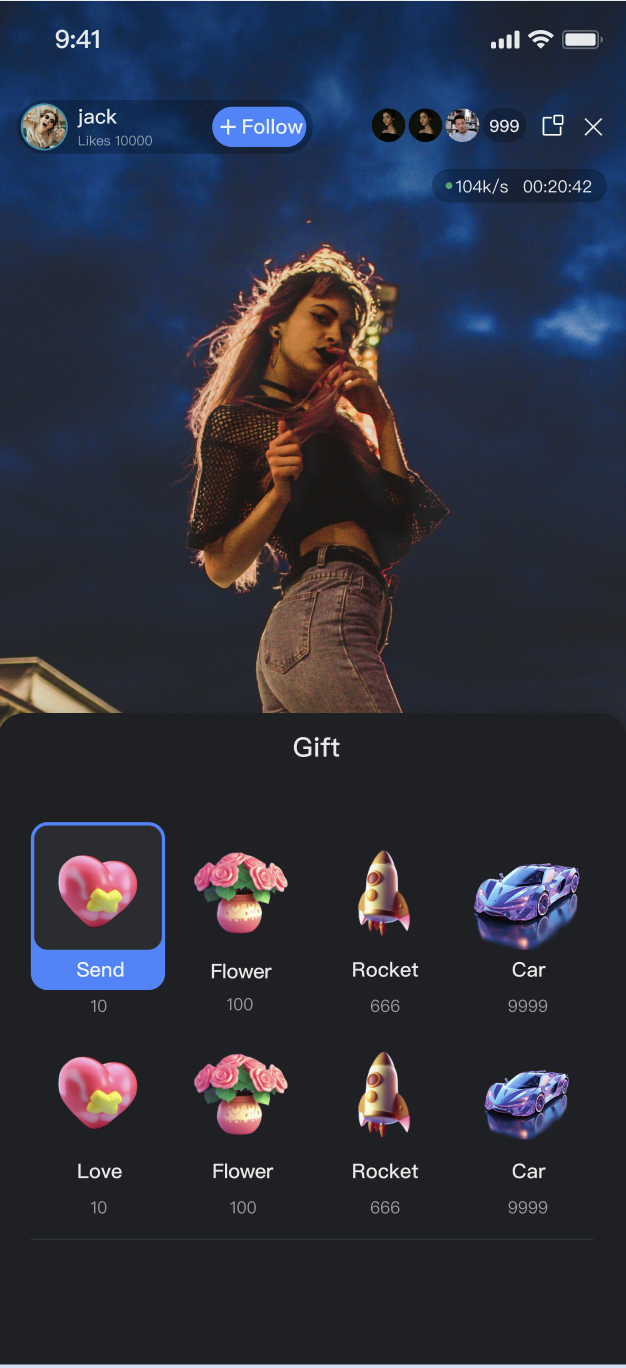
Live offers an end-to-end gift sending solution. For development guides on different access methods, see:
Integration options | Implementation |
Prebuit UI | |
Headless (AtomicXCore-SDK) |
Note:
Only the Live Free Trial or Pro edition support gift sending and liking function. For details, see Features and Billing Instructions.
Gift-related UI and behavior:
Gift Sending Panel | Gift Notification (Side Slide Effect) | Gift Notification (Barrage Message) | Full-Screen Gift Animation |
 |  | 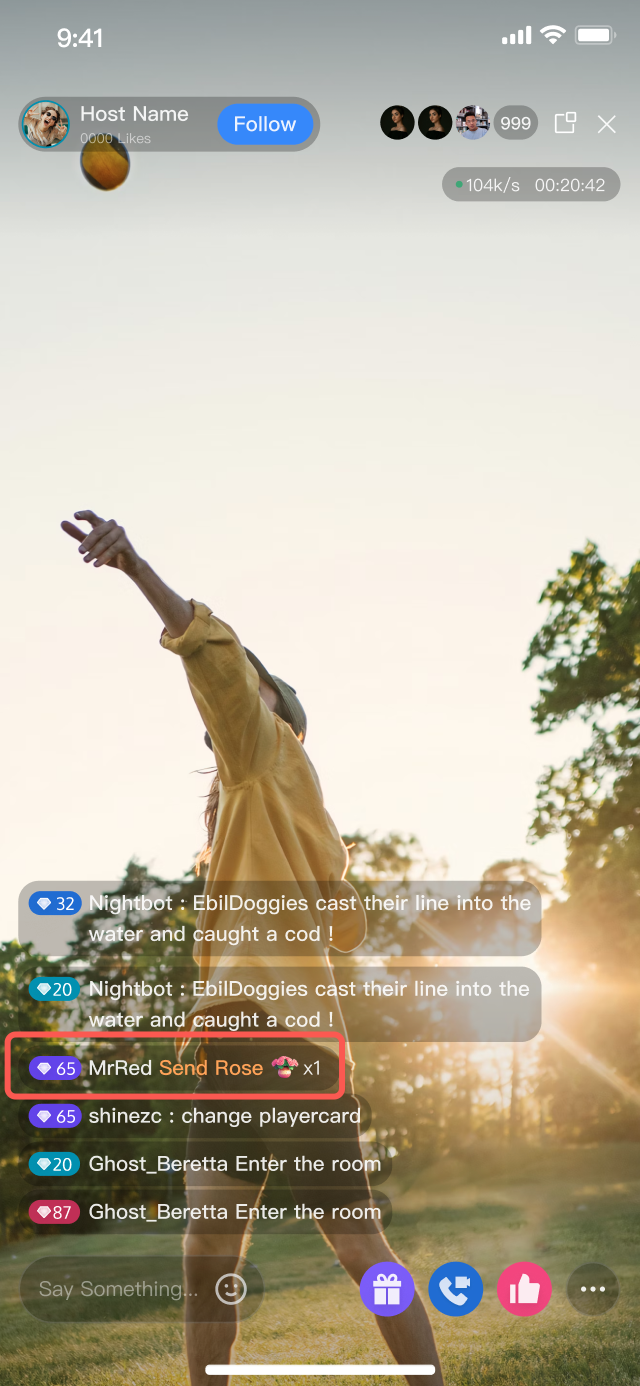 | 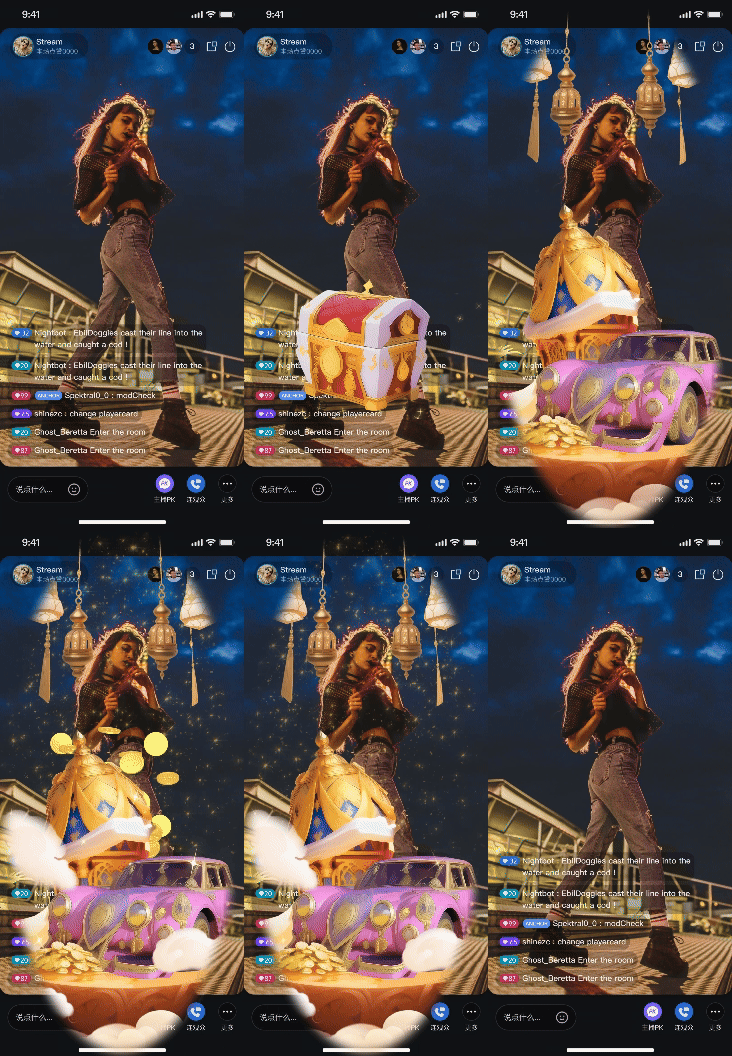 |
Single Room Co-Streaming
Viewers in the same room can request to come on mic (or video) and interact with the host. Implementation varies by integration option:
Integration options | Implementation |
Prebuit UI | Works out of the box. Integrate video live streaming or voice chat room component: Live streaming scenario: Refer to Video Component > Single-person Co-streaming for accessing. Voice chat room scenario: See Voice Chat Component for managing seats. |
Headless (AtomicXCore-SDK) |
Note:
Only Live Free Trial, Standard or Pro edition support single-room co-streaming. For details, see Features and Billing Instructions.
Cross-Room Connection/PK
Cross-room connection and PK are supported. Options vary by integration option:
Integration options | Implementation |
Prebuit UI | Includes UI, can be used directly after integration with no additional configuration required. Refer to Video Component > Host Connection for implementation steps. |
Headless (AtomicXCore-SDK) |
Note:
Only Live Free Trial, Standard or Pro edition support cross-room connection/PK. For details, see Features and Billing Instructions.
User Level and Identity
Use level and identity to distinguish roles, privileges, and status—and to drive UI, permissions, and access control. Live does not ship a built-in identity system; implement it in your backend and surface it in the client.
Backend: store level and identity
Store each user’s level and identity in your backend keyed by UserID. Expose them via your own APIs for the client.
Client: send and display in barrage
When implementing Barrage Message, select the sendMessage API for message sending. Set
message.data to the level/identity information obtained from your business backend for display. When receiving messages using onRecvNewMessage, parse the data as user's level/identity information, then render it on the barrage. The sample code for sending and receiving messages is as follows:// Send messages.V2TIMMessage v2TIMMessage = V2TIMManager.getMessageManager().createTextMessage("text");String jsonString = "{\"level\":\"25\",\"identity\":\"normal\"}"; // write here the level/identity informat obtained from your serverv2TIMMessage.setCloudCustomData(jsonString);V2TIMManager.getMessageManager().sendMessage(v2TIMMessage, null, roomId, V2TIMMessage.V2TIM_PRIORITY_LOW,true, null, new V2TIMSendCallback<V2TIMMessage>() {// ...});// Receive a message.AdvancedMsgListener listener = new AdvancedMsgListener();V2TIMManager.getMessageManager().addAdvancedMsgListener(listener);private class AdvancedMsgListener extends V2TIMAdvancedMsgListener {@Overridepublic void onRecvNewMessage(V2TIMMessage msg) {Gson gson = new Gson();Type type = new TypeToken<HashMap<String, Object>>() {}.getType();// Parse custom data here and render to barrageHashMap<String, Object> customData = gson.fromJson(msg.getCloudCustomData(), type);}}
import ImSDK_Plus// Send messages.let v2TimMessage = imManager.createTextMessage(text: "text")let jsonString = "{\"level\":\"25\",\"identity\":\"normal\"}" // write here the level/identity informat obtained from your serverlet data = jsonString.data(using: .utf8)v2TimMessage?.cloudCustomData = dataV2TIMManager.sharedInstance().sendMessage(message: v2TimMessage, receiver: nil,groupID: roomId, priority: .PRIORITY_LOW,onlineUserOnly: true, offlinePushInfo: nil, progress: nil) {} fail: { code, message in}// Receive a message.V2TIMManager.sharedInstance().addAdvancedMsgListener(listener: self)extension YourClass: V2TIMAdvancedMsgListener {func onRecvNewMessage(msg: V2TIMMessage) {if let jsonObject = try? JSONSerialization.jsonObject(with: msg.cloudCustomData ?? Data(), options: []),let dict = jsonObject as? [String: Any] {// Parse custom data here and render to barrage}}}
Muting and Banning/Removing Users
Mute or remove specific members from a room. Implementation varies by integration option:
Integration options | Implementation |
Prebuit UI | Includes UI; can be used directly after integration with no additional configuration required. Users can be blocked or removed from the audience list or barrage component accordingly. If you use only the Audience List component, implement your own AtomicXCore-SDK API logic within the onUserItemClick callback in audience management of the audience list.Mute API: disableSendMessage Kick API: kickUserOutOfRoom |
Headless (AtomicXCore-SDK) | Manage User Speaking Permissions (mute). Kick a Viewer Out of the Live Room (remove). |
Online Audience List
Show the current viewer count and list of viewers. Implementation varies by integration option:
Integration options | Implementation |
Prebuit UI | Includes UI, can be used directly after integration with no additional configuration required. Refer to Audience List. |
Headless (AtomicXCore-SDK) | |
server-side REST API |
Number of Online Users
Display the current viewer count. Implementation varies by integration option:
Integration options | Implementation |
Prebuit UI | Includes UI, can be used directly after integration with no additional configuration required. |
Headless (AtomicXCore-SDK) | You can listen to audienceCount in LiveAudienceState to get the current number of viewers in the live streaming room in real time. You can also listen to onAudienceJoined/onAudienceLeft for self-maintenance of the number of online users. |
server-side REST API | The backend can obtain the room member list via REST API, but only returns 1000 users when the number of viewers in the live streaming room is more than 1000. |
Live Room List
Display all live rooms. Implementation varies by integration option:
Preset room list layouts:
two-column waterfall layout | single-column waterfall layout |
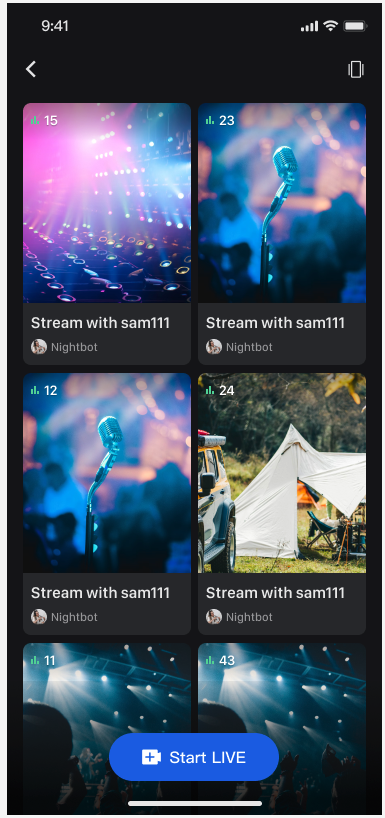 |
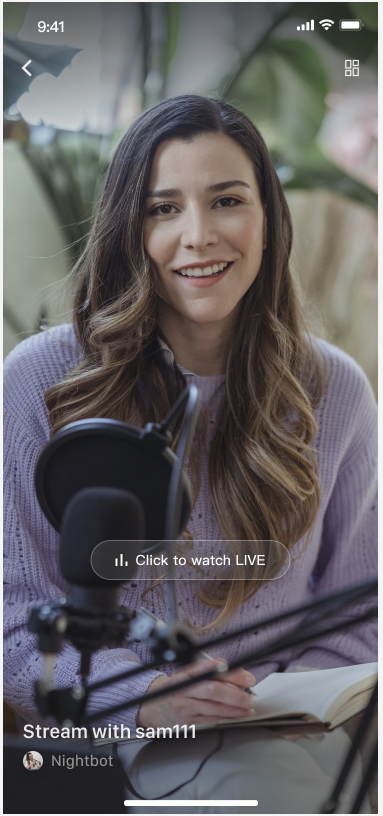 |
Note:
Only Live Free Trial or Pro edition supports live preview and waterfall layout in the live stream list. For details, see features and billing instructions.
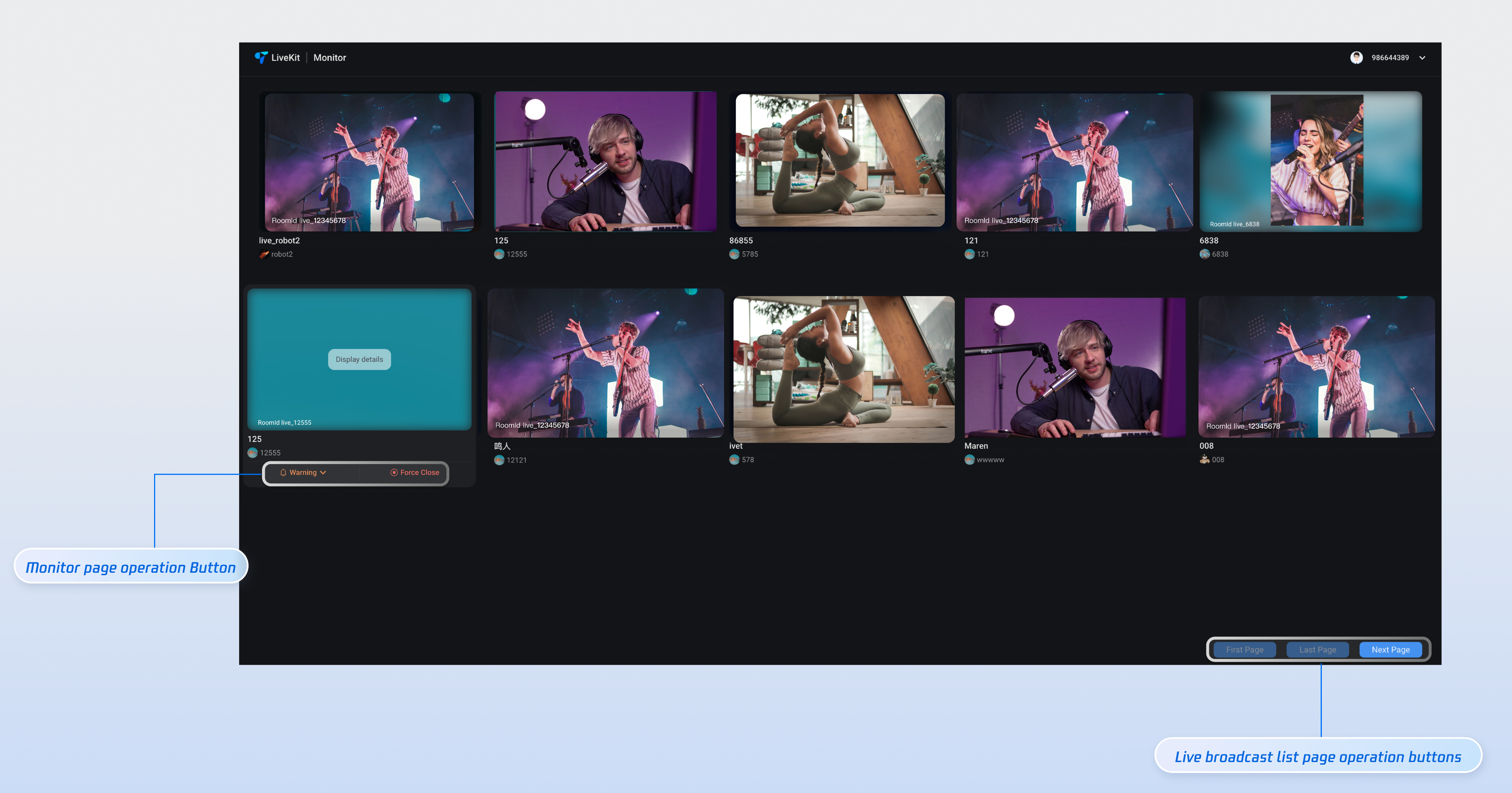
Live Stream Monitoring
View active rooms and end or dismiss a specific room in real time.
For details, see Monitoring Webpage (Web Desktop Browser Vue Version) and Monitoring Webpage (Web Desktop Browser React Version).
Live Room Notice
Room notices show basic room info when users join and sync updates to all members in real time. Use the
Notice field on the room; when you set or update it, all users in the room are notified.Integration options | Implementation |
Prebuit UI | Host Side: When adding the anchor streaming view, set liveInfo.notice to your desired room announcement. Audience Side: Please refer to the Headless section below for implementation details. |
Headless (AtomicXCore-SDK) | Host Side: Set notice when starting a live stream: When calling the createLive interface in LiveListStore, set the notice field within the LiveInfo parameter to your room announcement.Update notice during a live stream: After the stream has started, call the updateLiveInfo interface in LiveListStore to modify the room announcement.Audience Side: Upon joining: The notice field within the LiveInfo object returned by the joinLive interface contains the room announcement. You can display this notice in the chat area by Insert Local Tip Messages into the barrage component.Upon update: Monitor the currentLive field in LiveListState to receive real-time updates to the room announcement. |
server-side REST API | Refer to the Notice field in the Create Room or Update Room documentation for configuration and update instructions. |
Live Stream Statistics
Stats include cumulative views, total likes, gifts sent (count and amount). Implementation:
Integration options | Implementation |
Prebuit UI | Stats will be automatically displayed after the host ends the live stream, no additional configuration required. If only integrating the video live streaming core component, call the LiveCoreView API with the TUIStopLiveBlock callback when ending the live stream. This callback contains the live stream's statistical information TUILiveStatisticsData. |
Headless (AtomicXCore-SDK) | When calling the endLive API to end the live stream, the callback contains the statistical information TUILiveStatisticsData of this live stream. |
E-commerce Scenarios
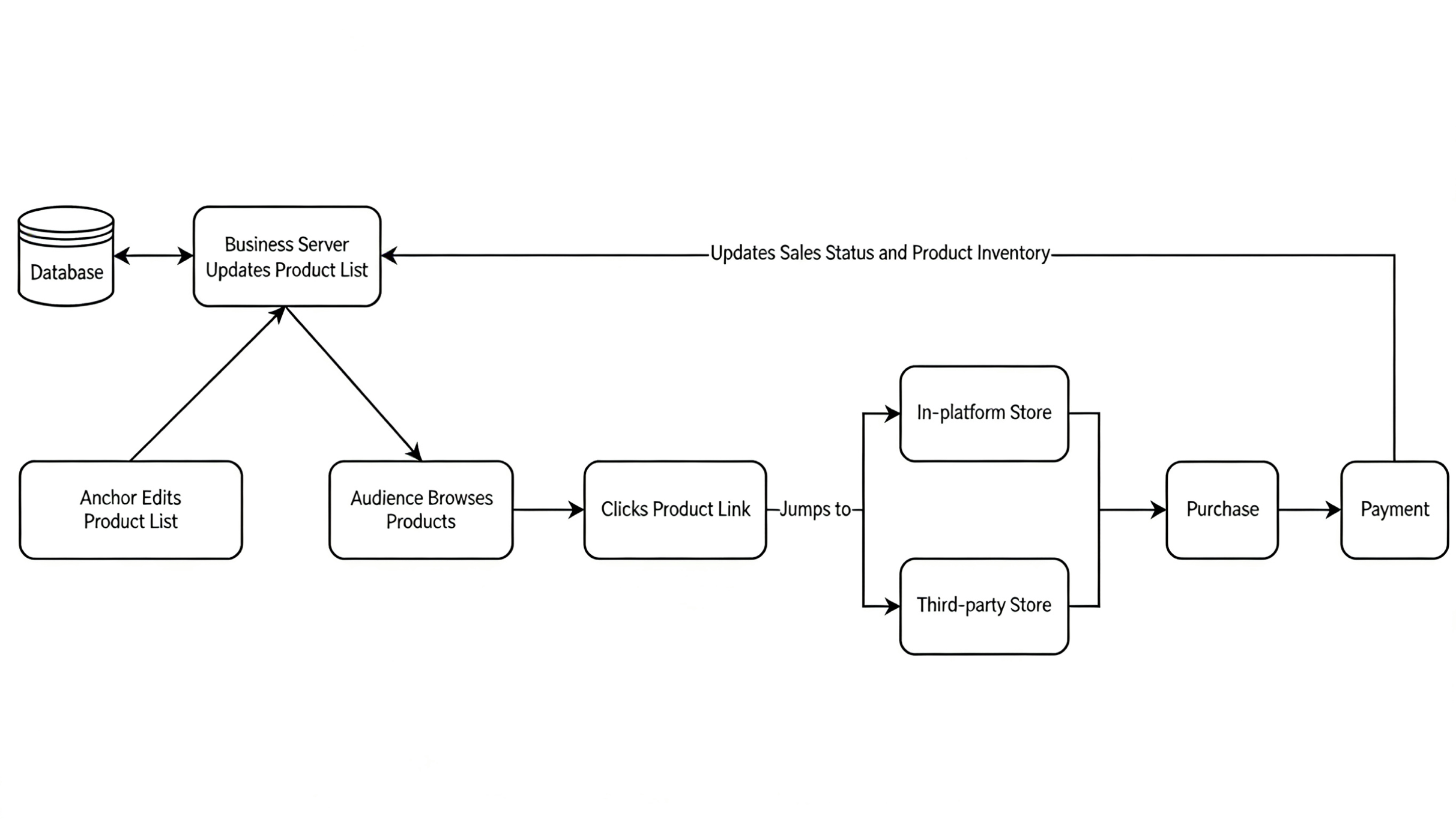
Live does not provide product management. For live shopping (product list, pop-ups, links, payment), implement in your app and backend. Recommended flow:
Product list / shopping cart
Store product data (name, description, price, inventory, images) in your backend. Expose it via your API; the client fetches and displays the list.
Product pop-up
When the host highlights a product, show a product pop-up to viewers. Send Chat Custom Messages to the room; the client parses and displays them. Or implement your own messaging.
Integration options | Implementation |
Prebuit UI | Host It is advisable to add a product pop-up UI on the host page. The code location for the host page is as follows: Audience It is advisable to add a product pop-up UI on the audience viewing page. The code location for the audience viewing page is as follows: |
Headless (AtomicXCore-SDK) | After receiving a custom message and parsing it into product-related information, just add the product popup View on top of your anchor page/audience viewing page UI. |
Product link and payment
Viewers tap a product link and go to your store (in-app or third-party) to confirm and pay. After payment, your backend receives the result and updates sales and inventory.
Note:
The above product management module is for reference only. In actual applications, you need to design and deploy according to your business needs.
Lucky Draw
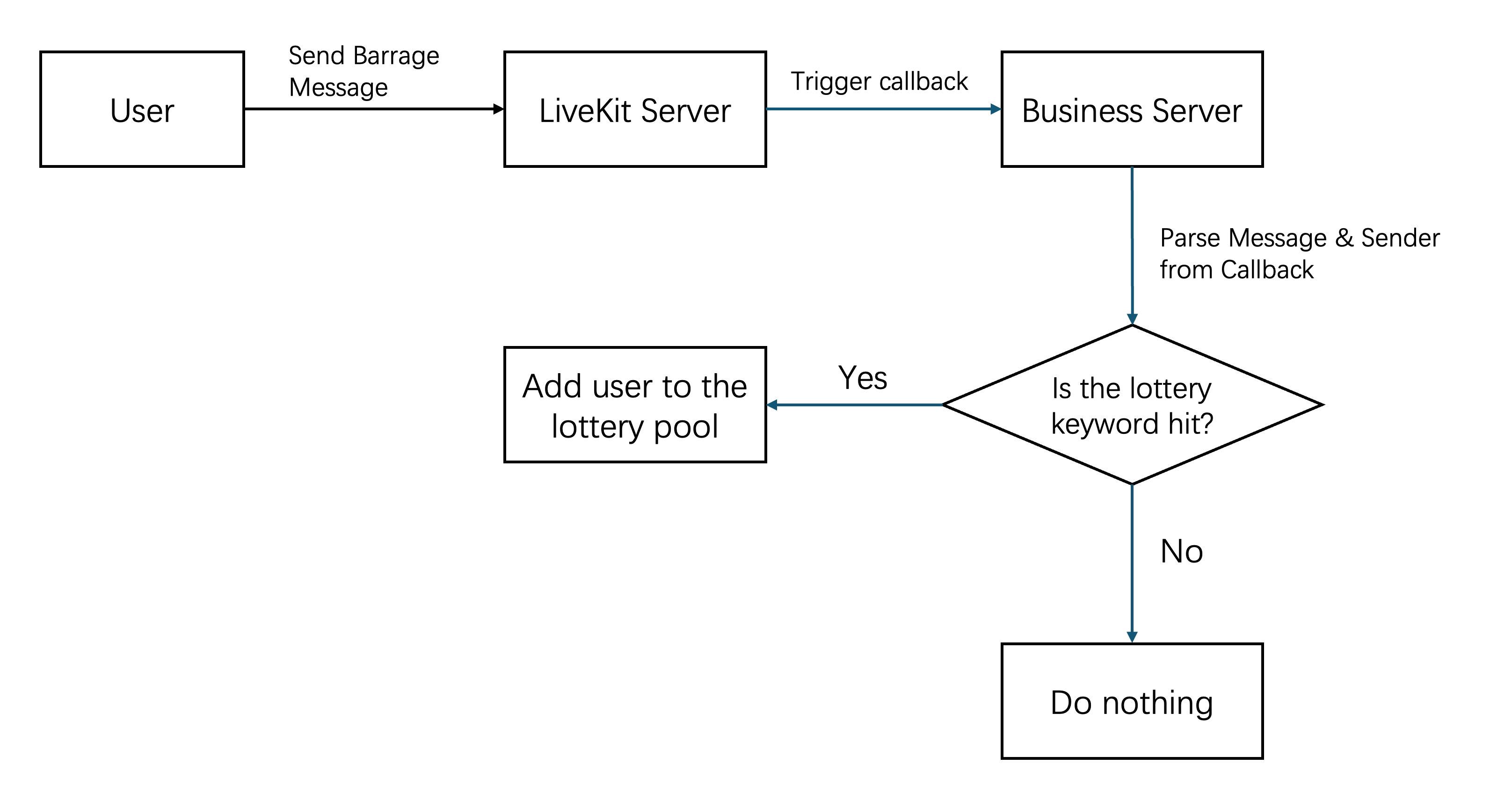
Lucky draw with live room barrage messages refers to users sending barrage messages with specific content to participate in the draw. The implementation approach involves the backend retrieving bullet screen message content via a callback request after an in-group message is sent. Message senders whose content meets the specific criteria will be added to the prize pool, otherwise no action will be taken. For callback usage, see After a Group Message Is Sent.
Red Envelope Flash Sale / Lucky Bag
Red envelope flash sales and lucky bags are common marketing features in e-commerce live streams; they boost engagement and conversion. Live does not provide this out of the box—implement it using Live’s Chat APIs plus your own backend.
1. Create and notify
The host triggers activity creation on your backend. After the backend creates the activity, it sends a notification to the room via REST API so all viewers see that the activity has started.
2. User participation
The client shows the participation entry. When the user taps it, the client calls your backend. The backend verifies eligibility, records the participation, and can push the updated participant count in real time.
3. Draw and announce results
At the scheduled time, the backend runs the draw. It then broadcasts the result to the room again via REST API.
4. Reward delivery
The backend credits the winner (e.g. coupons, points, or balance) through your account or marketing system.
Implementation notes
Custom messages — Use custom message types to sync activity state (e.g. “Event Started”, “Result Announced”). The client subscribes to these messages and shows the right UI for each type.
Backend-owned logic — Keep activity setup, participation checks, the draw, and reward delivery on the backend so the flow stays secure and auditable.
Note:
The red packet/lucky bag module is for reference only. In actual applications, you need to design and deploy according to business needs.

