







Introduction
- Start with YouCam’s online bangs filter for preset styles, or BeautyPlus and Fotor for a custom fringe description.
- Use the same clear, front-facing photo for every comparison, with your forehead and hairline visible.
- “Free” can mean introductory credits, restricted exports, or a trial—not unlimited previews.
- Compare fringe length and density without changing your face, hair color, or base haircut.
- Treat the result as a visual reference for your stylist, not a prediction of how your hair will behave.
To see what you look like with bangs, upload a well-lit portrait to a bangs filter, choose a fringe style, and compare the result with your original photo. YouCam’s dedicated online bangs tool is a practical starting point because it advertises curtain, wispy, blunt, and other presets. If you want a more specific shape, BeautyPlus and Fotor document brush-and-prompt editing workflows.
The useful question is not just “Do bangs look good on me?” It is “Which length, density, and shape would I want—and could my actual hair produce it without a routine I dislike?” This guide helps you separate those decisions.
How to See What You Look Like With Bangs

A bangs filter digitally adds or changes the front section of your hair in a photograph. Cambridge Dictionary defines bangs as the American English term for what British English calls a fringe. Searches for either term can therefore lead to the same kind of hairstyle tool.
For photo-based previews, an AI bangs simulator generates hair around your forehead using a selected style, written request, or reference image. YouCam describes its bangs filter as a generative-AI tool that adds a virtual fringe to an uploaded photograph.
That makes it useful for exploring appearance, but it does not turn your selfie into a haircut specification. A generated image can invent density, straighten curls, conceal a cowlick, or subtly alter your face.
Choose between presets, prompts, and reference photos
These inputs answer different questions:
| Input method | Best question to answer | What to watch for |
|---|---|---|
| Preset | “Do I prefer curtain, wispy, or blunt bangs?” | Preset names may conceal different lengths or densities |
| Written description | “What would a light, eyebrow-length fringe look like?” | The tool may change more than you requested |
| Reference photograph | “Would this particular shape work visually on me?” | The result may borrow the reference’s texture or volume |
| Selected-region editing | “Can I change only the hair around my forehead?” | A poor selection can affect eyebrows, skin, or surrounding hair |
Start with presets to find a general direction. Use prompts or reference photographs after you know which shape interests you. YouCam’s browser hairstyle generator supports both presets and reference-photo input, while BeautyPlus and Fotor document selected-region editing.
Keep the first experiment narrow. If you change your fringe, color, length, makeup, and face shape together, you will not know which change made the result appealing.
A still-photo preview is not a moving-camera effect
An uploaded-photo result shows a generated hairstyle in one image. It does not demonstrate that the fringe will remain correctly positioned when you turn your head, smile, or move.
Use a still preview to compare proportions. If you want a live-camera effect, check that the specific product explicitly supports moving-video hair tracking; quick photo generation alone does not establish that capability.
Bangs Filter Tools Compared: Style Choices, Free Limits, and Photo Quality
For a first preset comparison, my recommendation is YouCam Online. For a specifically described fringe, choose BeautyPlus or Fotor. Consider Facetune if you prefer an app workflow with documented position and blend adjustments, and MyEdit if a reference photograph matters more than a dedicated bangs catalog.
These recommendations reflect documented inputs and access rules, not an independently measured image-quality ranking.
| Tool | Documented style controls | Free-access boundary | Best use |
|---|---|---|---|
| YouCam Online | Dedicated bangs presets; broader generator supports references | Broader generator gives five introductory credits and uses two per style | Comparing named fringe shapes |
| BeautyPlus | Blunt, curtain, wispy, parted presets; brush-and-prompt mode | Exact free quota is not established; premium edits can affect saving | Customizing a fringe region |
| Fotor | Brush over an area and describe the desired bangs | Some generative features require credits; exact bangs charge is not established | Describing length, weight, and shape |
| Facetune | Curtain, wispy, curly bangs; length, thickness, angle, position, and blend controls | Advertised seven-day trial | App-based adjustment |
| MyEdit | General hairstyle presets, written descriptions, reference-photo input | Advertises daily free credits; quantity not established | Trying a reference-led hairstyle |
YouCam: the clearest starting point for preset comparisons
YouCam’s dedicated bangs page advertises more than ten filters, including curtain, wispy, and blunt styles. It lists JPEG and PNG uploads and desktop and mobile use.
Its broader browser hairstyle generator advertises more than 200 hairstyles, a Bangs category, reference-photo uploads, and original-versus-result comparison with zooming. That broader inventory should not be confused with the dedicated bangs catalog.
The browser generator gives new accounts five free credits and charges two credits per generated style. That supports two complete initial previews—not five. Use them on genuinely different candidates, such as light curtain bangs and a denser straight fringe.
BeautyPlus and Fotor: useful when a preset is too vague
BeautyPlus’s bangs tool offers both named presets and a manual mode where you brush over an area and describe the fringe. Fotor’s workflow similarly uses upload, region selection, a style description, generation, and download.
These tools suit requests such as “airy center-parted bangs with longer sides” better than a broad label alone.
Check saving conditions before spending time on variations. BeautyPlus support identifies premium-feature use, storage shortages, and missing storage permission as possible reasons an edit cannot save. Fotor’s credit guide explains that some generative-AI features consume credits.
Facetune and MyEdit: alternatives with different strengths
Facetune’s virtual bangs page describes curtain, wispy, and curly styles, along with adjustment of fringe length, thickness, and angle. Its advertised seven-day trial is time-limited, not permanent unrestricted access.
MyEdit’s hairstyle changer supports presets, written descriptions, and uploaded hairstyle references. It advertises daily free credits and watermark-free downloads, but its exact current bangs preset catalog is not established.
Judge export quality separately from preview quality
Before committing to a tool, check whether you can save a sample, enlarge it, and inspect the forehead boundary. A good-looking thumbnail may hide painted strands or changed facial details.
YouCam Online’s main site promotes watermark-free images as a subscription benefit. Do not assume every free bangs export has the same watermark or resolution rules.
How to Try Bangs on Your Photo Step by Step
The most useful virtual bangs try on is a controlled comparison. Keep the source photo and everything outside the fringe as consistent as possible.
Step 1: Prepare one suitable portrait
Choose a photograph with:
- One clearly visible face.
- A roughly front-facing pose.
- Even light across the forehead.
- A visible hairline and eyebrows.
- Enough surrounding hair to show your existing cut.
Move existing front hair gently away from your forehead without pulling it unnaturally tight. Save a copy of the original before editing.
Step 2: Pick two contrasting styles
Start with a light fringe and a heavier option. For example:
- Airy curtain bangs with longer sides.
- Straight-across, eyebrow-length bangs with moderate density.
This gives you a meaningful comparison. Testing several nearly identical wispy variants first can use your available generations without answering whether you prefer an open or covered forehead.
Step 3: Apply a preset or describe the change
For a prompt-based editor, write a request like this:
Add soft curtain bangs with a center opening and longer sides that blend into my existing hair. Keep my face, eyebrows, hair color, texture, overall length, clothing, and background unchanged. Change only the fringe area.
For a blunt bangs preview:
Add a straight-across fringe that reaches the eyebrows with moderate density. Preserve my existing haircut and natural texture. Do not reshape my face or change my hair color.
Those preservation instructions express your goal; they do not guarantee that the generator will obey it. Inspect the result afterward.
Step 4: Select the region carefully
If the editor uses a brush, follow its selection guidance and focus on the area where the fringe should appear. Avoid casually painting across the eyes, nose, or entire hairstyle.
Fotor’s documented bangs workflow uses a brushed region followed by a written description. YouCam Makeup’s AI Replace alternative documents highlighting the forehead, entering a curtain-bangs request, and replacing that area.
A selection that is too broad may encourage changes beyond the fringe; one that is too narrow can leave too little space for the requested shape.
Step 5: Navigate app menus without assuming every build matches
YouCam’s November 2025 bangs tutorial describes Photo Edit, AI Hairstyle, and the Bangs tab. Its October 2026 curtain-bangs tutorial instead places AI Hairstyle under Beautify and names the curtain-style preset Split Bangs.
Treat those labels as navigation clues, not identical instructions for every device.
Step 6: Reject distorted results before judging the style
Compare the generated image with the original:
- Are your eyes, brows, nose, and jaw unchanged?
- Is the base haircut still recognizable?
- Does the fringe emerge from a plausible hairline?
- Has the tool silently changed texture or density?
- Does the image remain convincing when enlarged?
If the face has changed, regenerate rather than deciding that the bangs flatter you.
Step 7: Change one variable at a time
Once you prefer a shape, compare shorter versus longer or lighter versus heavier versions. Avoid changing both together. Save the style description beside each export so that your eventual shortlist records more than an attractive picture.
Compare Curtain, Wispy, Blunt, Side-Swept, and Micro Bangs
Style labels are starting points, not complete cutting instructions. The same “curtain bangs” preset can look very different depending on its center length, side length, and density.
| Style | Main visual characteristic | What to compare | Question for your stylist |
|---|---|---|---|
| Curtain | Center opening with longer sides | Narrow versus wide opening; shorter versus longer center | Will my natural part support this shape? |
| Wispy | Light, separated strands | Coverage and amount of visible forehead | Can this density work with my front hair? |
| Blunt | Straight, comparatively solid edge | Length, width, and weight | How will the line sit with my texture? |
| Side-swept | Diagonal movement across the forehead | Sweep direction and shortest point | Which direction works with my growth pattern? |
| Micro | Fringe clearly above the eyebrows | Height, edge shape, and density | How short should we begin in real hair? |
Curtain bangs: compare the opening, not just the label
Perfect Corp.’s curtain-bangs guide describes a middle-parted fringe that frames both sides of the face and generally lengthens toward the sides.
For a curtain bangs try on, inspect the center opening and how the sides connect to your existing haircut. A preview with beautifully swept sides may suggest a styled finish rather than your unassisted everyday hair.
Useful request:
Add light curtain bangs with a narrow center opening, a longer side blend, and my existing natural texture.
Wispy bangs: check where the density comes from
Perfect Corp.’s bangs guide describes wispy bangs as light and airy rather than a heavy front section.
A wispy bangs filter can help you judge how much forehead coverage you want. Zoom in to distinguish believable separated strands from a translucent painted layer.
Also inspect the remaining hairstyle. If the fringe looks fuller while all surrounding hair remains equally dense, ask your stylist whether the image implies more hair than you have available.
Blunt bangs: separate weight from length
Media.io’s blunt-fringe example describes a dense, straight fringe skimming the eyebrows while preserving the existing bob.
Compare a lighter and heavier version at the same length. Then compare lengths at the same density. This reveals whether you prefer the straight edge itself or simply the amount of forehead coverage.
Side-swept bangs: test the actual direction
Media.io’s side-swept example describes longer front hair crossing the forehead diagonally while retaining the original pixie cut.
Try the sweep direction you normally wear first. Label saved results with the direction, particularly if your selfie is mirrored. Otherwise, the reference you show a stylist may depict the opposite arrangement.
Micro bangs: inspect the exposed forehead and edge
Media.io’s micro-bangs page identifies micro or baby bangs as sitting distinctly above the eyebrows.
Compare a somewhat longer version before choosing the shortest result. Check whether the generator has smoothed your forehead or changed your brows; those alterations can influence your preference independently of the fringe.
How to Get a Realistic Preview: Photo Angle, Lighting, and Visible Forehead
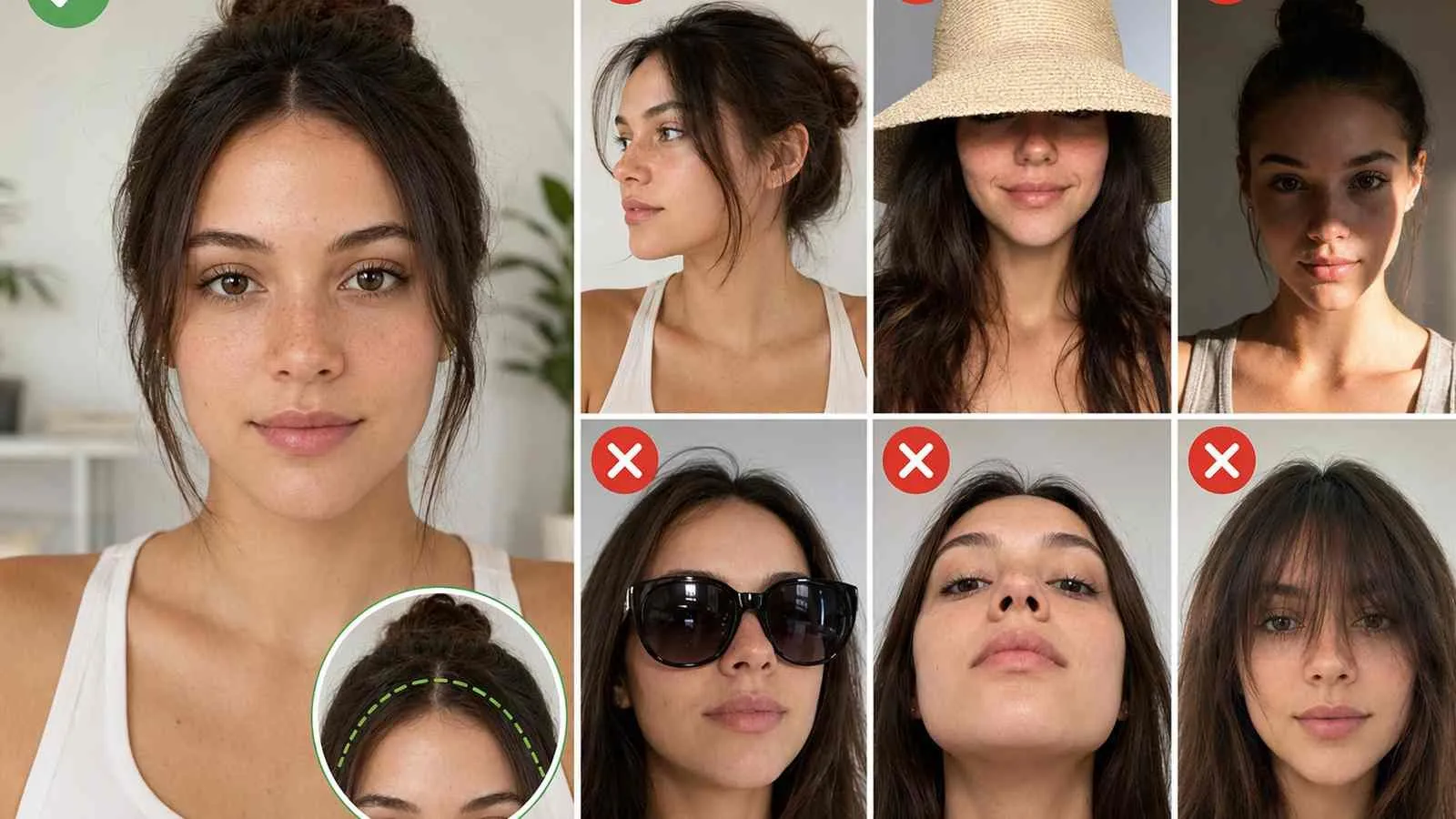
Better source photographs reduce avoidable ambiguity. YouCam’s curtain-bangs guidance recommends a well-lit, front-facing photograph with the forehead and hairline visible, and warns against hats, heavy shadows, side angles, and sunglasses.
Use a neutral comparison photo, then test another view
Start front-facing because it makes fringe width and symmetry easier to compare. Avoid tilting your chin sharply or photographing your face extremely close to the camera.
After selecting a favorite, try a second ordinary photograph. You are looking for whether the same style still appeals—not expecting two generated images to prove exact consistency.
Give the editor a clear forehead boundary
Existing bangs or front layers can obscure the area being changed. Perfect Corp.’s hairstyle-app guide reports less precise boundaries in its publisher-authored test when hair already covered part of the forehead.
If that happens, take another photo with the front section moved aside. BeautyPlus accepts photographs with or without existing bangs, but acceptance does not guarantee an equally clean boundary.
Light the face without erasing hair detail
Use even illumination rather than a strong overhead shadow or bright light behind your head. Keep the source photo free of aggressive smoothing and beauty effects.
Inspect:
- Individual strands near the forehead.
- The connection between fringe and scalp.
- The boundary around eyebrows and temples.
- Color continuity with the rest of your hair.
- Any unexpected changes to skin or facial features.
Match the correction to the problem
| Unrealistic result | What to try next |
|---|---|
| Fringe looks detached from the scalp | Use a clearer hairline photo; refine the selected region |
| Face or eyebrows changed | Add preservation instructions; reject the distorted result |
| Curly hair becomes straight | Explicitly request existing texture or use a closer reference |
| Bangs are much too dense | Ask for lighter coverage and separated strands |
| Entire haircut changes | Restrict the edit to the fringe and preserve length |
| Small preview looks good, enlarged image does not | Generate again rather than judging from the thumbnail |
Keep developer limits separate from consumer instructions
For a developer integrating a generator, Perfect Corp.’s bangs API overview specifies one fully visible face, JPEG/JPG/PNG input below 10 MB, a longest side no greater than 1,024 pixels, and face width of at least 128 pixels.
Those are API-specific requirements, not universal upload rules for every consumer tool. The same documentation lists errors involving face angle, landmarks, pose, invisible shoulders, very short hair, and bald input—useful evidence that source-image suitability has real boundaries.
Choosing a Style for Your Face Shape, Hair Texture, and Daily Routine
Use face shape to organize experiments, not to declare certain bangs forbidden. Your hair growth, texture, density, and willingness to style the fringe are more practical constraints than a rigid face-shape chart.
Translate face-shape advice into visible comparisons
Instead of searching for one mandatory style for your face shape, ask:
- Do I prefer more or less forehead coverage?
- Does a straight edge or diagonal line appeal to me?
- Do I want an open center or continuous fringe?
- Should the sides connect closely to my current layers?
Compare those choices on the same photo. Your preference may differ from a generic chart, and a generated result cannot settle cutting feasibility.
Fine hair: account for the section used to make bangs
Matrix’s professional bangs guide says fine hair does not automatically rule out bangs when the stylist accommodates the texture.
Ask how much hair would need to be brought forward to create your preferred density. A filter can add a full fringe without showing the corresponding change elsewhere in the haircut.
A lighter preview is worth testing alongside a dense one, especially if retaining fullness around the sides matters to you.
Curly and wavy hair: evaluate the shape without trusting placement
YouCam’s curtain-bangs FAQ notes that curly and wavy hair can shrink while drying. Treat the preview as an indication of shape rather than guaranteed everyday placement.
Use a photo showing your usual dry texture and ask the generator to preserve it. Facetune explicitly advertises curly bangs, but that does not establish how precisely it will reproduce your curl pattern.
Bring your preferred result and an unedited dry-hair photo to the consultation.
Cowlicks: ask about effort, not only appearance
Hair.com’s stylist guidance warns that a front-hairline cowlick can make a fringe require daily restyling. The filter may generate a smooth downward fall even when your hair naturally separates or lifts.
Ask which direction, length, or shape works with the growth pattern. Describe the amount of styling you are willing to do rather than assuming the generated finish will occur naturally.
Decide whether the maintenance fits your routine
Matrix advises expecting frequent trims to maintain bangs. Before choosing, consider whether you want to arrange those trims and whether you normally style your front hair each morning.
YouCam’s generator guidance also states that previews cannot predict grow-out or thickness after styling. A beautiful simulation answers an appearance question; your stylist helps answer the maintenance question.
Save Your Favorite Looks and Discuss Them With Your Hairstylist
A useful shortlist contains an original photo, a preferred result, and one alternative—not dozens of unlabeled images.
Save the reason you like each result
Keep a small note with every favorite:
| Image | What I like | What needs a reality check |
|---|---|---|
| Curtain option | Open center and longer sides | Natural part and styling effort |
| Wispy option | Light forehead coverage | Available density |
| Blunt option | Defined eyebrow-length edge | Cowlick behavior and trim upkeep |
Facetune recommends bringing screenshots to a hairstylist as visual references. Showing the original alongside the edit makes unintended changes easier to spot.
A useful consultation request is:
I like the opening and length in this preview, but I want a version that works with my natural texture and usual routine. What would need to change, and how much styling would it require?
Check privacy before uploading or sharing
Crop out other people and unrelated personal details. Use photographs you own or have permission to edit.
BeautyPlus’s May 2026 privacy policy says cloud editing uploads photographs to its servers and receives photograph EXIF metadata. YouCam’s June 2026 consumer privacy policy includes submitted photographs, videos, and prompts among collected data.
Do not assume a browser tool processes everything on your device or immediately deletes every upload.
Turn the preview into a decision
Your next step is to choose a general shape, verify that the image preserves your features, and ask a stylist to translate it into real hair. Start with YouCam’s bangs presets or Fotor’s custom editor, then compare your shortlist against texture, growth pattern, and maintenance.
The best outcome is not a perfectly convincing generated portrait. It is a clearer conversation before the cut.
How to Build an App Like This with Tencent RTC
For developers creating a camera-based beauty experience, Tencent RTC Beauty AR provides a related foundation. Its Web Beauty AR SDK documents browser-camera capture, skin retouching, filters, makeup effects, and background blur or replacement. These documented capabilities do not establish a ready-made bangs simulator; generative fringe replacement would require a separately verified component.
Use the Beauty AR documentation to check capabilities and platform limits. Then:
- Open Tencent RTC AI Agents Skills and follow the repository instructions to load applicable product and platform Skills into your AI coding assistant.
- Describe your existing project, stack, camera-preview scenario, and required effects.
- Ask the assistant to integrate the documented capabilities, then review permissions, credentials, interaction behavior, and failure recovery.
A suitable request is: “Inspect my existing React beauty-preview project, use applicable Tencent RTC AI Agents Skills, and explain which camera effects are supported. Keep any separate bangs generator clearly identified.”
FAQ
Can I use a bangs filter without downloading an app?
Yes. YouCam’s browser bangs page supports desktop and mobile uploads, while its broader generator explicitly requires no app installation. Check account and export conditions before generating.
Is there a completely free bangs filter?
Some tools offer introductory or daily credits, but “free” does not establish unlimited generation and saving. YouCam’s broader browser generator provides five initial credits at two credits per style; Facetune advertises a seven-day trial.
What photo should I use to see what I look like with bangs?
Use a clear, roughly front-facing portrait with even lighting and a visible forehead and hairline. Avoid hats, sunglasses, strong shadows, and hair covering the edit area.
Can I try bangs on curly hair?
Yes, but the result is a visual experiment. Request your natural texture and use a dry-hair photo. Curl shrinkage and growth patterns mean the generated length may not match everyday placement.
Why does my bangs preview look unrealistic?
The source photo may obscure the hairline, the selected region may be unsuitable, or the generator may alter your face or texture. Improve the source photo and describe only the fringe change you want.
Can a curtain bangs try on tell me what to ask my stylist for?
It can clarify the center opening, approximate length, density, and side shape you prefer. Ask your stylist to adapt those features to your actual hair rather than reproduce every generated strand.
Does a realistic bangs filter guarantee that the haircut will suit me?
No. It helps compare appearance, but it cannot guarantee density, cowlick behavior, styling effort, or grow-out. Use the preview as a reference alongside your stylist’s assessment.