





Adding a free live chat widget to your website is one of the fastest ways to increase conversions, capture leads, and improve customer satisfaction. Research from Forrester shows that visitors who chat are 2.8x more likely to convert than those who do not. Yet many businesses hesitate because they assume live chat is expensive – it does not have to be.
This guide covers everything you need to know about free live chat widgets: which ones are genuinely free, how to install them on any platform, and how to choose the right one for your website.
What Is a Free Live Chat Widget?
A free live chat widget is a small chat window embedded on your website that lets visitors message you in real time – at no cost. Most free widgets include:
● A floating chat button in the corner of your website
● A chat window that opens when visitors click it
● Real-time messaging between visitors and your team
● Offline message capture when you are not available
● Basic customization (colors, welcome message, position)
The key distinction is whether “free” means genuinely free with full features, or free-with-limitations that push you toward a paid plan.
How Free Live Chat Widgets Make Money
Understanding business models helps you avoid surprises:
Model | What It Means | Examples |
Truly free | Core features are free, no branding, no limits | |
Free with branding | Full features free, but shows “Powered by…” badge | Tawk.to, Tidio, Crisp |
Freemium | Free tier with usage caps; upgrade to remove limits | Tidio (50 AI convos), Crisp (2 agents), Freshchat (limited features) |
Free trial | Full access for 7-14 days, then pay | Intercom, LiveChat, Zendesk |
The hidden cost most people overlook is branding. If your widget shows “Powered by Tawk.to” and you want it removed, that costs $19/month ($228/year). Knocket is the only option that gives you a full-featured widget with zero branding at no cost.
Top 5 Free Live Chat Widgets Compared
Feature | |||||
Price | 100% Free | Free (with branding) | Freemium | Freemium | Free with CRM |
No branding | Yes | $19/month | Yes (free) | Yes (free) | No (free plan) |
Live chat | Yes | Yes | Yes | Yes | Yes |
Offline forms | Yes | Yes | Yes | Yes | Yes |
Social links | WhatsApp, Instagram, Telegram, Messenger | No | No | No | No |
Calendly scheduling | Yes | No | No | No | HubSpot scheduler |
Script size | < 50KB | 749KB | ~300KB | ~200KB | Heavy |
AI chatbot | Via open-source plugin | $29/month | 50 convos/month | Basic | Basic bot |
Setup time | 5 minutes | 10 minutes | 5 minutes | 5 minutes | 15 minutes |
Knocket – Best Free Live Chat Widget Overall
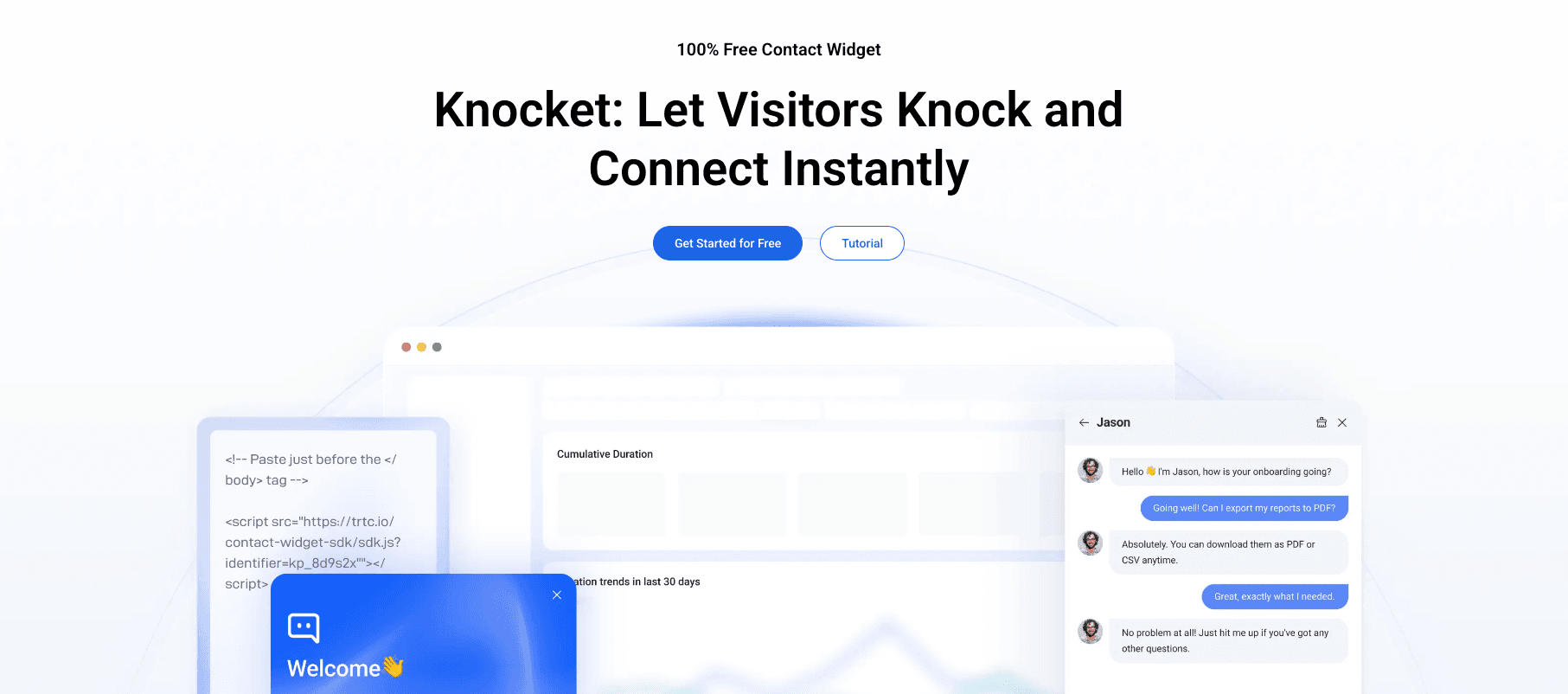
Knocket is the most complete free live chat widget available. It includes real-time chat, offline forms, social link aggregation (WhatsApp, Instagram, Telegram, Messenger), Calendly scheduling, and full brand customization – all free, with no branding badge and no conversation limits.
Why it stands out:
● Zero branding – your widget shows only your business name and logo
● Social link aggregation lets visitors contact you through their preferred channel
● Calendly integration built in for appointment booking
● Lightweight script (< 50KB) that does not slow down your site
● Powered by Tencent Cloud infrastructure with 99.9% uptime
● GDPR compliant, ISO 27001 certified
Best for: Small businesses, freelancers, and developers who want a professional chat widget at zero cost.
Tawk.to – Best for Unlimited Volume
Tawk.to offers unlimited chats, unlimited agents, and unlimited chat history for free. The trade-off is a mandatory branding badge and a heavy 749KB script.
Best for: Businesses that need unlimited agent seats and chat volume and do not mind the branding badge.
Tidio – Best for AI Chatbot Testing
Tidio includes 50 AI chatbot conversations per month on its free plan. Good for testing AI automation before committing to a paid plan.
Best for: E-commerce businesses that want to try AI chatbot responses.
Crisp – Best for European Businesses
Crisp offers a clean interface with 2 free agent seats. GDPR compliant by default as a French company.
Best for: Small European teams that prioritize GDPR compliance.
HubSpot Live Chat – Best with CRM
HubSpot Live Chat is free with a HubSpot account. Chat conversations automatically link to CRM contact records.
Best for: Businesses already using HubSpot’s CRM ecosystem.
How to Install a Free Live Chat Widget
Method 1: Direct Script Installation (Any Website)
The fastest way to add a live chat widget is by pasting a script tag into your website’s HTML. This works for any website, regardless of platform.
Step 1: Sign up for your chosen widget and copy the installation script from the dashboard.
Step 2: Open your website’s HTML and find the closing </body> tag.
Step 3: Paste the script just before </body>.
For Knocket, the installation looks like this:
<!-- Knocket Widget -->
<script src="https://knocket.js?widget_id=YOUR_WIDGET_ID" async></script>
<!-- End Knocket Widget -->
Step 4: Save and publish. Your widget appears immediately.
Method 2: WordPress Installation
For WordPress sites, you have two options:
Option A: Using a script plugin
1. Install a plugin like WPCode or Header Footer Code Manager
2. Add the chat widget script to the site-wide injection area
3. Activate – the widget appears on all pages
Option B: Editing your theme
1. Go to Appearance > Theme File Editor
2. Open footer.php
3. Paste the script before </body>
4. Save changes
Method 3: Shopify Installation
1. Go to Shopify Admin > Online Store > Themes
2. Click “Actions” > “Edit code”
3. Open theme.liquid
4. Paste the script before </body>
5. Save
Method 4: React / Next.js Installation
For React and Next.js applications, use the next/script component:
import Script from 'next/script' export default function Layout({ children }) { return ( <> {children} <Script src="https://knocket.js?widget_id=YOUR_WIDGET_ID" strategy="lazyOnload" /> </> ) } The lazyOnload strategy ensures the chat widget loads after your page content, preventing any impact on Core Web Vitals.
Method 5: Google Tag Manager
If you use Google Tag Manager, you can inject the chat widget script without touching your website code:
1. Go to your GTM container
2. Add a new Custom HTML tag
3. Paste the widget script
4. Set the trigger to “All Pages”
5. Publish the container
How to Configure Your Free Live Chat Widget
After installation, configure these settings to maximize conversions:
Set Your Business Hours
Define when your team is available. When you are offline, the widget automatically shows an offline form instead. This prevents visitors from starting chats that go unanswered.
Write a Specific Welcome Message
Avoid generic greetings like “How can I help you?” Instead, write a message that offers specific value:
● Bad: “Hi! How can I help?”
● Good: “Questions about our pricing? I’m here to help you find the right plan.”
● Good: “Need help choosing a template? Ask me anything.”
Customize Colors and Branding
Match your widget to your website’s brand colors. A widget that looks like it belongs on your site builds trust. With Knocket, you can customize the primary color, launcher icon, widget title, and theme (light or dark) – all free.
Add Social Links
If you use Knocket, add your WhatsApp, Instagram, Telegram, and Messenger links to the widget. This gives visitors multiple ways to reach you, increasing the chance they will make contact.
Enable Calendly Scheduling
For service businesses, embedding your Calendly link in the chat widget eliminates scheduling friction. Visitors book appointments directly from the widget without switching tabs or sending emails.
Common Mistakes When Setting Up a Free Live Chat Widget
Leaving the Default Settings
Most widgets ship with generic welcome messages and default colors. Taking 5 minutes to customize these makes your widget look professional and increases engagement.
Not Setting Business Hours
If you leave your chat widget “online” 24/7 but only respond during business hours, visitors who chat at midnight will wait indefinitely. Always configure working hours or enable offline forms.
Choosing a Widget That Slows Your Site
Some free chat widgets are surprisingly heavy. Tawk.to’s script is 749KB, which can add nearly a second to your page load time. If page speed matters for your SEO or user experience, choose a lightweight option like Knocket (< 50KB, async loading).
Ignoring the Branding Badge
A “Powered by Tawk.to” badge on your website tells visitors you are using a free tool. For some businesses this is fine; for others, it undermines credibility. If branding matters to you, use a widget like Knocket that has no branding at any plan level.
Free Live Chat Widget FAQ
Is there a completely free live chat widget?
Yes. Knocket is 100% free with no branding, no conversation limits, no agent limits, and no hidden costs. Tawk.to is also free but includes a mandatory branding badge.
How do I add a free live chat widget to my website?
Copy the widget’s script tag from the dashboard and paste it before the closing </body> tag on your website. Most widgets, including Knocket, activate immediately after installation.
Which free live chat widget has no branding?
Knocket is the only free live chat widget with zero branding at all plan levels. Tawk.to charges $19/month to remove its branding badge.
Can I use a free live chat widget on WordPress?
Yes. All major free chat widgets work on WordPress. You can install them via a script injection plugin or by adding the script to your theme’s footer.php file.
Does a free live chat widget slow down my website?
It depends on the widget. Tawk.to’s 749KB script can noticeably impact page speed. Knocket’s script is under 50KB and loads asynchronously, so it does not block page rendering.
Can I get a free live chat widget with WhatsApp integration?
Knocket includes WhatsApp social link buttons in the widget for free. Chatwoot (self-hosted) also supports WhatsApp integration at no cost.