



Introduction
- Use LightX for a prompt-only nose piercing filter, YouCam for brush-selected photo edits, or Bizo Mobile’s Android editor for manual jewelry positioning.
- For a live-camera effect, start with Snapchat’s publicly listed piercing Lenses; availability can vary.
- Compare a small nostril stud, a nostril hoop, and a centered septum ring on the same unfiltered selfie.
- “Free” can mean introductory credits, limited exports, or an ad-supported editor—not unlimited generation.
- A virtual preview shows an aesthetic possibility, not suitable piercing anatomy, jewelry measurements, or healing outcomes.
Last checked 2026-11-16
For the most useful nose piercing filter preview, upload a clear, front-facing selfie and create separate versions with a stud, hoop, and septum ring. Choose a brush-based editor when placement matters, a prompt-only tool for quick style exploration, or a manual editor when you want to move and resize the jewelry yourself. Keep your original photo alongside every result so you can spot unwanted changes to your nose, skin, or facial proportions.
How a Nose Piercing Filter Lets You Preview Jewelry
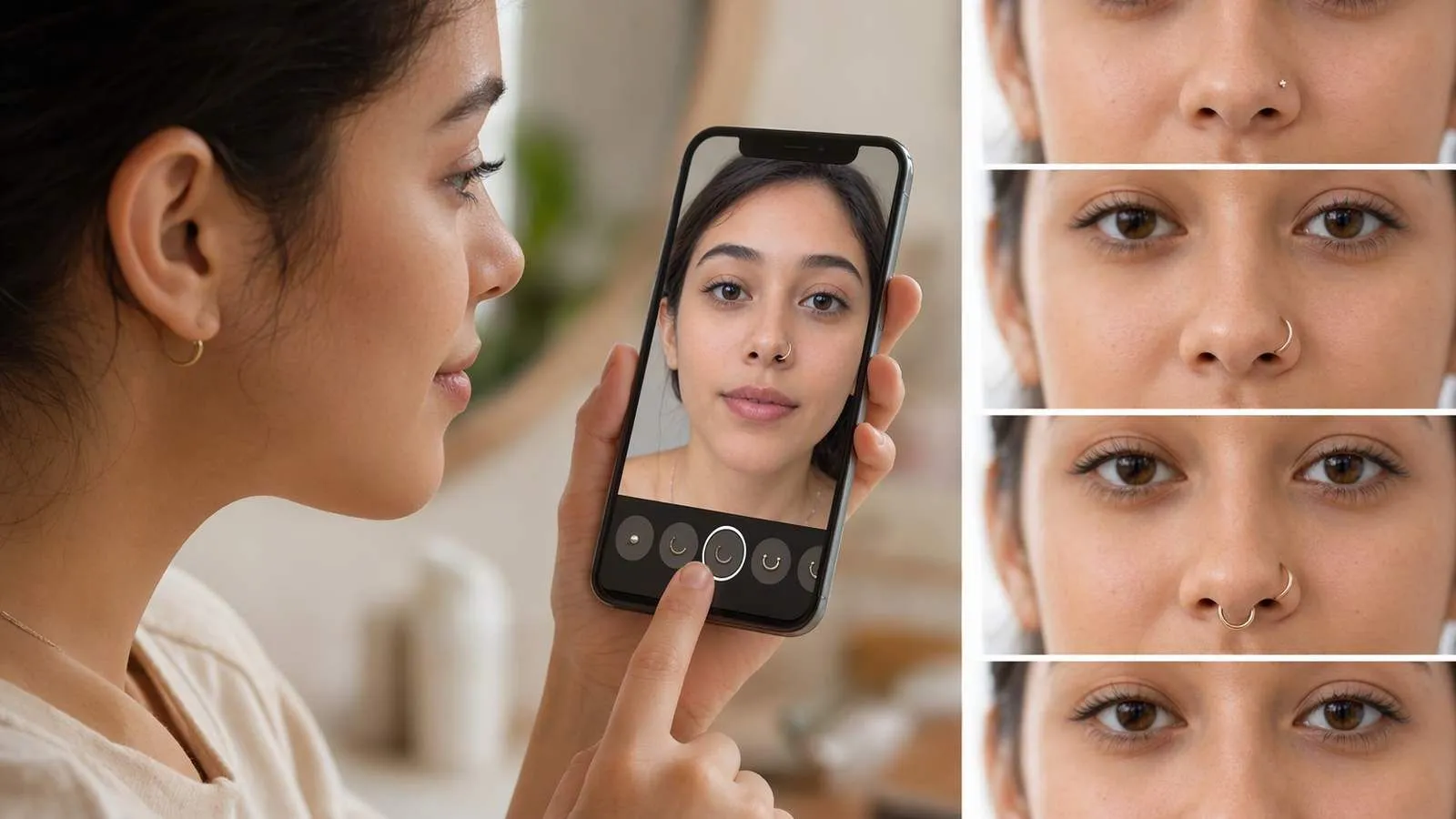
A nose piercing filter digitally adds jewelry to a portrait or camera view so you can explore a piercing look without getting pierced. Perfect Corp’s piercing-filter overview describes this as a way to preview jewelry on your face.
That preview can answer a practical aesthetic question: “Do I prefer a subtle metallic point, a visible hoop, or jewelry centered beneath my nose?” It cannot answer whether a particular placement is physically suitable.
Four workflows that produce different results
The phrase virtual nose piercing try on covers several editing approaches:
| Approach | What you control | Best use | Main limitation |
|---|---|---|---|
| Prompt-only AI generation | Jewelry description, color, and approximate size | Exploring several looks quickly | Location and surrounding facial details may change |
| Brush-selected AI replacement | The target area plus a jewelry description | Adding jewelry to a chosen nostril or septum area | A poorly chosen selection can produce an inaccurate edit |
| Manual jewelry placement | Position, rotation, and size of an overlay | Comparing placement without repeated AI generation | A flat overlay may not match perspective or lighting |
| Live-camera Lens | The selected effect and camera framing | Seeing a look while moving your head | The preset may include makeup or face adjustments |
These are not interchangeable. A piercing photo editor that generates a still image does not necessarily track jewelry continuously while you move. Likewise, a live nose ring filter may offer less control over the exact jewelry than a photo editor.
Know which piercing you are previewing
A nostril preview places a stud or hoop on a side of the nose. A septum preview places jewelry centrally between the nostrils, as explained in Perfect Corp’s septum-filter guide.
Use those location terms in your request. “Add a nose ring” leaves room for interpretation; “add a small silver hoop to the nostril on the viewer’s left” is more specific.
A nose stud filter is useful for comparing subtle looks. A septum piercing filter explores a different focal point: jewelry beneath the center of the nose rather than on one side. Neither should be treated as a diagram telling a piercer where to perform a procedure.
Nose Piercing Filter Tools Compared: Jewelry Options, Placement Controls, and Cost
There is no verified universal winner for output accuracy. The strongest choice depends on whether you need fast generation, precise repositioning, or a live preview.
For most users, start with LightX for simplicity, YouCam for localized editing, or Bizo Mobile for manual adjustment. Use Snapchat when seeing the effect move with your face matters more than customizing an individual piece.
Tool selection matrix
| Tool | Jewelry options documented | Placement workflow | Platform | Free-use and export considerations |
|---|---|---|---|---|
| YouCam Makeup / Online Editor | Custom stud and ring descriptions; preset piercing Looks | Brush the area in AI Replace, then describe jewelry | iPhone, Android, browser | Online homepage advertises five introductory credits; watermark-free AI Replace downloads may require a subscription |
| LightX | Studs, hoops, septum rings; material, color, and size prompts | Prompt-only; no brushing required | Browser, with iOS and Android app links | Web Starter lists five free AI credits; export resolution depends on plan |
| Fotor | Studs, hoops, septum rings, gold-ring looks | Brush-selected AI replacement | Online editor | Some generative features consume credits; unlimited free piercing edits are not established |
| Media.io | Gold hoops, silver studs, diamond pins, septum rings, double piercings | Upload, brush, and describe jewelry | Browser | Introductory trial credits; later use requires credits or a subscription |
| Bizo Mobile Piercing Photo Editor | Selectable jewelry, with optional paid packs | Manually rotate, resize, and position | Android | Mostly free according to the developer; ads and in-app purchases |
| Snapchat piercing Lenses | Depends on the Lens; public nose-piercing and silver-ring listings exist | Face Lens selected from the camera interface | Snapchat app | Confirm the effect can launch on your account; availability changes |
Best for simple prompts: LightX
LightX’s dedicated nose piercing filter accepts a photo and a text description without requiring you to brush the nose area. It explicitly advertises studs, hoops, and septum rings, with prompts controlling material, color, and size.
This makes it a sensible first stop if you want to ask for “a tiny silver nostril stud” and see a result without learning selection tools. The tradeoff is that text-only placement can be less direct than pointing to a specific spot.
Its Web pricing page lists five free Starter AI credits and 512-pixel JPG exports, compared with larger exports on Pro. The nose-filter page advertises watermark-free sharing, but that should not be read as unlimited free, full-resolution generation. Daily credit replenishment is not established for this tool.
Best for choosing the edit area: YouCam
Perfect Corp documents the mobile route as Photo Edit → Edit → AI Replace in its YouCam nose-piercing guide. Brush the desired location and describe the jewelry.
The YouCam Makeup app hub lists iPhone and Android availability. For browser editing, the YouCam Online Editor advertises five introductory credits, while its AI Replace interface presents subscription prompts for watermark-free downloads.
YouCam also documents piercing effects through existing makeup Looks. Choose that route for a preset aesthetic, but use custom AI Replace when you need a specific jewelry request. Exact preset names and menu positions can change.
Other useful routes: Fotor, Media.io, and Bizo Mobile
Fotor’s nose-piercing page identifies its AI replacer as the underlying tool. Its generative-fill instructions use an upload, brush, describe, and generate workflow. Fotor’s credit explanation confirms that some generative features consume credits.
Media.io’s nose-piercing guide follows a similar localized-edit approach and provides several jewelry prompt examples. Its marketing about avoiding complex masking does not mean you can skip brushing: the documented steps still require selecting the area.
For direct repositioning, Bizo Mobile’s Android Piercing Photo Editor lets users select jewelry, rotate and resize it, then save or share. That is useful when repeated AI generations keep putting a ring in the wrong place.
Best for motion: Snapchat
Snapchat has public listings for its own Nose Piercing Lens and Silver Nose Ring Lens. The latter includes septum and virtual-piercing tags.
A public listing does not guarantee that every account or device can launch the effect. Also, the Nose Piercing listing includes smoothing and color-modification tags, so it is not advertised as a jewelry-only transformation.
How to Try a Nose Piercing on Your Photo Step by Step
The following workflow keeps your comparisons consistent and limits wasted retries.
Step 1: Take a useful source photo
Use a front-facing portrait with your entire nose visible. Look toward the camera, keep hair away from the nostrils, and avoid an existing beauty filter.
Face a window or another soft light source rather than placing a bright light behind you. You need enough detail to distinguish the nostril edge, nose tip, and area beneath the nose.
Save this untouched image. Reuse it for every style rather than comparing a stud on one selfie with a septum ring on another.
Step 2: Pick the workflow that matches your question
If your question is “Which jewelry style do I like?”, prompt-only generation is a reasonable starting point.
If it is “How would jewelry look on this side of my nose?”, choose brush-selected AI replacement.
If it is “Can I move that ring slightly?”, a manual jewelry editor gives more direct control. If it is “How does this look while I turn my head?”, use a live-camera Lens.
Step 3: Upload a supported file
LightX documents JPEG and PNG uploads on its nose-filter page.
The Media.io AI Replace interface accepts JPG, JPEG, PNG, and WEBP, with files below 50 MB and resolution under 3840 × 2160. Those are Media.io’s limits, not universal limits for all editors.
If your phone produces an unsupported format, export a copy in a format the chosen tool accepts. Do not repeatedly compress the same image: lost facial detail makes a placement comparison less useful.
Step 4: Select the location or describe it clearly
In a brush-based tool, select the intended jewelry area rather than the whole nose. Leave enough room for a hoop’s visible curve, but avoid including large areas of cheek or upper lip.
In a prompt-only tool, name the location explicitly. For mirrored selfies, use viewer’s left or viewer’s right, then check the result visually. Anatomical left-versus-right interpretation is not verified across these tools.
Step 5: Request one piece at a time
Start with a plain design so you can judge placement before decorative details.
Useful natural-language requests include:
- “Add one tiny polished silver nostril stud on the viewer’s left. Keep the face, nose shape, skin texture, and lighting unchanged.”
- “Add one small gold hoop through the nostril on the viewer’s right, with a subtle metallic highlight. Do not add other jewelry.”
- “Add a small silver circular barbell centered beneath the nose, with two visible ends. Preserve the original facial proportions.”
These are requests, not guarantees. An AI piercing simulator may still change nearby pixels or interpret the jewelry differently.
Step 6: Check the result before downloading
Compare the edit with the original. Look for a changed nostril outline, smoothed skin, altered lip shape, extra jewelry, or a ring that appears pasted across the nose instead of passing through a plausible location.
Correct obvious placement problems before comparing aesthetics. An attractive but incorrectly positioned ring is a poor decision aid.
Step 7: Save a labeled comparison set
Keep separate files named for the jewelry and side, such as “silver-stud-viewer-left” and “gold-hoop-viewer-right.” Include the original in the same folder.
Inspect the editor’s download conditions before spending credits on many variations. A preview may be available at no charge while a watermark-free or larger download is restricted.
Compare Nostril Studs, Nose Hoops, and Septum Rings
Make the first comparison about style, not whether one generated image is more polished than another. Use the same portrait, similar metal colors, and restrained jewelry sizes.
| Preview style | Visual question it answers | What to inspect | Common misleading result |
|---|---|---|---|
| Nostril stud | Do I like a small point of sparkle or metal on one side? | Side, apparent size, highlight, contact with skin | A bright floating dot that does not read as jewelry |
| Nostril hoop | Do I prefer a visible curved outline around a nostril? | Curve, perspective, entry area, overlap | A flat circle pasted over the nose |
| Septum ring | Do I like a centered accent beneath the nose? | Centering, symmetry, visible ends, separation from upper lip | Jewelry anchored too low or attached to the lip |
Start with a nostril stud
A stud makes it easier to isolate the effect of adding a small accent. Compare a plain metallic bead with a gemstone-style stud, keeping the apparent size similar.
If a nose stud filter makes the gem much brighter than the original photograph’s lighting supports, request a softer highlight. Otherwise, you may be choosing the most dramatic rendering rather than the jewelry style.
Then try a nostril hoop
A hoop introduces perspective and overlap. One part may disappear behind the nostril while the visible arc catches light.
Inspect its attachment point and curve. If the ring crosses the nose tip or floats beside the face, discard that result rather than using it to decide whether hoops suit you.
Start small, then compare a more visible version. The image can show a visual preference; it cannot establish the correct physical diameter.
Finally, compare septum styles
For a septum piercing filter, specify whether you want a continuous ring or an open circular-barbell look. A generic “septum ring” request may produce either.
Check that the jewelry sits beneath the center of the nose rather than on the philtrum or upper lip. An open design should have visible ends that belong to the same piece.
Treat face-shape recommendations as suggestions
YouCam’s online piercing guide includes a chooser for round, oval, square, and heart face shapes, with ear or nose as the target area.
Use such suggestions to generate alternatives, not rules. No objective suitability test establishes that one face shape must wear studs while another must wear hoops. Compare how the jewelry relates to your own preferences, existing accessories, and everyday look.
Adjust Placement, Jewelry Size, and Metal Color for a Realistic Preview
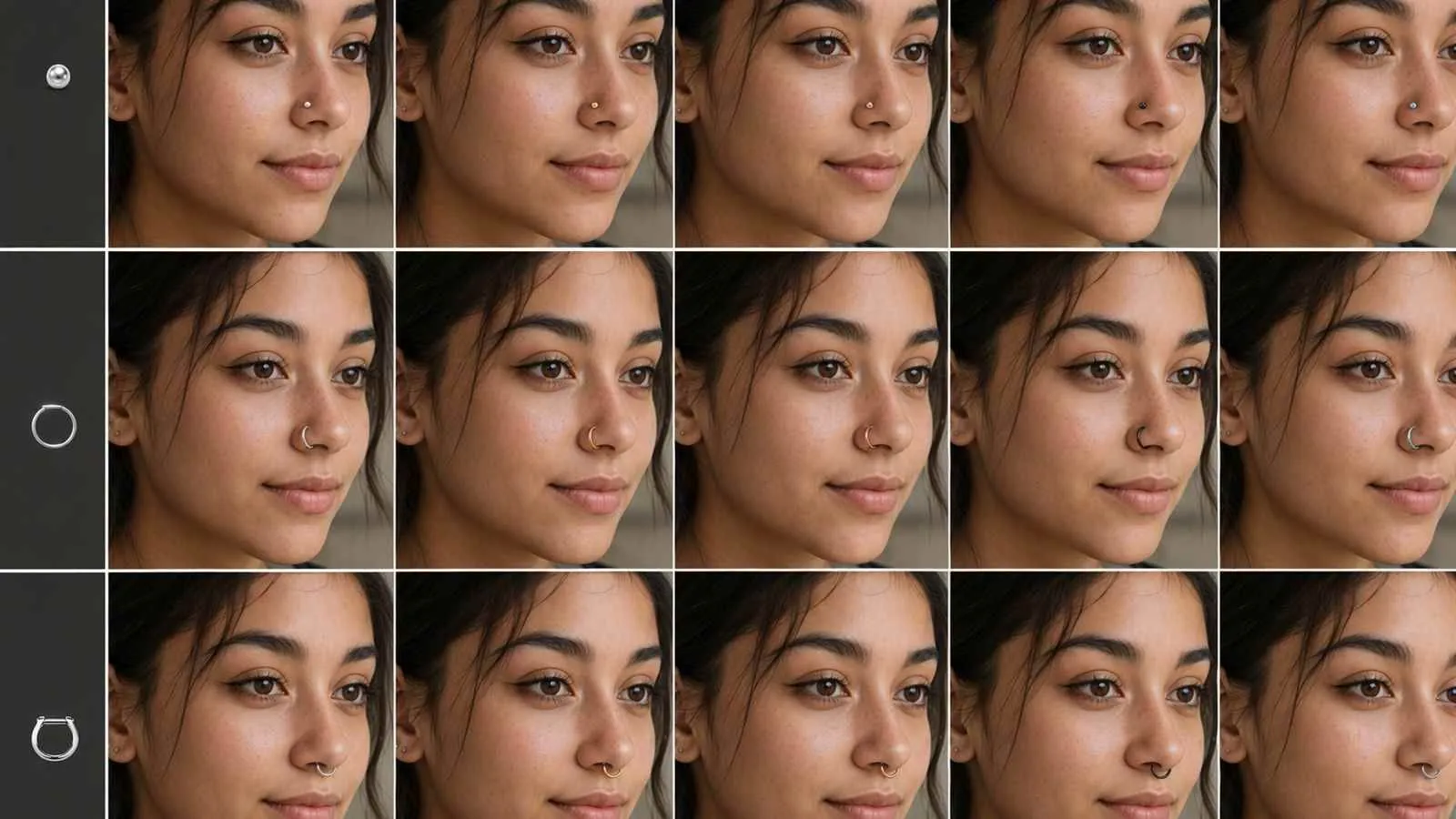
A convincing nose jewelry preview depends on consistent placement, perspective, and lighting—not merely a detailed piece of jewelry.
Resolve the mirrored-selfie problem first
Write down whether the source photo is mirrored. If you cannot tell, use a familiar asymmetric feature or another known reference.
When comparing both sides, duplicate the original and label the versions by viewer’s left and viewer’s right. Do not rely on an editor interpreting “my left” correctly.
After export, check orientation again. A reversed image can make your saved comparison contradict the placement you intended.
Change one variable at a time
Use this order:
- Choose stud, hoop, or septum jewelry.
- Establish location and orientation.
- Compare small and more prominent versions.
- Compare metal colors.
- Add decorative details only after the basic shape works.
If you change location, size, color, and facial angle together, you cannot tell which change improved the result.
For AI edits, return to the original rather than repeatedly editing an already generated face. This reduces the chance of judging accumulated facial changes instead of jewelry.
Use relative size, not invented measurements
Ask for “tiny,” “subtle,” or “more prominent” when exploring aesthetics. A request for a specific millimeter diameter does not make the image physically calibrated.
The Association of Professional Piercers’ initial-jewelry guidance states that length, diameter, gauge, and style must suit the person’s anatomy and piercing placement. Those decisions require more than a portrait.
Compare metal appearance separately from material suitability
Try silver-colored, yellow-gold-colored, and rose-gold-colored versions under the same photo lighting.
These previews compare color appearance. They do not confirm alloy composition, surface quality, or suitability for a fresh piercing. A rendered “gold” ring is a color description, not a product specification.
Use a five-point visual check
Before treating an image as a useful comparison, confirm:
- Location: The jewelry is in the requested area.
- Perspective: Its curve follows the face angle.
- Overlap: Parts that should be obscured do not remain fully visible.
- Lighting: Highlights belong to the scene.
- Identity: The nose and surrounding face remain recognizably unchanged.
This checklist is more useful than choosing whichever AI image looks most glamorous.
Troubleshooting: Misaligned Jewelry, Poor Lighting, and Side-Angle Photos
Perfect Corp’s piercing-filter overview reports better placement in its photo tests with clear, front-facing images and occasional errors on angled photos. That is a publisher-reported observation, not an independent accuracy benchmark.
Fix common photo-editing problems
| Problem | What to check | Practical correction |
|---|---|---|
| Jewelry lands on the wrong side | Ambiguous side description or mirrored photo | Specify viewer’s left/right and select that area if brushing is available |
| Ring floats beside the nose | Placement or perspective mismatch | Use a front-facing source; try manual repositioning |
| Nose shape changes | Selection includes too much facial structure | Return to the original and narrow the target area |
| Extra piercings appear | Broad prompt or ambiguous jewelry request | Ask for one piece and explicitly exclude additional jewelry |
| Metal looks flat or unusually bright | Source lighting and generated highlights disagree | Use softer lighting and request a subtle highlight |
| Septum jewelry touches the lip | Target area is too low or the generated piece is oversized | Reposition the selection and request a smaller centered design |
| Result is too soft to inspect | Low-detail input or export limitation | Use a clearer original and check the plan’s export conditions |
Do not fight a difficult side-angle photograph indefinitely
A strong side view hides anatomy that a front-facing portrait exposes. Repeated generation may invent the missing geometry differently each time.
First make a reliable front-facing comparison. Then use a mildly angled second portrait to explore appearance from another view. Keep those comparisons separate: independently generated pictures may not represent the same jewelry size or placement.
For movement, a live-camera effect is a more relevant workflow than generating unrelated still images, although the effect itself still needs visual checking.
When a live Lens is missing
Snapchat’s Lens Explorer instructions direct users to the magnifying-glass icon while the Lens carousel is active. Search for a piercing effect there if a saved link does not open.
Its Face Lens instructions describe selecting a Lens from the camera screen, tapping for a photo, or holding the camera button for video. Snapchat also says Lens availability changes over time.
Older Instagram tutorials are less dependable. Meta discontinued third-party AR effects effective January 14, 2025, as covered in the Meta AR platform shutdown announcement. Do not assume an old creator-made piercing effect remains available.
Before You Decide: What a Virtual Preview Cannot Tell You About a Real Piercing
Use a nose piercing filter to narrow your visual preferences. Then bring a few labeled examples to a professional consultation—not as placement instructions, but as references for the look you like.
Anatomy and initial jewelry need an in-person assessment
The Association of Professional Piercers says a piercing consultation should cover anatomy, jewelry selection, the procedure, potential risks, healing, and aftercare before payment.
A portrait cannot establish suitable tissue, the correct piercing angle, or how initial jewelry should accommodate your anatomy. It also cannot predict discomfort or healing.
The APP’s initial-jewelry guidance distinguishes the fixed piercing location from jewelry that may be changed after successful healing. A decorative ring in your preview is not automatically appropriate initial jewelry.
A face upload deserves a privacy check
Before using an online piercing photo editor, review:
- Whether photos are processed on a server.
- What uploaded images and facial information the policy covers.
- Whether retention and deletion terms are clear.
- Whether the app requests permissions unrelated to editing.
- Whether the notice applies to the consumer product you are using.
YouCam’s consumer privacy policy, effective June 2026, identifies photos, videos, and derivatives including face geometry among the personal-data categories it processes. That does not establish identical handling across other tools.
Bizo Mobile’s Google Play listing contains a developer-provided Data Safety declaration indicating possible sharing of app information, performance information, and device or other identifiers.
Use a cropped portrait without bystanders or unnecessary background details. Do not upload someone else’s face without permission, and do not assume that “browser tool” means images stay on your device.
How to Build an App Like This with Tencent RTC
For developers, Tencent RTC Beauty AR SDK for Web supports browser-camera retouching, face effects, and virtual backgrounds. It is developer infrastructure, not a verified ready-made consumer nose piercing filter.
Custom jewelry effects require authored materials. Tencent RTC Beauty AR Studio documentation describes creating 2D and 3D stickers for SDK use; Tencent RTC Beauty AR provides the broader product context.
To explore this route:
- Open Tencent RTC AI Agents Skills and follow the repository’s instructions to load applicable product and platform Skills into your AI coding assistant.
- Describe your existing project, camera experience, and custom-effect requirements.
- Ask the assistant to check available support before integration, then review camera permissions, credential handling, alignment, and recovery after camera interruption.
A suitable request is: “Inspect my existing browser app and help evaluate Tencent RTC Beauty AR for a custom nose-jewelry preview. Identify required authored materials, preserve facial appearance where possible, and explain how to validate placement during head movement.”
FAQs: Free Try-On Tools, Live Camera Filters, Downloads, and Photo Privacy
Is there a free nose piercing filter?
Yes, several tools offer introductory or ad-supported use. YouCam Online Editor and LightX advertise initial credits, while Bizo Mobile describes its Android editor as mostly free. Check credit consumption, watermark rules, and download restrictions before generating multiple versions.
Which tool lets me try nose jewelry without downloading an app?
LightX, YouCam Online Editor, Fotor, and Media.io provide browser-based photo-editing routes. LightX uses a prompt-only workflow; the documented AI replacement routes for the others involve selecting the area to edit.
Can I use a nose piercing filter on a live camera?
Snapchat has publicly listed nose-piercing Lenses intended for its camera workflow. Confirm that the specific Lens opens on your account. A browser tool that accepts a camera selfie does not necessarily provide continuous live jewelry tracking.
Can I preview a septum ring instead of a nostril piercing?
Yes. LightX, Fotor, and Media.io advertise septum looks, and Snapchat has relevant Lens listings. Specify “centered beneath the nose” and the jewelry shape so the result is not mistaken for a nostril hoop.
Can I download the edited photo without a watermark?
Download conditions vary. LightX advertises watermark-free nose-filter images, but its free-plan export resolution is limited. YouCam’s AI Replace interface presents subscription prompts for watermark-free downloads. Check the final export screen rather than relying only on “free” marketing.
Are uploaded piercing-preview photos private?
Do not assume that they stay on your device. Review the consumer privacy policy for the exact tool and check upload, retention, deletion, and face-data terms. A browser interface or a free trial does not establish local-only processing.
Does a realistic preview show exactly how a real piercing will look?
No. It shows an aesthetic approximation affected by lighting, perspective, generated details, and uncalibrated jewelry size. A professional piercer must assess anatomy, placement, and appropriate jewelry before a real piercing.