





A website chat widget is the small chat window in the corner of a website that lets visitors send messages in real time. It sounds simple, but choosing the right one – and configuring it correctly – can be the difference between a widget that converts visitors into customers and one that they ignore or close immediately.
This guide covers the full lifecycle: what to look for when choosing a chat widget, how to install one on any website platform, how to customize it for maximum conversions, and which mistakes to avoid.
What Does a Website Chat Widget Actually Do?
At its core, a website chat widget provides three functions:
1. Real-time messaging: Visitors type a message, you respond instantly
2. Offline capture: When you are not available, visitors leave their contact information
3. Branded touchpoint: The widget is part of your website experience, not a separate tool
Modern chat widgets have expanded far beyond these basics. The best widgets now include social link aggregation, scheduling integrations, proactive greetings, and AI-powered responses. The key question is: which features do you actually need, and how much should you pay for them?
How to Choose a Website Chat Widget
1. Decide Whether You Need Branding Removal
This is the first and most overlooked decision. Many “free” chat widgets display a “Powered by…” badge on your website. If your business depends on looking professional – and most do – that badge is a problem.
● Tawk.to: Free, but shows “Powered by Tawk.to.” Removal costs $19/month ($228/year)
● Tidio: Free plan has no badge, but limits AI conversations to 50/month
● Crisp: Free plan has no badge, but limits you to 2 agents
● Knocket: Free, no badge, no limits on agents or conversations
If branding removal matters and you want to keep costs at zero, Knocket is the only option that gives you both.
2. Check the Script Size and Page Speed Impact
Your chat widget should not slow down your website. Google’s Core Web Vitals now factor into search rankings, and a heavy chat script can directly hurt your SEO performance.
Widget | Script Size | Loading | Impact on Page Speed |
< 50KB | Async | Minimal | |
~200KB | Async | Low-Medium | |
~300KB | Async | Medium | |
749KB | Async | High | |
Heavy | Async | High | |
Heavy | Async | High |
If your website runs on a slow shared host or serves mobile users on slow connections, script size matters. Choose a lightweight widget.
3. Decide on Social Channel Integration
Do your customers prefer to contact you via WhatsApp? Instagram DMs? Telegram? If so, a chat widget that aggregates social links gives visitors multiple contact options in one place.
Knocket is the only free widget that includes social link aggregation – WhatsApp, Instagram, Telegram, and Messenger links are embedded directly in the chat widget. Other widgets require separate integrations or paid add-ons for similar functionality.
4. Consider Scheduling Integration
If your business books appointments (salons, consultancies, fitness studios, freelance services), a chat widget with built-in scheduling saves time. Instead of exchanging emails to find a time slot, visitors book directly from your website.
Knocket includes Calendly integration for free. HubSpot includes its own scheduler, but only within the HubSpot ecosystem.
5. Evaluate the Free Plan Honestly
Many chat widgets advertise “free” but include hidden limitations:
● Agent limits: Crisp (2 agents), Freshchat (10 agents)
● Conversation limits: Tidio (50 AI conversations/month)
● Feature gates: Most free plans withhold AI chatbot, scheduling, or analytics
● Branding tax: Tawk.to ($19/month), HubSpot (badge on free plan)
Knocket is genuinely free with no agent limits, no conversation caps, no feature gates, and no branding badge. It is the most straightforward free option on the market.
How to Install a Website Chat Widget
On Any HTML Website
1. Sign up for your chosen chat widget
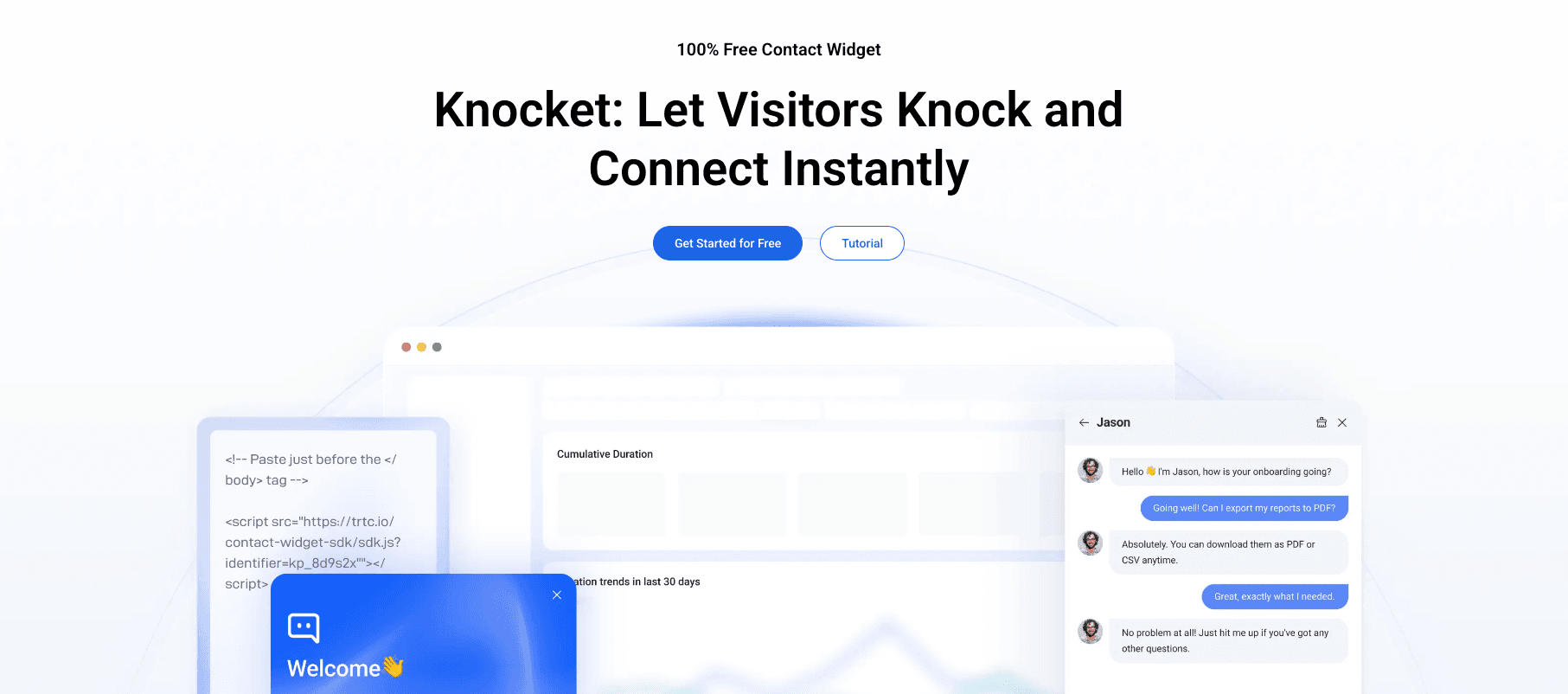
2. Copy the installation script from the dashboard
3. Paste it before the closing </body> tag on every page
4. Save and publish
Example for Knocket:
<script src="https://knocket.js?widget_id=YOUR_WIDGET_ID" async></script>On WordPress
Using a plugin (recommended):
1. Install WPCode or Header Footer Code Manager
2. Add the script to the site-wide footer injection
3. The widget appears on all pages automatically
Editing the theme:
1. Go to Appearance > Theme File Editor
2. Open footer.php
3. Paste the script before </body>
4. Save
On Shopify
1. Go to Online Store > Themes > Actions > Edit code
2. Open theme.liquid
3. Paste the script before </body>
4. Save
On React / Next.js
import Script from 'next/script' <Script src="https://knocket.js?widget_id=YOUR_WIDGET_ID" strategy="lazyOnload" /> On Squarespace
1. Go to Settings > Advanced > Code Injection
2. Paste the script in the Footer section
3. Save
On Wix
1. Go to Settings > Custom Code
2. Click “Add Code”
3. Paste the script and set it to load on all pages
4. Save
On Webflow
1. Go to Project Settings > Custom Code
2. Paste the script in the Footer Code section
3. Save and publish
How to Customize Your Website Chat Widget
Customization is what separates a chat widget that looks like it belongs on your site from one that looks bolted on. Here are the key settings to configure:
Widget Position
Most widgets default to the bottom-right corner, which is standard and expected. If your website has important content in the bottom-right, move the widget to the bottom-left.
Colors and Theme
Match the widget’s primary color to your website’s brand color. Most widgets let you set the accent color for buttons, the chat header background, and the launcher icon. Choose a light or dark theme based on your website’s design.
Knocket provides a visual editor where you preview changes in real time before publishing them to your live widget.
Welcome Message
This is the most important customization. A generic “How can I help?” converts poorly. Write a message that:
● References the page the visitor is on (“Questions about our pricing plans?”)
● Offers specific help (“I can help you find the right plan for your team size”)
● Includes a clear call-to-action (“Ask me anything” or “Book a free consultation”)
Launcher Text and Icon
If your widget shows a launcher button (rather than just an icon), customize the text. Instead of the default “Chat,” use something like “Talk to us” or “Get help now.”
Proactive Greeting
Many widgets can automatically open a greeting after a visitor has been on a page for a set number of seconds. Use this sparingly:
● Set the delay to 10-15 seconds (not immediately)
● Only trigger when your team is online
● Make the message relevant to the current page
● Allow visitors to dismiss it permanently
Business Hours
Configure your working hours so the widget automatically switches between online chat and offline forms. This prevents visitors from starting chats when no one is available to respond.
Top Website Chat Widgets Compared
Feature | |||||
Price | Free | Free (with branding) | Freemium | Freemium | From $74/month |
No branding | Yes | $19/month | Yes (free) | Yes (free) | Yes |
Social links | Yes | No | No | No | Via integrations |
Calendly | Yes | No | No | No | Via integrations |
Script size | < 50KB | 749KB | ~300KB | ~200KB | Heavy |
AI chatbot | Via plugin | $29/month | 50/month free | Basic | Fin AI |
Setup time | 5 min | 10 min | 5 min | 5 min | 30+ min |
Common Mistakes to Avoid
Installing the Widget and Never Configuring It
A default-configured widget with generic text and mismatched colors hurts your brand more than having no widget at all. Spend 10 minutes customizing colors, welcome message, and business hours after installation.
Using a Widget That Slows Down Your Site
A 749KB chat script adds measurable load time to your pages. If you care about SEO rankings and mobile performance, choose a lightweight widget. Knocket at under 50KB is the lightest full-featured option.
Forgetting Mobile Users
Over 60% of web traffic is mobile. Test your chat widget on a phone: the chat window should be easy to open, the text should be readable, and the keyboard should not cover the message input.
Leaving the Chat Online When You Are Not Available
An unanswered chat is worse than no chat at all. Configure business hours so the widget shows an offline form when your team is away.
Ignoring Social Channels
Many visitors prefer to contact you through WhatsApp or Instagram rather than a website chat. A widget that only supports in-browser messaging misses these users. Knocket lets you add social links directly in the widget, giving visitors their preferred contact method.
FAQ
What is the best website chat widget?
Knocket is the best website chat widget for most businesses. It is free, has no branding, includes social links and Calendly scheduling, and loads in under 50KB.
How do I add a chat widget to my website?
Copy the widget’s script tag and paste it before the closing </body> tag on your website. Most widgets activate immediately. For WordPress, use a script injection plugin. For Shopify, add the script to theme.liquid.
Can I customize my chat widget to match my brand?
Yes. Most chat widgets let you customize colors, welcome messages, and launcher text. Knocket provides a visual editor where you can preview changes in real time.
Does a chat widget slow down my website?
It depends on the widget. Tawk.to’s 749KB script can significantly impact page speed. Knocket’s under-50KB async script has minimal impact. Always check the script size before installing.
Is there a free website chat widget with no branding?
Yes. Knocket is 100% free with no branding badge at any plan level. It is the only free widget that offers this.
Ready to install a free, lightweight, zero-branding chat widget on your website? Get started with Knocket